
Signing in and switching apps
You have one account for every app of Office. You sign in once at Accounts, the sign-in service, and you are signed in to Mail, Calendar, Contacts, Meet, Box and Docs.
Signing in
Open any app, Mail for example. If you are not signed in yet, it takes you to Accounts.
- Under Email address, enter your address, for example
anna@example.org, and choose Continue. - Enter your Password and choose Sign in.
- If you have set up two-factor, enter the 6-digit code from your authenticator app, or choose Use a security key.
Accounts then takes you back to the app you wanted to open.
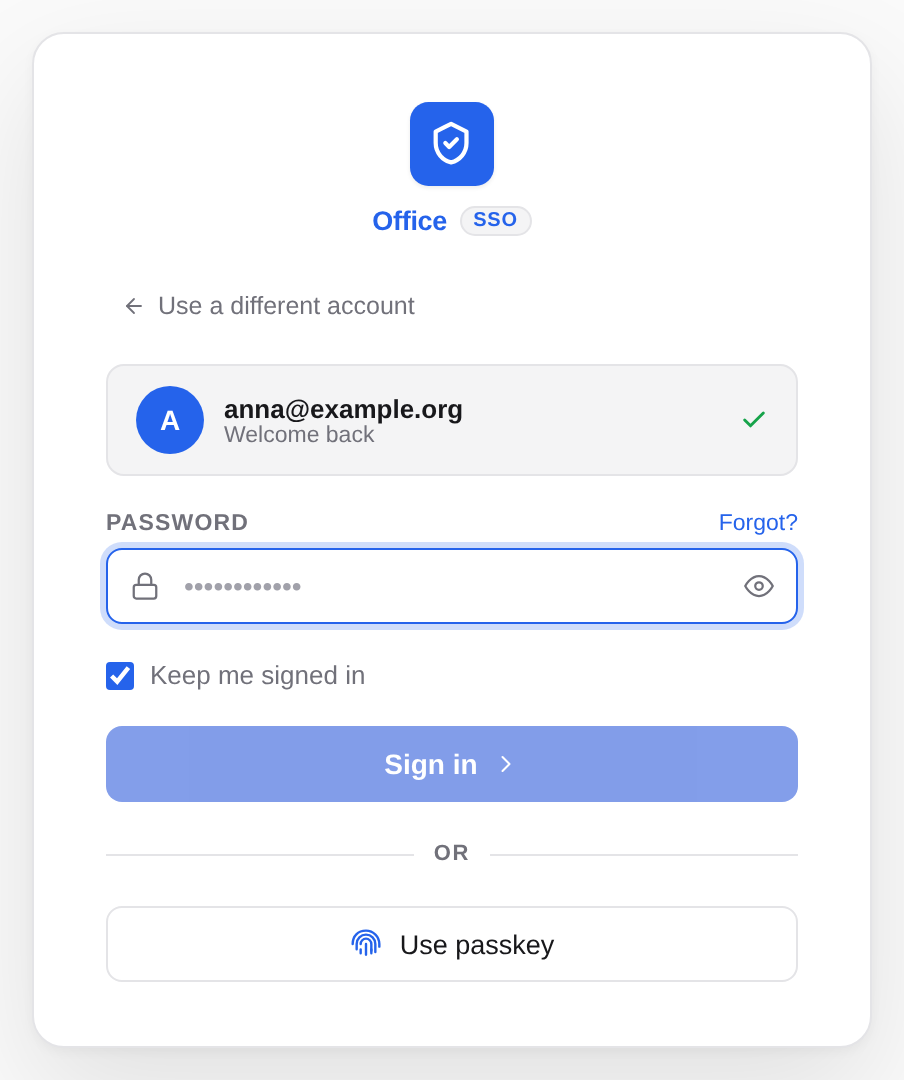
- With Keep me signed in you stay signed in on this device for longer. Leave it off on other people's or shared computers.
- If you mistyped the address, choose Use a different account.
- A passkey needs no password: choose Use passkey and confirm with your fingerprint, face, device PIN or security key. See Passkeys.
- Forgot your password? Choose Forgot?. See Changing and resetting your password.
The Accounts start page
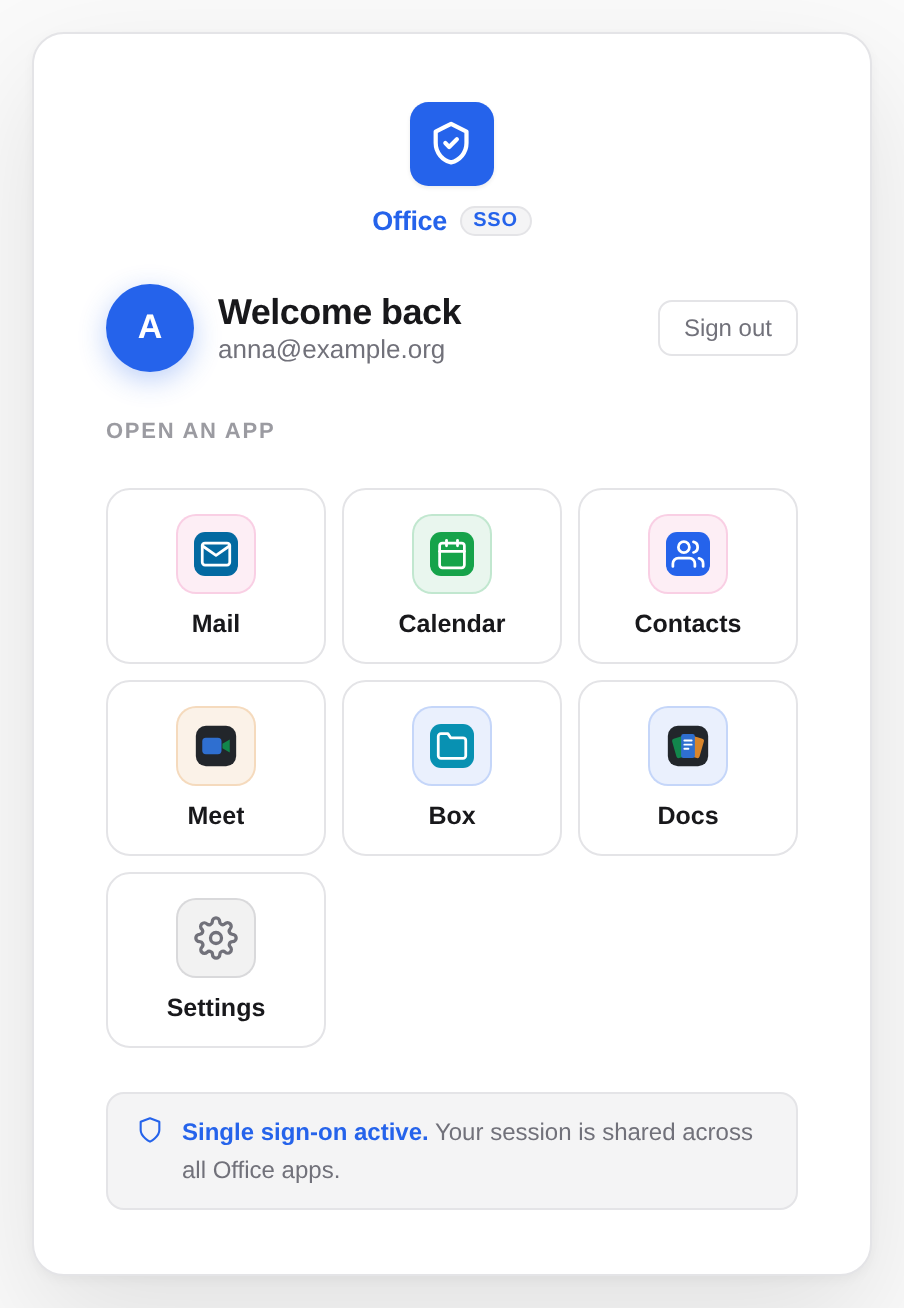
If you open Accounts directly, you see its start page once signed in: under Open an app a tile for each app you may use, plus the Settings tile for your account.
Switching apps
From every app you get to the next one without signing in again:
| App | Where |
|---|---|
| Mail, Calendar, Contacts, Box | the nine-dot icon at the top of the sidebar, Switch app |
| Meet | the nine-dot icon at the top right, Apps |
| Docs | at the top right, next to your account menu, Switch app |
The list shows every other app you may use. Choose one and it opens, already signed in.
Signing out
Choose Sign out in any app: in Mail, Calendar, Contacts and Box in the account menu behind your name at the bottom left, in Meet and Docs in the account menu at the top right. On the Accounts start page, Sign out is at the top right.
Signing out in one app signs you out of every app, in this browser. On other devices you stay signed in.
To sign out on every other device as well, for example after losing a laptop, use Active sessions in Accounts. See Sessions and security log.
If you don't have access to an app
Your administrators decide which apps you may use. If you open another one, Accounts takes you back to its start page with a notice such as "You don't have access to Docs. Ask your administrator if you need it."
The app is then also missing from Switch app and the start page. If you need it, ask your administrators.
If signing in doesn't work
- "That sign-in could not be finished here": you started signing in in another browser, or too long ago. Open the app again.
- Your organisation requires a second factor or a passkey: Accounts then shows you your settings. Set up an authenticator app, a security key or a passkey there, then choose Continue. See Two-factor authentication.
- An app on your device asks to be signed in: when an installed app starts the sign-in, Accounts first asks whether it was you. Choose Continue only if you have just opened the app yourself, otherwise Cancel.