
Sharing calendars
You can share any of your calendars: with your team to edit, with your family to view, with colleagues as free and busy only.
Sharing a calendar
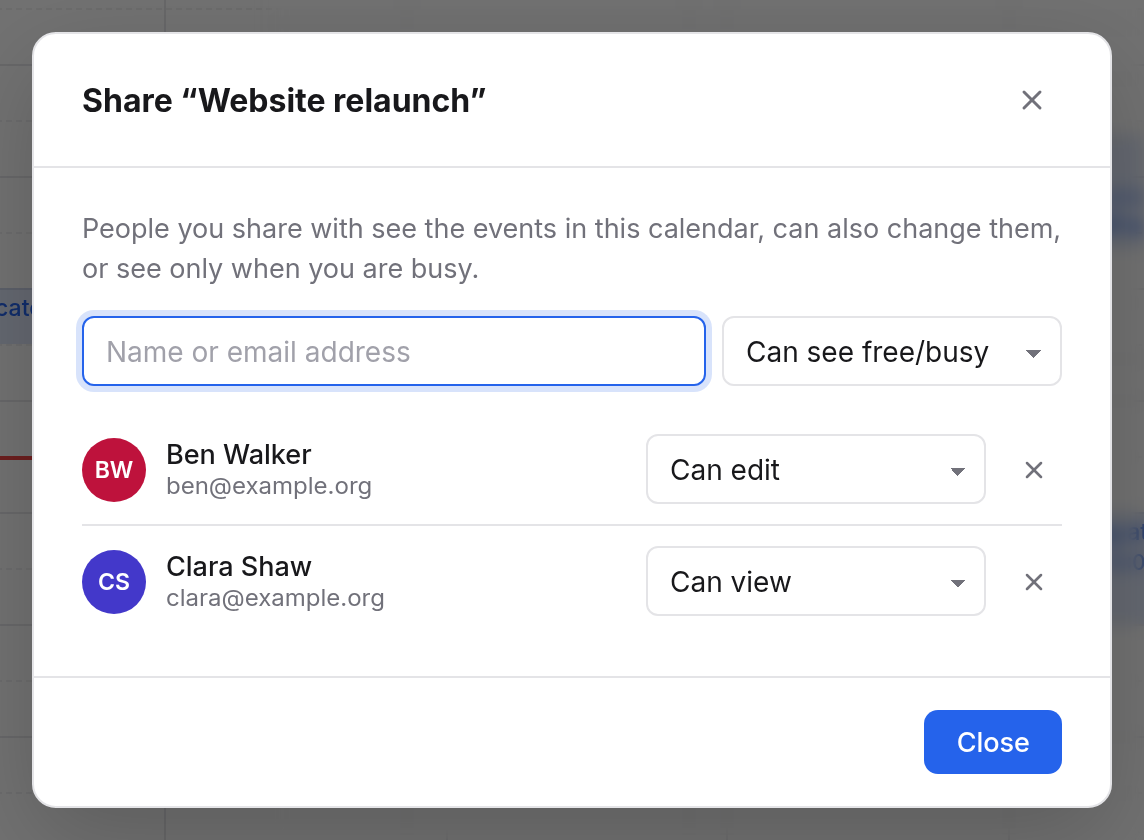
- In the sidebar, point at the calendar, "Website relaunch" for example, and open its menu with the three dots.
- Choose Share….
- At Name or email address, type a name such as "Clara" and pick the person.
- Beside it, choose what they may do (see below).
The person sees the calendar at once in their sidebar under Shared with me.
| Access | What the person can do |
|---|---|
| Can see free/busy | See when you are busy, but not what. Events show as Busy to them. |
| Can view | See every event with all its details. |
| Can edit | Also make, change and delete events. |
Change the access any time in the list below. The ✕ beside a person takes their access away. It takes effect at once.
You can also share with someone who has no account yet: enter the whole email address. They show in the list as Invited, not signed in yet and get the calendar when they first sign in.
What happens when others edit
Someone who may edit a calendar can invite guests there too. The organiser is still the calendar's owner. The guests see "Organizer · sent by" with the name of whoever entered it.
Invitations in someone else's calendar are answered only by its owner or a delegate.
Using shared calendars
Calendars others share with you are in the sidebar under Shared with me, with the owner's name. Calendars with Free/busy only say so.
- The box turns a shared calendar on or off.
- Its menu has Export (.ics) and, if you may edit, Import iCalendar file….
- Leave calendar takes it off your list. The owner can share it with you again.
Shared calendars reach your phone too when you sync through CalDAV. Free/busy-only calendars don't.
Free and busy without sharing
Even without a shared calendar, your colleagues see when you are busy: in the event form under Availability when they invite you. They never see what you are doing. What counts is your own calendars, with every event shown as Busy and not cancelled. Invitations not answered yet, or answered Maybe, count as tentative.
People outside your organisation see your times only when you share a calendar with them, in whatever way.
Delegates
A delegate manages your calendar for you, an assistant for instance. They can:
- change your calendar, make and delete events,
- invite in your name,
- answer your invitations in your name, in the calendar and under Invitations,
- see new invitations to you in their bell.
The bell tells you what a delegate answered for you.
To set up a delegate:
- Open the calendar settings with the cog at the top of the sidebar.
- Under Delegates, type a colleague's name and pick them.
To end it, remove them there again. You can have up to ten delegates, from your organisation only.
As a delegate
When you are someone's delegate, their calendar shows under Shared with me, for example "Calendar of Anna Baker". You edit it like your own. On invitations to them, Yes, Maybe and No answer in their name. Under Invitations, such invitations say "For" and their name.
The calendar settings show under Delegates whom you are a delegate for.