
Writing messages
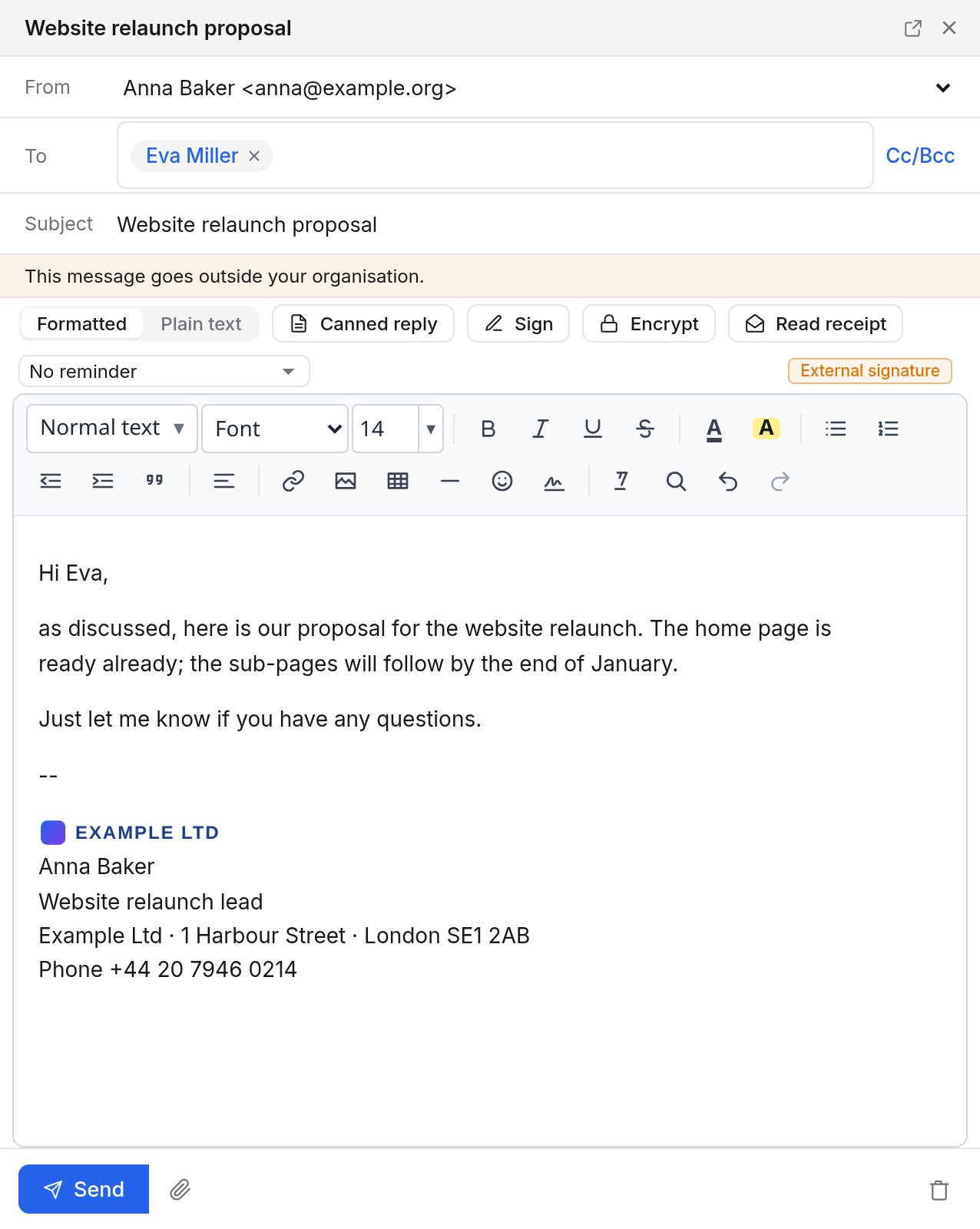
A new message
- Choose New message at the top of the sidebar, or press c.
- Enter the recipients under To. Mail suggests people as you type (see below).
- Enter a Subject and write your message.
- Choose Send.
While you write, Mail keeps saving the message as a draft, and Draft saved shows at the top. If you close the window, you find it again in Drafts, on your phone too. Discard draft (the bin at the bottom right) deletes the draft.
Recipients
In To, Cc and Bcc, Mail suggests as you type: your contacts, colleagues from your organisation, addresses you have written to before, group mailboxes and distribution lists. Each suggestion is marked, for example with Organisation, Written to before, Group mailbox or Distribution list. Show Cc and Bcc with Cc/Bcc.
When someone from outside your organisation is among them, a note under the subject says the message goes outside, and Mail switches to the external signature (see Signatures).
The sender
If you have more than one address, choose it at the top under From. Group mailboxes you may write from, and people you write on behalf of, are listed there too (see Group mailboxes).
When you reply, Mail uses the address the mail was sent to.
Formatting
At the top of the window, choose Formatted or Plain text.
- Formatted: with bold, italics, colours, lists, tables, links and pictures in the text. Pictures in the text are sent with the message, not linked.
- Plain text: no formatting at all. When you switch to plain text, Mail asks first, because formatting, pictures and tables are lost. Confirm with Switch.
What new messages start as is set in the settings, General tab, under Write new messages. A draft always opens the way it was written.
Attachments
Choose Attach files (the paper clip at the bottom) and pick one or more files. The x on an attachment removes it again.
The window
- Minimise puts the window aside at the bottom so you can read meanwhile. Restore brings it back.
- Maximize (or a double click on the title) uses the whole browser window.
- Write in the reading pane puts the reply into the reading pane, under the conversation. Open in a window takes it out again.
- Drag the left and top edges to make the window larger. Mail remembers the size.
Replying and forwarding
At the top of the reading pane are Reply, Reply all and Forward for the latest message, and under each message the same buttons for that one. Mail quotes the message below your text. When forwarding, the attachments come along.
In a group mailbox the others see that you are replying (see Working as a team).
Sending and undo
After Send, Mail waits a few seconds, and Undo shows at the bottom meanwhile. A click brings the message back into the window so you can change it.
Set how long Mail waits in the settings, General tab, under Time to undo sending: Send at once or 5, 10, 20 or 30 seconds. The default is 5 seconds.
Send later
Beside Send there is a button with a clock: Send later.
- Choose Tomorrow morning, Monday morning or Choose a time….
- For a time of your own, enter the date and time under Send at and choose Schedule.
The message waits in Drafts, with the time it goes. It goes even if Mail isn't open then. To change it or send it now, open it there. It is then no longer scheduled, and you send it again.
Remind me
Expecting an answer? Under Remind me at the bottom, choose after how many days (1, 2, 3, 7 or 14). If nobody has replied in the conversation by then, the bell tells you, and the conversation is back at the top of the inbox. No reminder turns it off.
Read receipt
Read receipt asks the recipients to confirm they have read the message. They may decline, and some programs don't ask at all. When a receipt arrives, your message in Sent shows who read it and when.
Signing and encrypting
If you have an OpenPGP key or an S/MIME certificate, Sign and Encrypt appear. How they work is under Encrypting and signing.