
Folders and labels
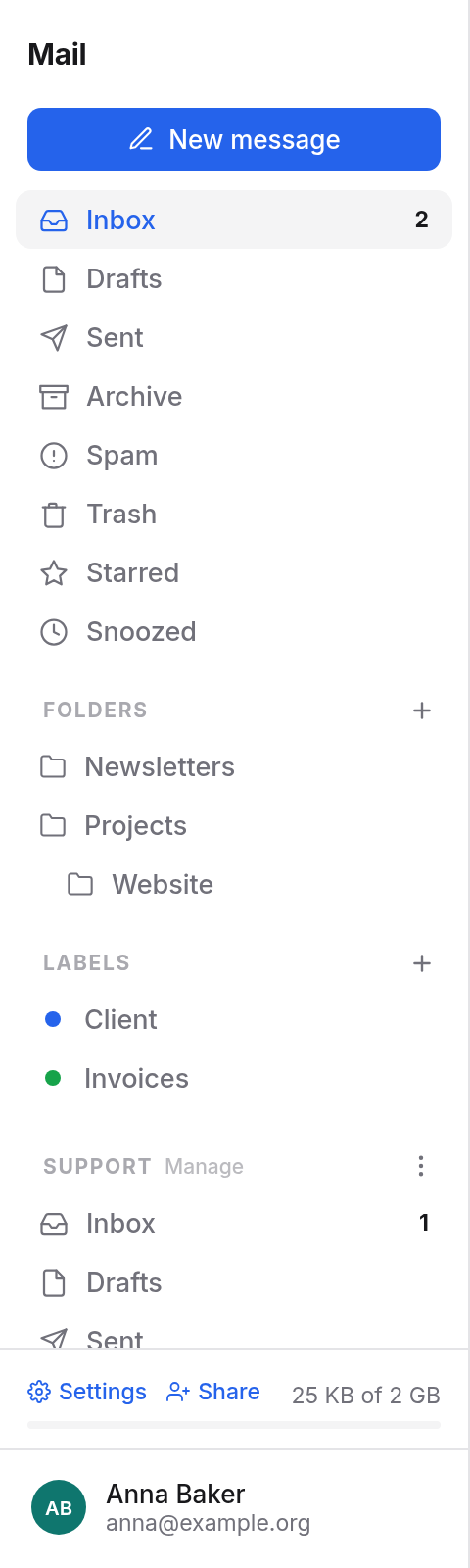
A message is in exactly one folder but can have any number of labels. Folders are like drawers, labels like coloured sticky notes: an invoice for the website relaunch can sit in the “Projects/Website” folder and carry the labels “Invoices” and “Client”.
The standard folders
| Folder | What is in it |
|---|---|
| Inbox | New mail, unless a rule puts it elsewhere |
| Drafts | Messages you have started, and those waiting to be sent later |
| Sent | What you have sent |
| Archive | What you took out of the inbox with Archive |
| Spam | Unwanted mail, see Senders and spam |
| Trash | What you deleted |
Below them are two views: Starred shows every conversation with a star, Snoozed every one you have snoozed.
Folders
Making a folder
- Choose the + beside Folders in the sidebar.
- Enter a Name. A slash makes a folder inside another:
Projects/Websiteis insideProjects. - Choose Save.
The menu beside a folder offers Rename… and Delete folder. Deleting a folder deletes its subfolders too. The messages in them go to the Trash.
Moving messages
- In the conversation, choose Move to… and then the folder.
- Or drag the conversation from the list onto a folder in the sidebar.
- Archive (key e) puts it in the Archive.
To move several conversations at once, select them first (see Several at once). After moving, Undo shows for a few seconds.
Labels
Making a label
- Choose the + beside Labels in the sidebar.
- Enter a Name and pick a colour.
- Choose Save.
Adding labels
- In the conversation, choose Labels and tick the ones you want. A second click removes a label again.
- Or drag the conversation onto a label in the sidebar.
- A rule can add labels as mail arrives.
Clicking a label in the sidebar shows every conversation with it. The menu beside it offers Rename or recolour… and Delete label. Deleting a label removes it from every message; the messages themselves stay.
Starred
Star (key s) makes a conversation stand out, for example because you still have something to do. Remove star takes it away again. Every starred conversation is under Starred in the sidebar, whatever folder it is in.
Snooze
Snooze a mail you want to deal with later. It leaves the inbox and comes back at the time you chose, unread and at the top.
- Open the conversation and choose Snooze (the clock).
- Choose a time:
- Later today: in three hours,
- Tomorrow morning: tomorrow at 8 am,
- Next week: on Monday at 8 am,
- Pick a time…: a date and time, written as
2026-11-30 09:00.
Until then the conversation is listed under Snoozed, with the time it comes back. When it is back, the bell tells you. If someone replies in the meantime, it comes back at once.
Muting conversations
A long round of Cc that doesn't concern you? In the conversation, choose More and then Mute conversation. New mail in this conversation then goes to the Archive, read, instead of the inbox, without a notification. You find it there and by searching.
A muted conversation shows a note at the top. Unmute lets new mail come into the inbox again.
Storage
The bottom of the sidebar shows how much room your mailbox takes, e.g. “1.2 GB of 10 GB”. You get a notice at 80 % and 90 %. When the mailbox is full, no new mail arrives: it waits at the mail server for a while until there is room again.
Make room by deleting large mail and by clearing out Trash and Spam with Delete forever. Searching for has:attachment finds mail with attachments.