
Scheduling meetings
A scheduled meeting has a date, a start and a duration. It can happen once or repeat, such as every Tuesday at 10 o'clock.
Making a meeting
- Choose Schedule on the dashboard.
- Type the title at the top, for example "Website relaunch: review". Below it there is room for a description.
- Under When, choose date, start, time zone and duration, and whether the meeting repeats.
- Under Who, invite people (see Inviting).
- Under Access, set the guest link, waiting room and webinar.
- Choose Schedule on the right.
You then see the meeting's page with everything you set.
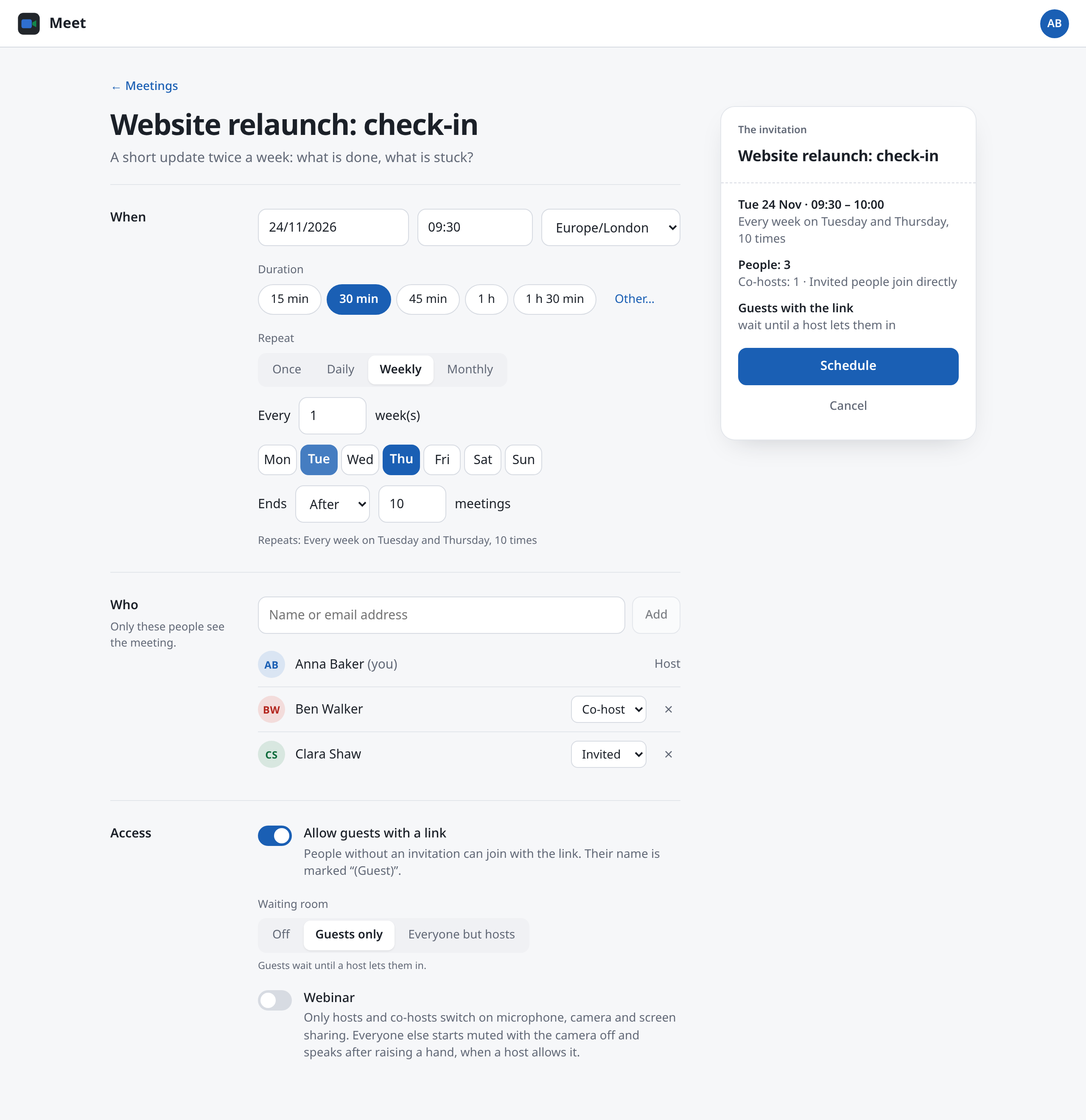
The fields
| Field | Meaning |
|---|---|
| Title | What it is about. Required. |
| Description | A text for the people invited, such as the agenda. |
| Date and start | When the (first) meeting begins. The next half hour is suggested. |
| Time zone | The time zone date and start are meant in (see below). |
| Duration | 15 min to 1 h 30 min with one click, longer ones up to 4 h under Other…. |
| Repeat | Once, Daily, Weekly or Monthly (see Series). |
| Who | The people invited and their role. Only they see the meeting. |
| Allow guests with a link | A guest link for people without an account (see Inviting). |
| Waiting room | Who waits until a host lets them in (see Waiting room). |
| Webinar | Only hosts speak and present (see Webinars). |
The preview
On the right, under The invitation, Meet sums up what you set: date and time, how often, how many people and co-hosts, whether there is a guest link and who waits. So you see before saving whether it is all right.
Series
When you choose anything but Once under Repeat, the meeting becomes a series.
| Repeat | Settings | Example |
|---|---|---|
| Daily | Every 1 to 99 days | every day, every 2 days |
| Weekly | every 1 to 99 weeks, on one or more weekdays | every week on Tuesday and Thursday |
| Monthly | every 1 to 99 months, on a day of the month or on a weekday | on day 15, on the second Tuesday, on the last Friday |
- In a weekly series the weekday of the first meeting is always included. You can't deselect it. If you change the date, it moves along.
- In a monthly series the day follows from the date of the first meeting. If the series starts on 10 March, a Tuesday, you choose between "On day 10" and "On the second Tuesday".
Under Ends, say when the series stops:
| Ends | Meaning |
|---|---|
| Never | The series goes on and on. |
| On | The last meeting is on this date at the latest. |
| After | After a number of meetings, such as 10. |
Below the rule it says in words what you set, for example "Repeats: Every week on Tuesday, 10 times".
The time zone
Your browser's time zone is suggested. If you choose another, date and start are in that time zone. That helps when you plan for a team somewhere else.
A series keeps the same time of day in its time zone, also across the change to and from summer time. When the meeting's time zone is not yours, its page shows both times, such as "16:00 in America/New_York".
Editing
Hosts and co-hosts open the meeting's page and choose Edit. The form is the same as when making it. Save applies the change for everyone invited.
Cancelling or moving single dates
On a series' page, the dates to come are under Upcoming dates.
- Cancel: choose Cancel at a date and confirm. Everyone invited sees it as cancelled.
- Move: choose Move, change date, start or duration, and choose Save. Only this date changes; the rest of the series stays.
- Undo: a cancelled or moved date has Restore. Then it is as the series has it again.
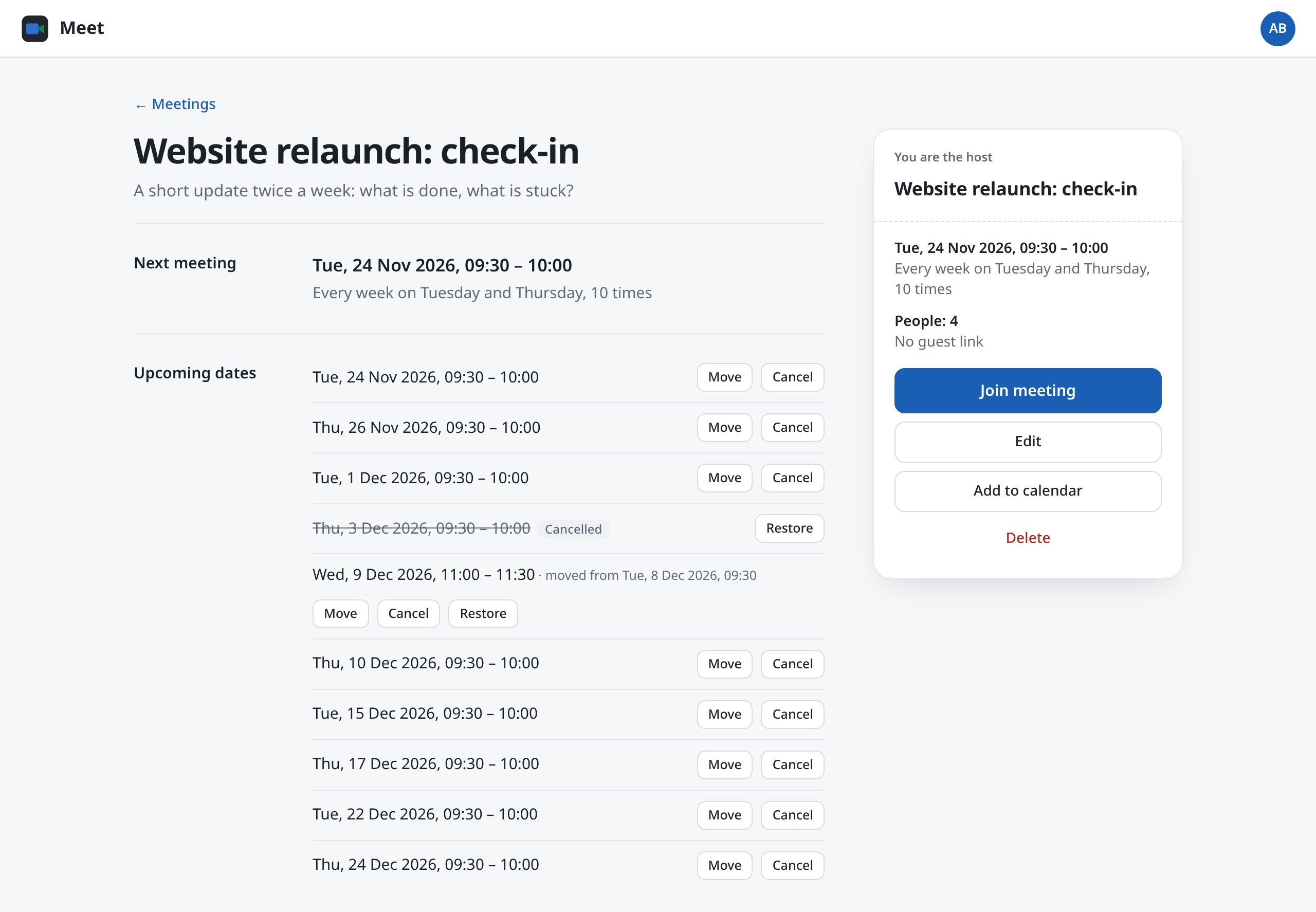
On the dashboard, a moved date shows Moved, and a cancelled one is struck through in the series' line.
Adding it to your calendar
Choose Add to calendar on the meeting's page. You get an .ics file to open in your calendar program. It carries the time zone too, so that Outlook, for one, shows the right time. You can also send the file to the people invited.
Deleting
Only the host deletes a meeting: choose Delete on its page and confirm. It disappears for everyone, a series with all its dates. This cannot be undone.
People invited can decline a meeting for themselves instead (see Inviting).
Meetings from the calendar
The page of such a meeting says: "This meeting comes from the calendar". Its time, the people invited and its settings are changed in the calendar, not in Meet. So Meet has no Edit, Delete, New link or Add to calendar for it, and no cancelling or moving of single dates. In the call itself everything is as usual, inviting more people included.