
Inviting
Only people invited get into a meeting. You invite colleagues, any email address, and, if you like, guests through a link.
Inviting people
The meeting form (under Who) and the New meeting window have the same field:
- Type at least two letters into Name or email address, such as "Ben".
- Choose the person from the suggestions, with the mouse or with the arrow keys and Enter.
- If the person is not among the suggestions, type their full email address and choose Add or press Enter.
The people invited are listed below, you yourself as Host at the top. × takes someone off again.
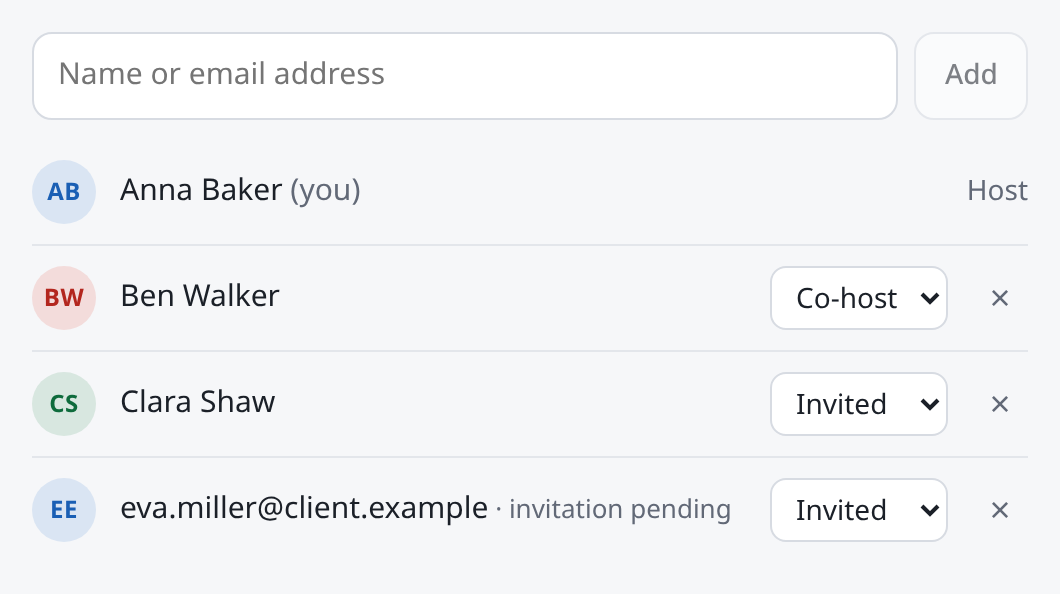
The suggestions are people of your organisation. People of another organisation are invited with their email address, like someone from outside.
Someone without an account yet
When you invite an address that has no account yet, it shows invitation pending, and on the meeting's page "has not signed in yet". As soon as the person signs in with that address for the first time, they find the invitation on their dashboard.
How people invited hear of it
People invited find the meeting on their dashboard in Meet. When someone starts the meeting, they get a notice there with Join (see Waiting room).
Roles
Beside each person, choose the role:
| Role | May |
|---|---|
| Invited | join. Waits only when the waiting room covers everyone. |
| Co-host | the same as the host: edit, invite, admit, remove, run the call. Always comes straight in. |
Only the host, that is whoever made the meeting, chooses co-hosts. A co-host can invite more people, but only as Invited. Only the host can delete the meeting.
Only someone with an account can be a co-host. The host can make someone a co-host during the call too (see In the call).
Declining
If you are invited and don't want to take part, open the meeting's page and choose Decline and remove from my meetings. The meeting disappears from your dashboard. The hosts can invite you again later.
The guest link
With the guest link, people without an account can join too, such as Eva Miller of Client Ltd.
- In the form, under Access, turn on Allow guests with a link and save.
- On the meeting's page, under Guest link, is the link with a button to copy it. On the dashboard there is Copy guest link for this.
- Send the link to the guests, by mail or chat.
Only hosts and co-hosts see the guest link. Whether guests wait first, you decide with the waiting room.
An ad-hoc meeting always has a guest link (see Meeting now).
What guests see
Whoever opens the guest link sees the meeting's title and, for a scheduled one, its date and time.
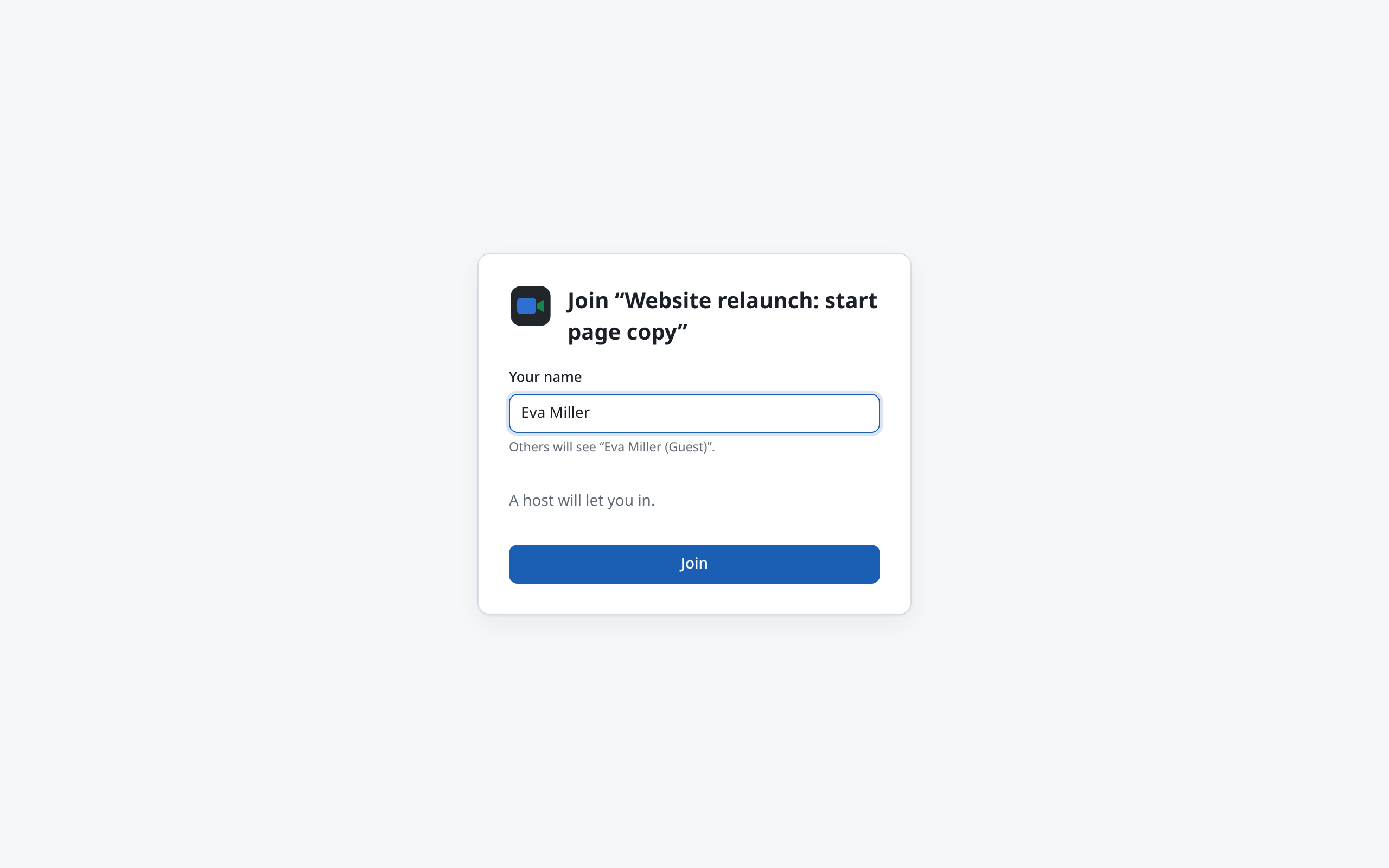
- The guest types their name under Your name. Below it they see what the others will see, such as "Eva Miller (Guest)".
- Join takes them into the meeting, or into the waiting room first. Then it says: "A host will let you in."
Meet always adds the addition to the name. Nobody can remove it in the call, and the name can't be changed there. The browser remembers the name for next time.
Someone already signed in sees "You are signed in as …" instead of the name field. If they are invited, they take part as usual. Otherwise they take part as a guest, under their account's name and with the addition. Someone with an account can also sign in through "Have an account? Sign in".
If the link is not valid, because there is a new one or the meeting was deleted, the page says: "This link is not valid (any more). Ask the host for a new one."