Settings and shortcuts
Open Calendar's settings with the cog at the top of the sidebar, beside the bell. They are the same on every device you sign in on. Calendar also remembers the view you chose and which calendars are hidden, for all devices.
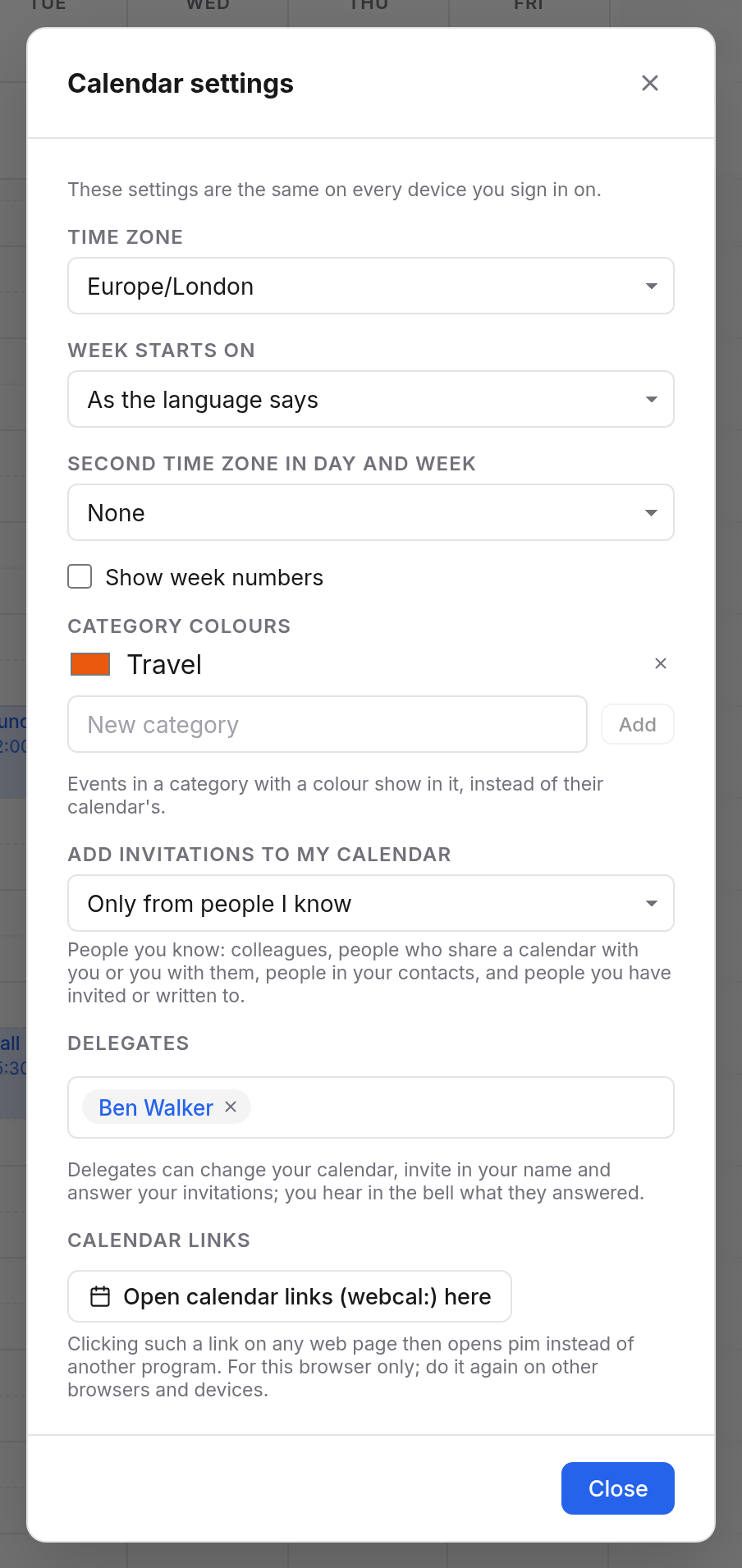
The settings
| Setting | Meaning |
|---|---|
| Time zone | Which time zone Calendar shows every time in. The default is the device's time zone: each device then shows its own, which suits people who travel. Choose a zone, and it applies everywhere. |
| Week starts on | Monday, Sunday or Saturday. As the language says follows your browser: Monday in the UK, Sunday in the US. |
| Second time zone in day and week | Shows a second column beside the hours in day and week, with the times of another zone, for colleagues in New York for instance. None turns it off. |
| Show week numbers | Shows the week number in day, week, month and the small calendar, e.g. "W12". |
| Category colours | Colours of your own for categories (see below). |
| Add invitations to my calendar | Which invitations go straight into your calendar. See Invitations. |
| Delegates | Who manages your calendar for you. See Delegates. |
| Calendar links | Whether webcal: links open Calendar in this browser. See webcal links. |
Changes apply at once. Close closes the dialog.
Language and appearance (light or dark) are in the menu under your name at the bottom of the sidebar. They apply to all apps.
Category colours
- Under Category colours, type a name into New category, for example "Travel".
- Choose Add.
- Click the colour box before the name and pick a colour.
Events in that category then show in its colour instead of their calendar's. The event form suggests categories with a colour as you type. The ✕ takes a category's colour away. The events keep the category.
The colours are yours alone. Anyone else who sees the same event sees it in their own colours.
Settings of a single calendar
Change a calendar's name and colour in its menu in the sidebar (the three dots) with Settings…. For subscribed calendars, the address and how often they are updated are there too. See Subscribing, import and export.
Keyboard shortcuts
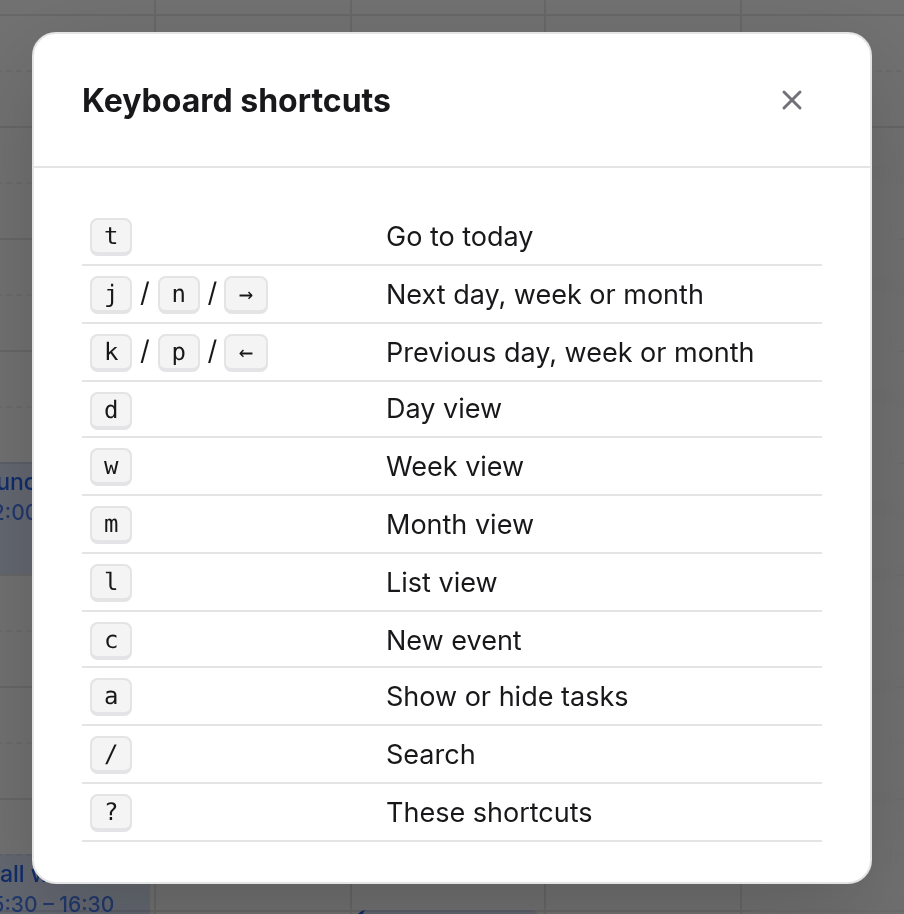
? opens the list of Keyboard shortcuts.
| Key | What it does |
|---|---|
| t | Go to today |
| j, n or → | Next day, week or month |
| k, p or ← | Previous day, week or month |
| d | Day view |
| w | Week view |
| m | Month view |
| l | List view |
| c | New event |
| a | Show or hide tasks |
| / | Search events |
| ? | These shortcuts |
The keys don't work while you are typing into a field or a dialog is open. Esc leaves a field.