
Two-factor authentication
With two-factor, your password alone is no longer enough. After the password you enter a 6-digit code from an authenticator app, or touch a security key. Someone who knows only your password can't get into your account.
You can set up several authenticator apps and several security keys, for example an app on your phone and a key on your key ring. Any one of them is enough when you sign in.
Setting up an authenticator app
You need an authenticator app on your phone, such as the one in your password manager, Google Authenticator, Microsoft Authenticator or Aegis. Any app that makes time-based codes (TOTP) works.
- Open your account settings: Settings on the Accounts start page, or the account menu in any app and Account settings.
- In the Two-factor authentication section, choose Add authenticator app.
- Scan the QR code with the authenticator app. If you can't scan, enter the key under Or enter this key manually in the app.
- Under Device name, say where the app runs, for example "Anna's phone". That way you recognise it in the list later.
- Under Verification code, enter the 6-digit code the app shows now, and choose Add authenticator.
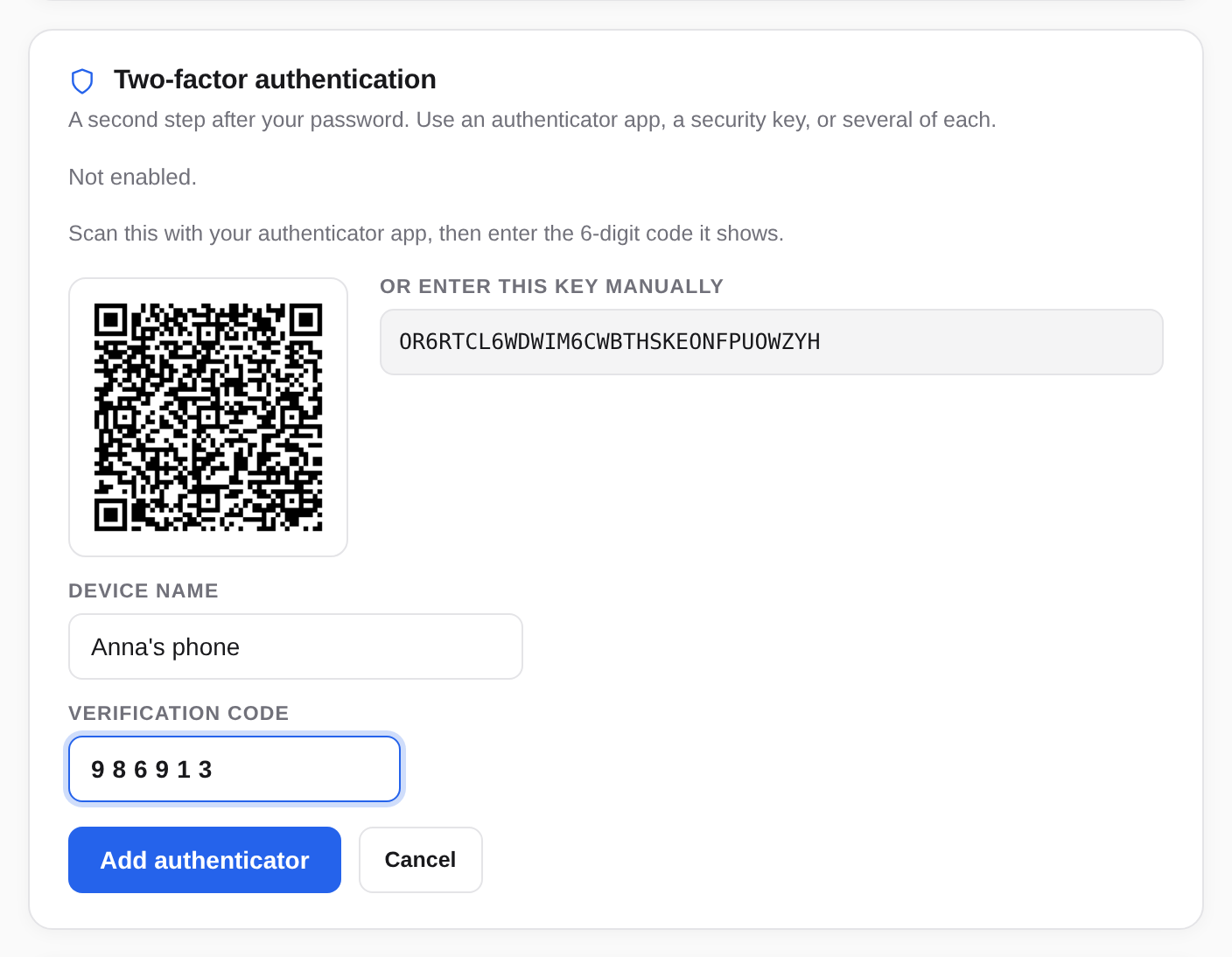
From now on, Accounts asks for a code every time you sign in with your password.
Setting up a security key
A security key is a small USB or NFC device, a YubiKey for example. As a second factor you just touch it briefly after your password. No PIN, and nothing is stored on the key.
- In the Two-factor authentication section, choose Add security key.
- Plug in the key, or hold it to your phone, and touch it when it blinks.
The key then appears under Security keys in the list.
Several devices
It's best to set up two second factors, for example the app on your phone and a security key, or the app on both your phone and your tablet. If you lose one, you sign in with the other and remove the lost one.
For a second app, just repeat Add authenticator app. Each app gets a QR code of its own.
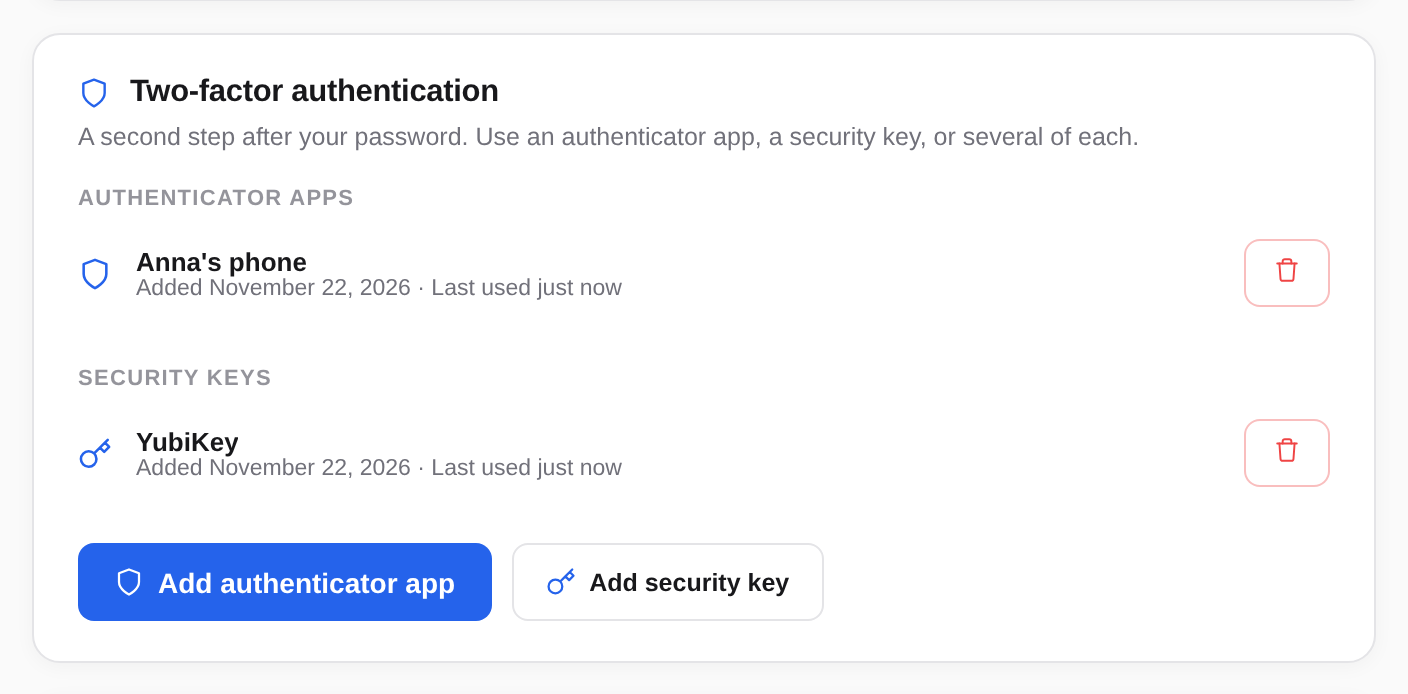
To rename an entry, click its name, type a new one and press Enter.
Signing in with two-factor
- Sign in as usual with your email address and password.
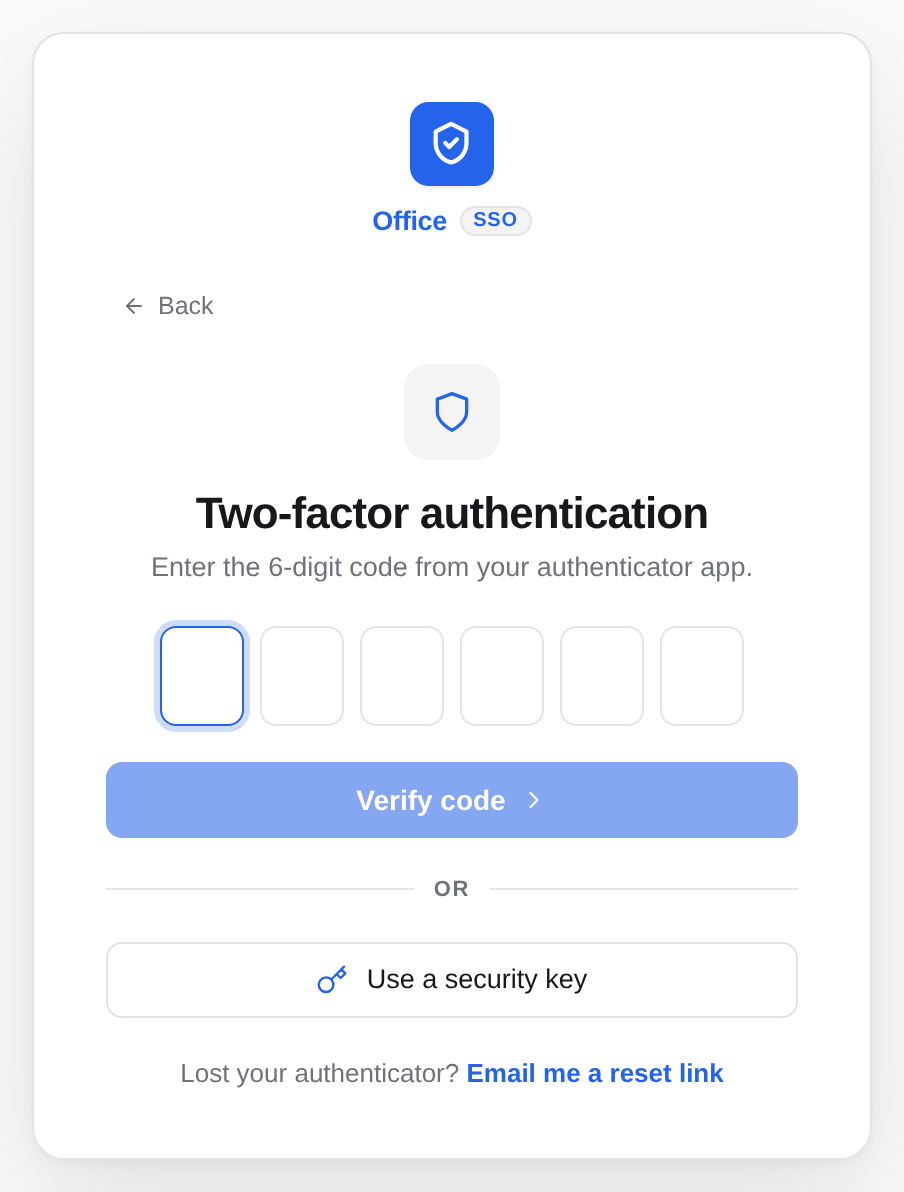
- Enter the 6-digit code from your authenticator app. Once all six digits are in, Accounts checks it by itself; otherwise choose Verify code.
- Or choose Use a security key and touch your key.
The code changes every 30 seconds. If it doesn't work, wait for the next one, and check that your phone sets its time automatically.
Removing a second factor
- Choose the bin icon next to the app or key (Remove).
- Under Confirm your password, enter your password and choose Remove.
If it is your last second factor, Accounts tells you first: removing it turns two-factor off altogether.
Lost your authenticator?
Phone gone, reset, or the app deleted? There are no recovery codes. Instead, you turn two-factor off by email:
- Sign in with your email address and password until Accounts asks for the code.
- At the bottom, choose Lost your authenticator?, then Email me a reset link.
- Open the mail from Accounts and the link in it. It works only for a short time; the mail says how long.
- Choose Turn off two-factor.
- Choose Go to sign in and sign in with your password alone.
- Set up an authenticator app or security key again straight away.
This removes all your authenticator apps and security keys. Your passkeys stay.