
Events
This page is about your own events: making them, moving them, repeating them, being reminded. How to invite others is under Invitations.
The views
Choose the view at the top right:
| View | What you see |
|---|---|
| Day | One day with its hours. |
| Week | Seven days side by side, all-day events in a strip at the top. |
| Month | The whole month. When a day has more events than fit, "+2 more" shows the rest. |
| List | The next 60 days as a list. Show more adds further days. |
The arrows move back and forth, Today takes you to today. A click on a day in the small calendar in the sidebar goes there. A click on the date above a column opens that day.
In the sidebar's calendars, the coloured box turns each calendar on or off. Calendars you hide stay hidden on all your devices.
Searching events
Type a word into Search events… at the top. It searches titles, places, notes, categories and guests, across all your calendars. A click on a result goes to its day.
Making an event
- Choose New event at the top of the sidebar.
- Enter a title, for example "Website relaunch check-in".
- Set Starts and Ends. Moving the start moves the end with it, so the length stays.
- Fill in what you need: place, notes, reminders, categories.
- Under Calendar, choose which calendar it goes into, then Create event.
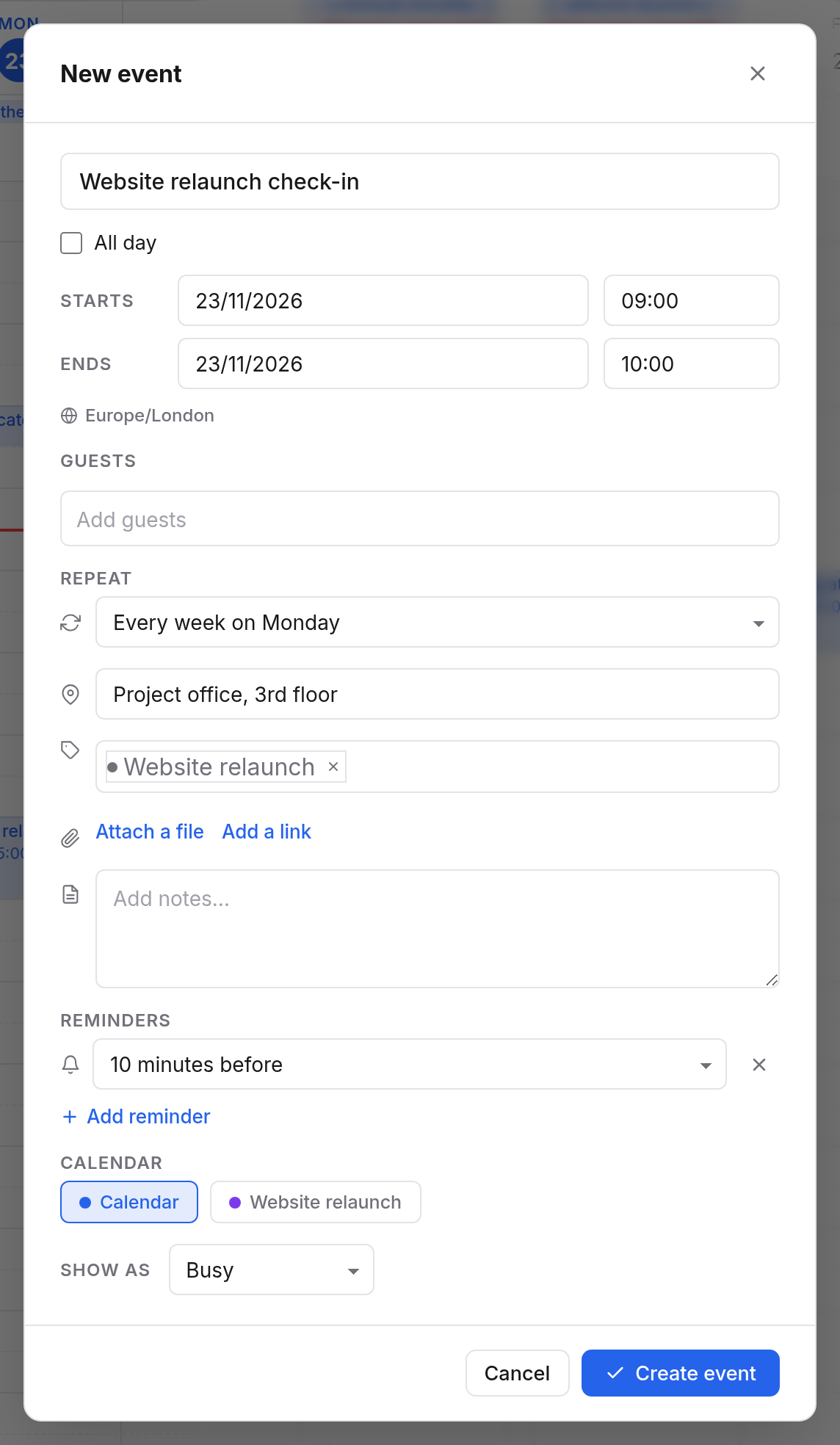
It is quicker straight in the view:
- Day and week: click into an hour for a one-hour event. Drag down with the mouse to give it exactly that length.
- Month: click into a day.
- All day: double-click into the strip at the very top of day and week.
The form then opens with the time already set.
The fields
| Field | Meaning |
|---|---|
| Event title | What it is. Without a title nothing can be saved. |
| All day | An event without times, for one or more days (see below). |
| Starts and Ends | Date and time, in steps of 5 minutes. |
| Time zone | Below the times is the event's time zone. A click on it changes it (see below). |
| Guests | Whom you invite. See Invitations. |
| Repeat | Whether and how the event repeats (see Series). |
| Video meeting | Makes the event a video meeting in Meet. |
| Place | An address, a room or a link. On the event's card, a click on the place opens a map; a link opens directly. |
| Categories | Keywords such as "Travel" or "Client", with a colour of their own if you like. |
| Attachments | Files and links for the event. |
| Notes | Free text, such as the agenda. |
| Reminders | Up to five reminders per event. |
| Calendar | Which of your calendars the event is in. |
| Show as | Busy or Free. Free events don't make you busy for others, such as a note about a birthday. |
Changing, moving and deleting events
A click on an event opens its card with the time, place, calendar, guests and notes. Choose Edit or Delete event there.
Moving works with the mouse too:
- Day and week: drag the event to another time or another day. Drag its bottom edge to change its length.
- Month: drag the event to another day. Its time stays.
Events in calendars you may only view, and other people's invitations, cannot be moved.
All-day events
Turn on All day and the times go away. For a holiday, set the first and last day, for example 4 to 15 August. All-day events show in the strip at the top of day and week, and have no time zone.
Time zones
Calendar shows every time in your time zone. You choose it in the settings. Without a choice, each device uses its own, which suits people who travel.
An event can have a time zone of its own. You need that when it takes place somewhere else:
- In the form, click the time zone below the times, for example "Europe/London".
- Under Time zone, choose the place's zone, such as "America/New York".
- Enter the start and end as the clocks there show them.
Calendar then shows the event in your own time zone. A series stays in its zone: a weekly meeting at 9:00 stays at 9:00 after the clocks change.
Series
Under Repeat, choose how an event repeats. The choices follow the start, for example for Tuesday 10 March:
| Choice | Means |
|---|---|
| Does not repeat | A single event. |
| Every day | Daily. |
| Every weekday (Mon–Fri) | Monday to Friday. |
| "Every week on Tuesday" | Weekly on the same weekday. |
| "Every month on day 10" | Monthly on the same date. |
| "Every month on the second Tuesday" | Monthly on the same weekday, such as a club night. |
| "Every year on 10 March" | Yearly. |
| Custom… | Entirely as you like (see below). |
Custom repetition
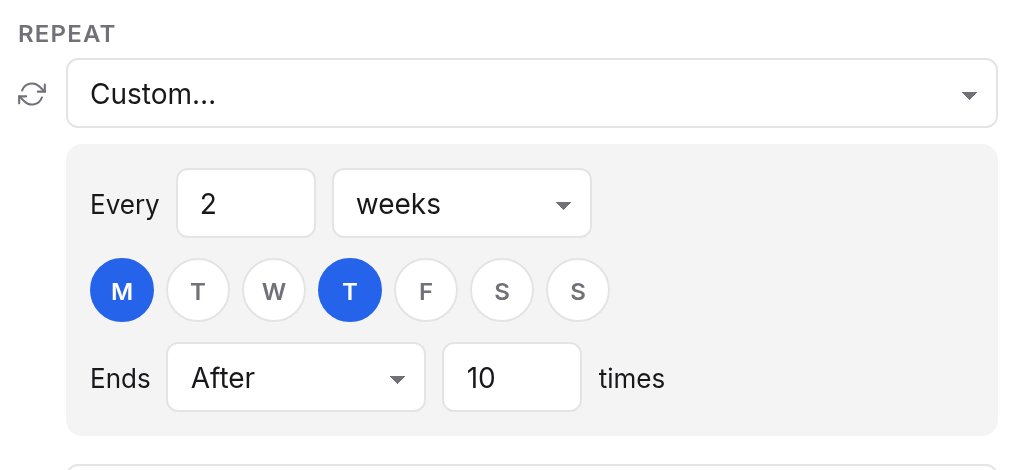
Custom… lets you set everything yourself:
- How often: Every 2 weeks, every 3 months and so on.
- On which days: for weeks, choose one or more weekdays, for example Monday and Thursday.
- In the month: on the same date or the same weekday, such as the last Friday.
- When it ends: under Ends, choose Never, On date with a date, or After a number of times.
Changing one event of a series
When you change or delete an event that belongs to a series, Calendar asks which events you mean:
| Choice | What happens |
|---|---|
| This event | Only this one event changes or goes. The others stay. |
| This and following events | The series ends before this event, and a new series with your changes starts here. Earlier events stay as they were. |
| All events | The whole series changes. If you change the time, changes made to single events are lost. |
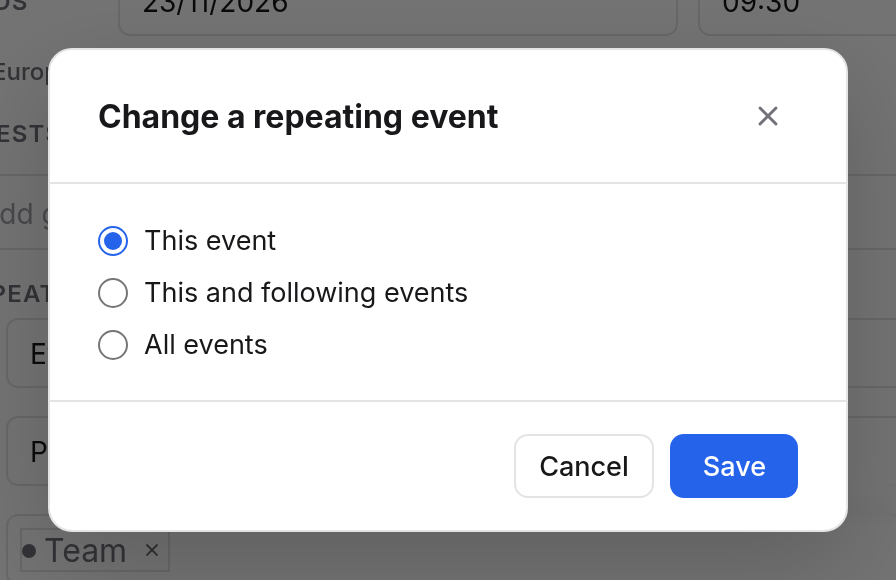
When you drag an event of a series with the mouse, you can only choose between This event and All events.
Reminders
Under Reminders, choose Add reminder and when it should come: At the start, 5, 10, 15 or 30 minutes before, 1 or 2 hours, 1 or 2 days, or 1 week before. An event can have up to five reminders.
When and where a reminder shows:
- In the browser: the first time, your browser asks whether Calendar may show notifications. If you allow it, the reminder comes as a notification from your system.
- On your phone: when your calendar syncs to your phone through CalDAV, the phone reminds you too. See App passwords.
- Calendars you have hidden don't remind. Subscribed calendars and birthdays never do.
You can also set reminders of your own on other people's invitations, right on the event's card.
Categories
Categories are keywords for events, such as "Travel", "Client" or "Website relaunch". Type a name into the Categories field and press Enter. An event can have several categories.
Give a category a colour in the settings under Category colours, and its events show in that colour instead of their calendar's. In the week, you then see at once what is travel.
Attachments and links
Attach a file adds files to an event, such as the agenda as a PDF. All files of one event together may be 1.5 MB at most. For larger files choose Add a link and enter the address, a link to Box for instance.
Guests see the attachments on their event card and download them with a click. Calendar apps on phones and computers show them too.
Printing
Print this view (the printer at the top) prints the view as you see it, without the sidebar and buttons. A week fits on one landscape page.