
Nextcloud apps and WebDAV
Box speaks Nextcloud's language. So you can use the Nextcloud apps to bring your files to your computer and phone: the desktop client for Windows, macOS and Linux, and the apps for iPhone, iPad and Android. Other programs connect over WebDAV.
| What | With | Signing in |
|---|---|---|
| Keep a folder on your computer in step | Nextcloud desktop client | allow it in the browser |
| Files on your phone or tablet | Nextcloud app | allow it in the browser |
| Other programs, network drive | WebDAV | app password from Box |
Connecting a Nextcloud app
- Install the Nextcloud desktop client from nextcloud.com, or the Nextcloud app from the App Store, Play Store or F-Droid.
- In the app, choose Log in and enter
https://box.example.orgas the server address. - The app opens your browser. If you are not signed in yet, sign in at Accounts.
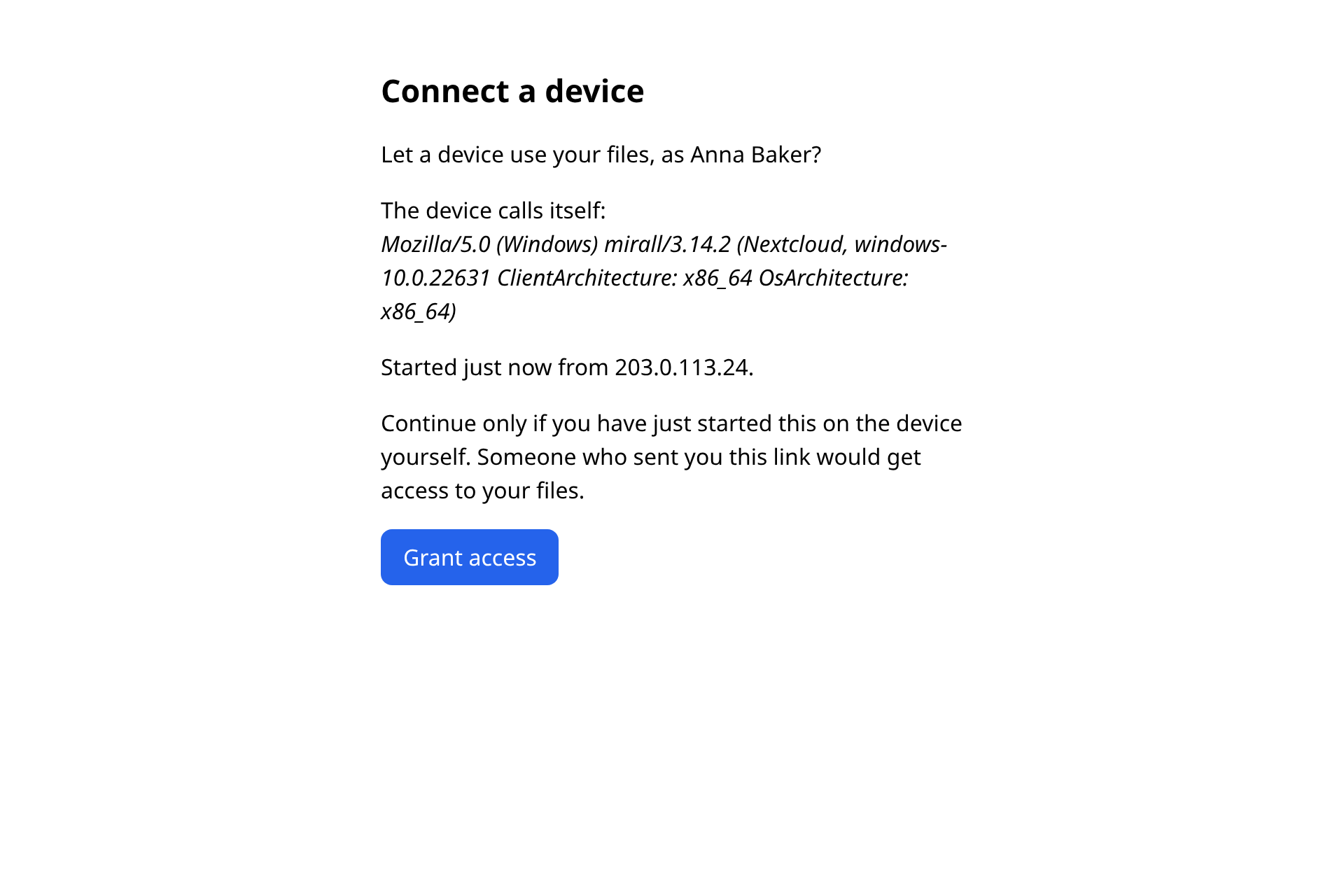
- Box shows the Connect a device page: which device is asking, and when and from where the request came. Check it and choose Grant access.
- The browser says your device is connected. Close the window and go back to the app.
In the desktop client you then choose which folder on your computer to keep in step with Box, and which folders from Box you want there.
If the page has expired, start again in the app with Log in.
Seeing and revoking the device in Box
For each device you allow, Box makes an app password of its own. You see it in Box:
- In Box, click your name at the bottom left and choose App passwords….
- The device is in the list, under the name it gives itself, with when it was connected and last used. The name is often long and technical, with "Nextcloud", "mirall" or "android" in it, say.
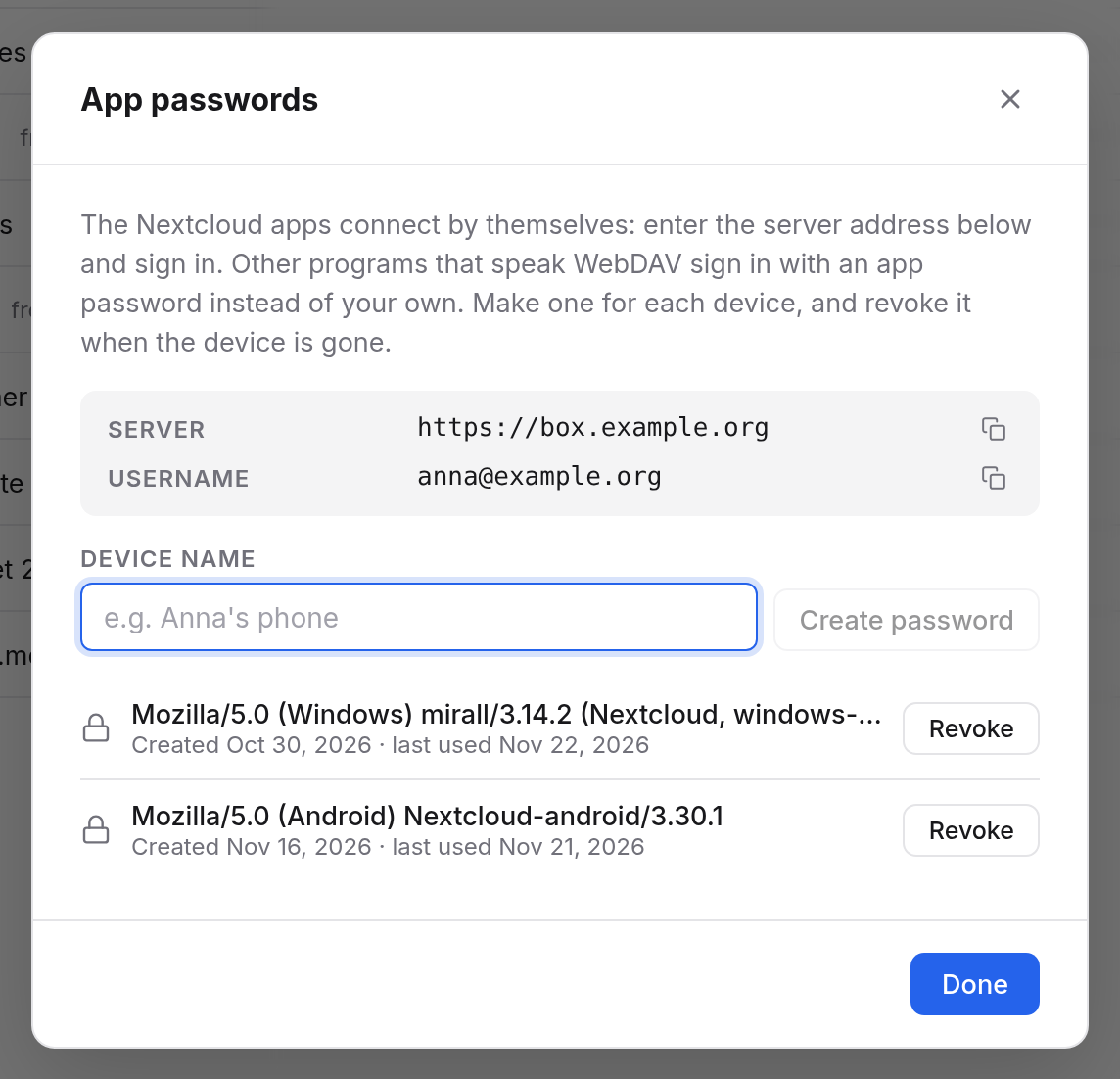
Revoke disconnects the device at once. If you sign out in the Nextcloud app itself, its app password goes by itself.
Other programs over WebDAV
Programs that can't do the Nextcloud sign-in connect over WebDAV, such as a network drive on Windows, the Finder on macOS, a file manager on Linux or a backup program. They need an app password from Box:
- In Box, click your name at the bottom left and choose App passwords….
- Under Device name, say what the password is for, for example "Office PC backup", and choose Create password.
- Enter it in the program now. It is shown only this once.
| Field | Value |
|---|---|
| Address | https://box.example.org/remote.php/webdav/ |
| User name | as shown in the dialog under Username, usually your email address |
| Password | the app password from Box |
A few examples of where to enter the address:
- macOS, Finder: Go → Connect to Server and enter the address.
- Linux, file manager: use the address
davs://box.example.org/remote.php/webdav/. - Windows: in Explorer, Map network drive and enter the address. Windows' own WebDAV access is often slow with large files; for more than occasional use, the Nextcloud desktop client is better.
If it doesn't work
- The app can't find the server: check the address
https://box.example.org, with no further path. - The browser doesn't open: copy the link from the app into your browser.
- "This link has expired": the request is too old. Start again in the app.
- A WebDAV program says the password is wrong: use an app password from Box, not from Mail, and the user name from the dialog.
- It worked for a long time and suddenly stopped: the app password may have been revoked, or you haven't signed in to Box in the browser for a while. The dialog says the period. See App passwords.
- Files with "conflict" in their name: if you changed a file in two places at once, the Nextcloud client keeps both versions. Compare them, keep the right one and delete the other. Older versions are also under Versions and trash.