
Checking
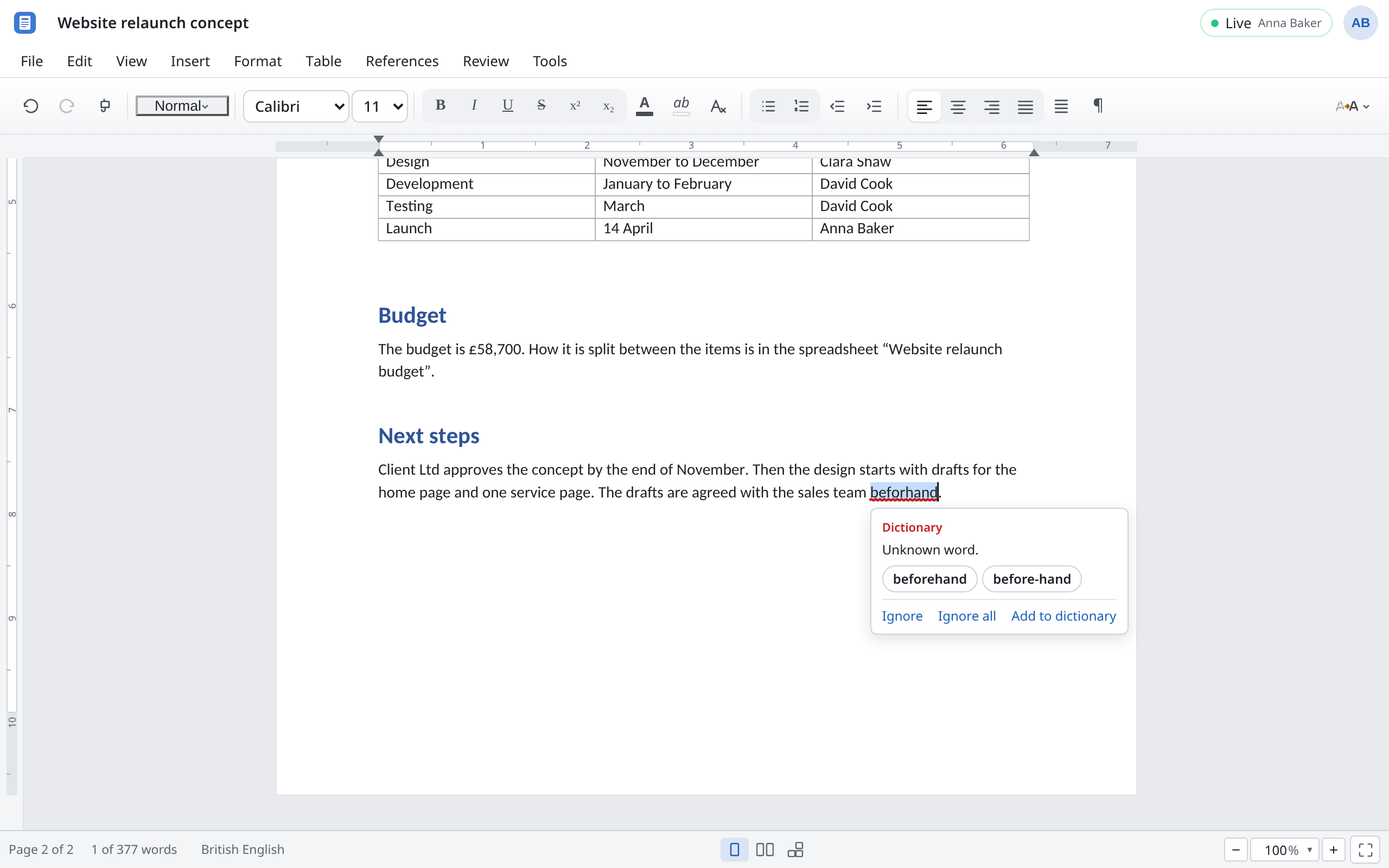
Docs checks spelling and grammar in all three apps. In Writer and Slides it also checks whether a document can be read by everyone, screen reader users included.
Spelling and grammar
The check runs on your device. Your text isn't sent to any service for it. The first time you turn it on, Docs loads the dictionaries, which takes a moment.
| Language | What is checked |
|---|---|
| English | Spelling, a capital letter at the start of a sentence, doubled words, British and American spellings |
| German | Spelling, capitalisation, punctuation and grammar |
Text in other languages is left unmarked.
Turning it on and off
| App | Where |
|---|---|
| Sheets | Tools → Check spelling and grammar |
| Writer | Review → Check spelling and grammar |
| Slides | View → Check spelling as you type |
The setting is yours, not the others' in the document.
Fixing a mistake
Mistakes are underlined. In Sheets and Writer, click the marked place; in Slides, right-click it. You then see what's wrong, such as Grammar or Typography, and a suggestion. Choose the suggestion to take it, or:
| Choice | Effect |
|---|---|
| Ignore | Stop marking this place only (Sheets and Writer). |
| Ignore all | Stop marking this word anywhere until you open the document again (Sheets and Writer). |
| Ignore rule | Stop applying this rule until you open the document again (Sheets and Writer). |
| Add to dictionary | The word counts as correct from now on, for good. |
In Writer, F7 (Next issue) and ++Shift+F7++ (Previous issue) take you through the mistakes one by one. No issues found means the text is clean.
Which language is checked
- Sheets checks in the language of the interface, so English when you use Docs in English.
- Writer and Slides check each paragraph in the language set for it. The status bar at the bottom shows which one that is.
In Writer, set the language under Tools → Language → Language…, For the selection or For the whole document. For text that shouldn't be checked, such as code or a list of names, choose Do not check spelling and grammar there. This is stored in the document.
The dictionary
No dictionary knows company and product names like “Client Ltd”. Add them, and they are no longer underlined.
| App | Where the words are kept | Seeing and editing the list |
|---|---|---|
| Writer | In the document: everyone working on it has the same words. | Tools → Language → Dictionary… |
| Sheets | In your browser, for every spreadsheet you open here. | Tools → Dictionary… |
| Slides | In your browser. | – |
In the Dictionary dialog, enter new words under Word (Add) and take out words added by mistake (Remove).
Accessibility
The accessibility check is in Writer and Slides, not in Sheets.
| App | Where |
|---|---|
| Writer | Tools → Check accessibility |
| Slides | View → Check accessibility |
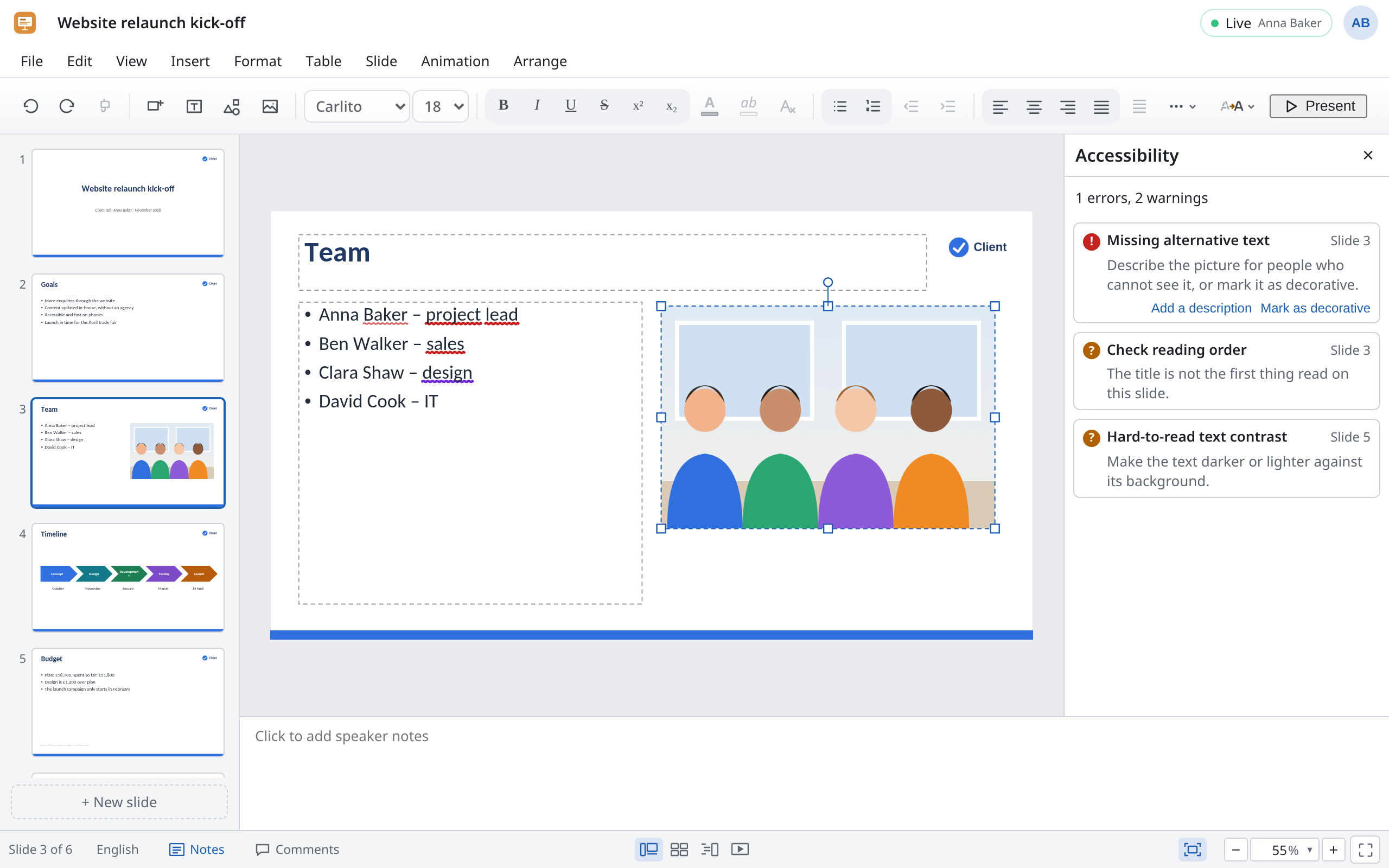
The Accessibility pane opens. At the top it says how many errors and warnings there are, below that each issue with a hint on what to do. Click an issue to go to the place.
| Issue | Writer | Slides | What to do |
|---|---|---|---|
| Missing alternative text | ✓ | ✓ | Add a description: say briefly what the picture shows. If it's only decoration, choose Mark as decorative. |
| No headings | ✓ | Give the parts of the document heading styles (see Styles). | |
| A heading level skipped | ✓ | Go down one level at a time: a Heading 3 belongs under a Heading 2. | |
| Table without a header row | ✓ | Make the first row a header, so the columns are read out with their names. | |
| Missing slide title | ✓ | Give the slide a title. Titles let screen reader users find their way. | |
| Duplicate slide title | ✓ | Give each slide a title of its own. | |
| Check reading order | ✓ | The title isn't the first thing read out. Change the order under Arrange. | |
| Hard-to-read text contrast | ✓ | ✓ | Make the text darker or lighter against its background. |
| Unclear link text | ✓ | ✓ | Say where the link goes, rather than “click here”. |
No issues found. means the check found nothing. It doesn't replace a look with your own eyes, though: only a person can judge whether alt text describes a picture well.