
Version history
Docs keeps every change to a document, by everyone who works on it. In the version history you see who changed what and when, look at any earlier version and bring it back if you need to. Nothing is ever lost on the way.
Opening the history
In Sheets, Writer or Slides, choose File → Version history.
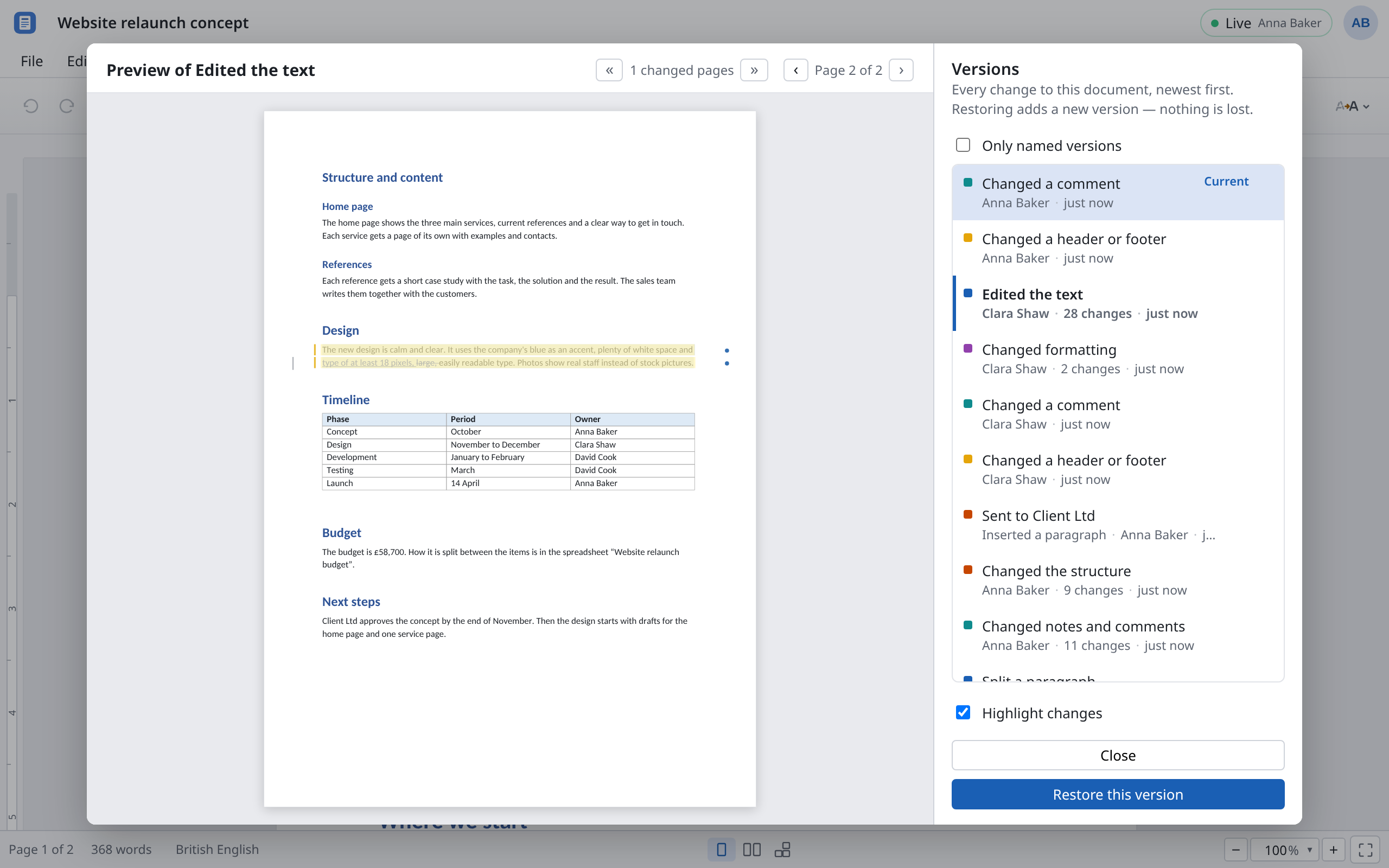
On the left you see the chosen version as the document looked then. On the right, under Versions, are all versions, newest first. Each says what changed, who did it and when, for example “5 min ago”. When someone made many changes in a row, they are grouped into one entry, with the number of changes. The newest version is marked Current.
Click a version to look at it. The document itself doesn't change.
Naming versions
Give important versions a name, such as “Sent to Client Ltd” or “Budget approved”. That way you find them again quickly.
- Point at the version in the list and choose the pencil icon Name this version.
- Type the name and press Enter.
The name then heads the entry. The pencil (Rename this version) changes it, × (Remove name) takes it off again. As soon as one version has a name, Only named versions shows just those.
Anyone who can edit the document can name versions. Everyone sees the names.
Highlighting changes
Turn on Highlight changes to see what this version changed compared with the one before.
- Sheets marks changed, added and removed cells.
- Writer marks the changes in the text. Above the preview it says how many pages have changes; Previous change and Next change jump between them.
- Slides shows which slides changed in the same way, and jumps between them.
The very first version has nothing to compare with, so the switch can't be turned on there.
Restoring a version
- Choose the version in the list.
- Choose Restore this version.
The document then looks like that version again, for everyone. The versions after it are kept: restoring is itself a new version at the top of the list. If you picked the wrong one, simply restore the version before.
Anyone who can edit the document can restore. With Can view you can only look through the history.
Comparing with another file
The version history compares versions inside Docs. If someone sends you a revised file, compare it with the document like this:
- Writer: Review → Compare document… and choose the file (
.docx,.dotxor.odt). The differences go into the document as tracked changes. Accept or reject them one by one, see Tracking changes. - Slides: File → Compare with another version… and choose the presentation. The Review pane lists each difference, slide by slide. Accept takes one over, Accept all takes all of them; End review closes the pane.
Sheets has no comparison with a file.
Different from Office
- There is no Save and no “Save version”. Every change already is a version. Naming takes the place of saving under another name.
- The history belongs to the document in Docs. A downloaded file doesn't contain it.