
Changing and resetting your password
Your password is for signing in at Accounts, and so for every app. Mail programs and phones don't use it: they have app passwords of their own.
Changing your password
- Open your account settings: Settings on the Accounts start page, or the account menu in any app and Account settings.
- In the Change password section, enter your Current password.
- Enter the New password and repeat it under Confirm new password. It needs at least 8 characters.
- Choose Update password.
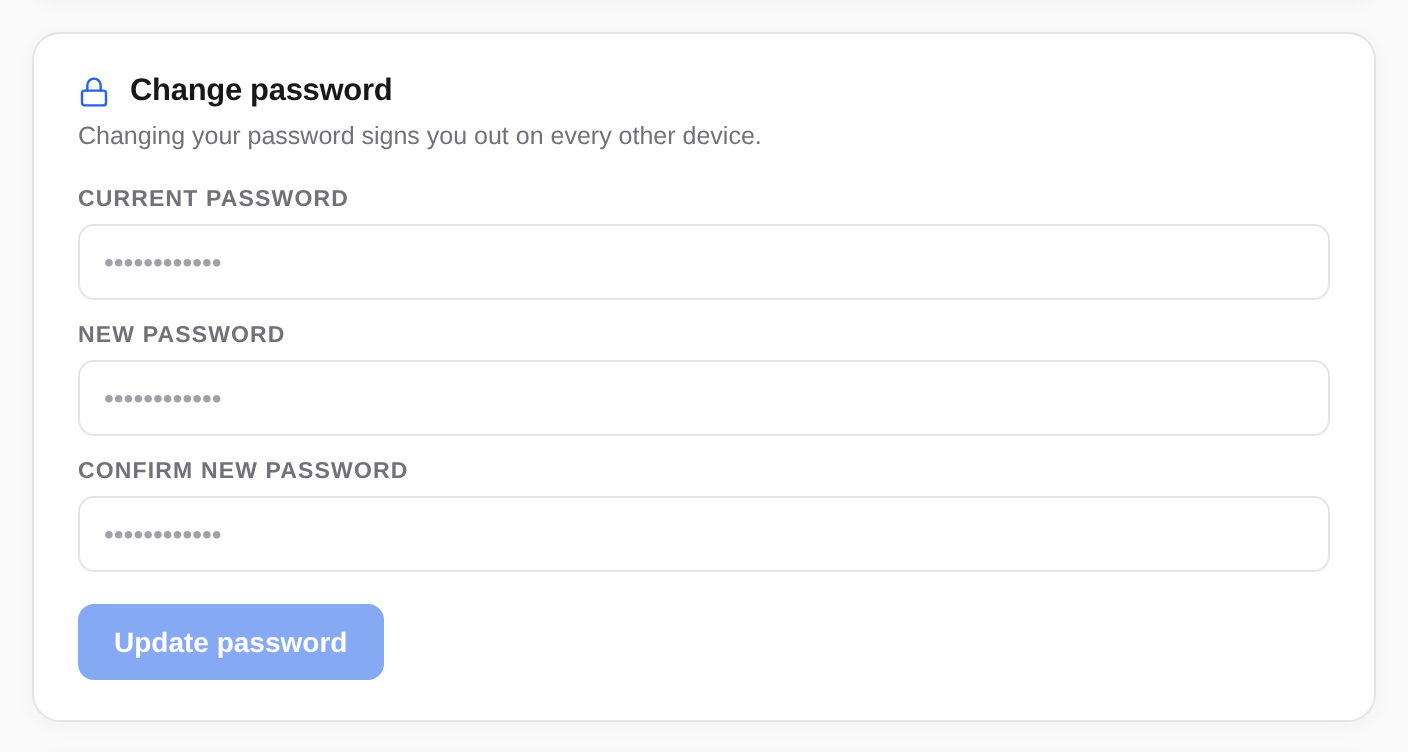
Once Password updated. appears, the new password applies.
What happens afterwards
- On this device you stay signed in.
- On every other device you are signed out, in every app. Sign in there again with the new password.
- App passwords keep working. Mail programs and phones go on syncing. To lock a device out, revoke its app password.
- Passkeys and two-factor stay as they are.
Forgot your password
- When signing in, enter your email address and choose Continue.
- Next to the password field, choose Forgot?.
- Check the Email address and choose Email me a link.
- Open the mail from Accounts and the link in it. It works only for a short time; the mail says how long.
- Under Choose a new password, enter the New password, repeat it under Confirm new password and choose Set new password.
- Choose Go to sign in and sign in with the new password.
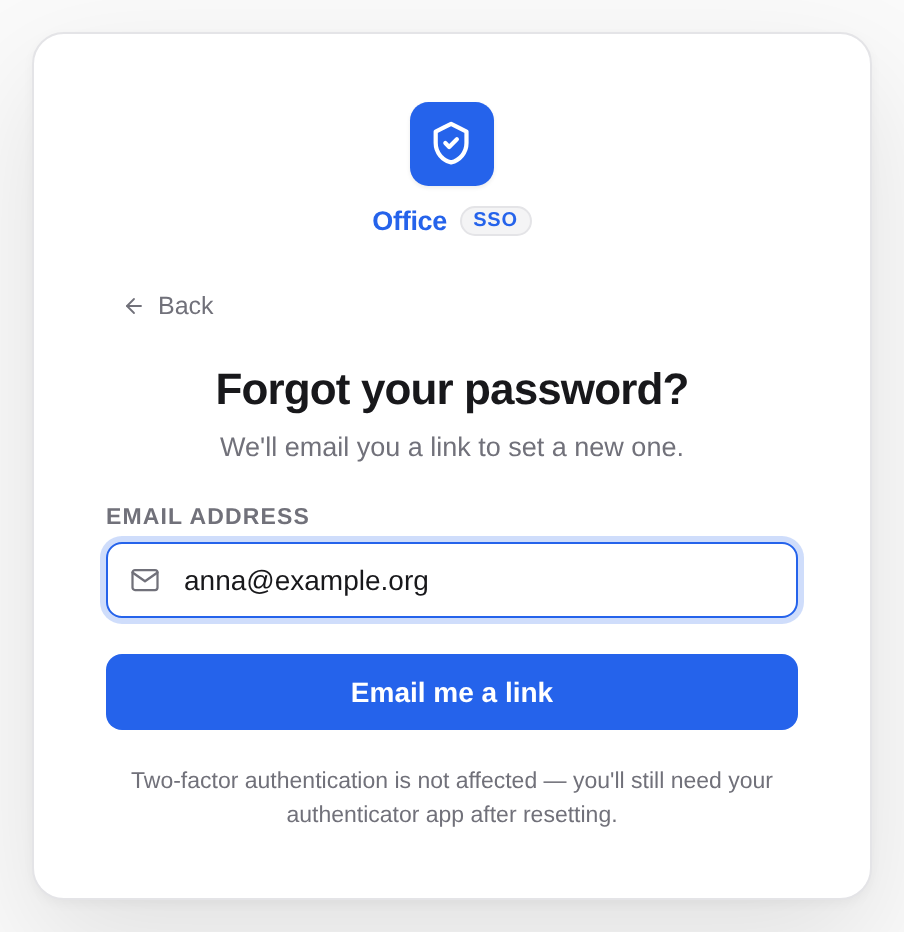
After a reset you are signed out everywhere, this device included. If you have set up two-factor, it stays on: you still need your authenticator app or security key to sign in.
If someone else knows your password
- Change your password. That signs out every other device.
- Look in the security log for what happened.
- Revoke app passwords you don't recognise, see App passwords.
- Set up two-factor or a passkey if you haven't yet.