
Senders and spam
Mail sorts out spam by itself: whatever the spam filter recognises goes to the Spam folder. You help it by correcting its mistakes, and you can block single senders or enter them as trusted.
Marking spam
- If spam has landed in the inbox, choose Spam in the conversation (or press !). It goes to the Spam folder.
- If real mail has landed in Spam, open it there and choose Not spam. It goes back to the inbox.
The spam filter remembers both and learns from them.
Mail doesn't offer unsubscribing for mail in Spam. Whatever has been there longer than 30 days is deleted.
Blocking from a message
- Open a message from the sender.
- Choose More, then the entry with “Block” and their address, e.g. “Block newsletter@shop.example”.
The conversation goes to Spam, and so does all further mail from this address. For a few seconds, Undo brings the conversation back. The address stays blocked. To unblock it, use the Senders tab.
The lists of senders
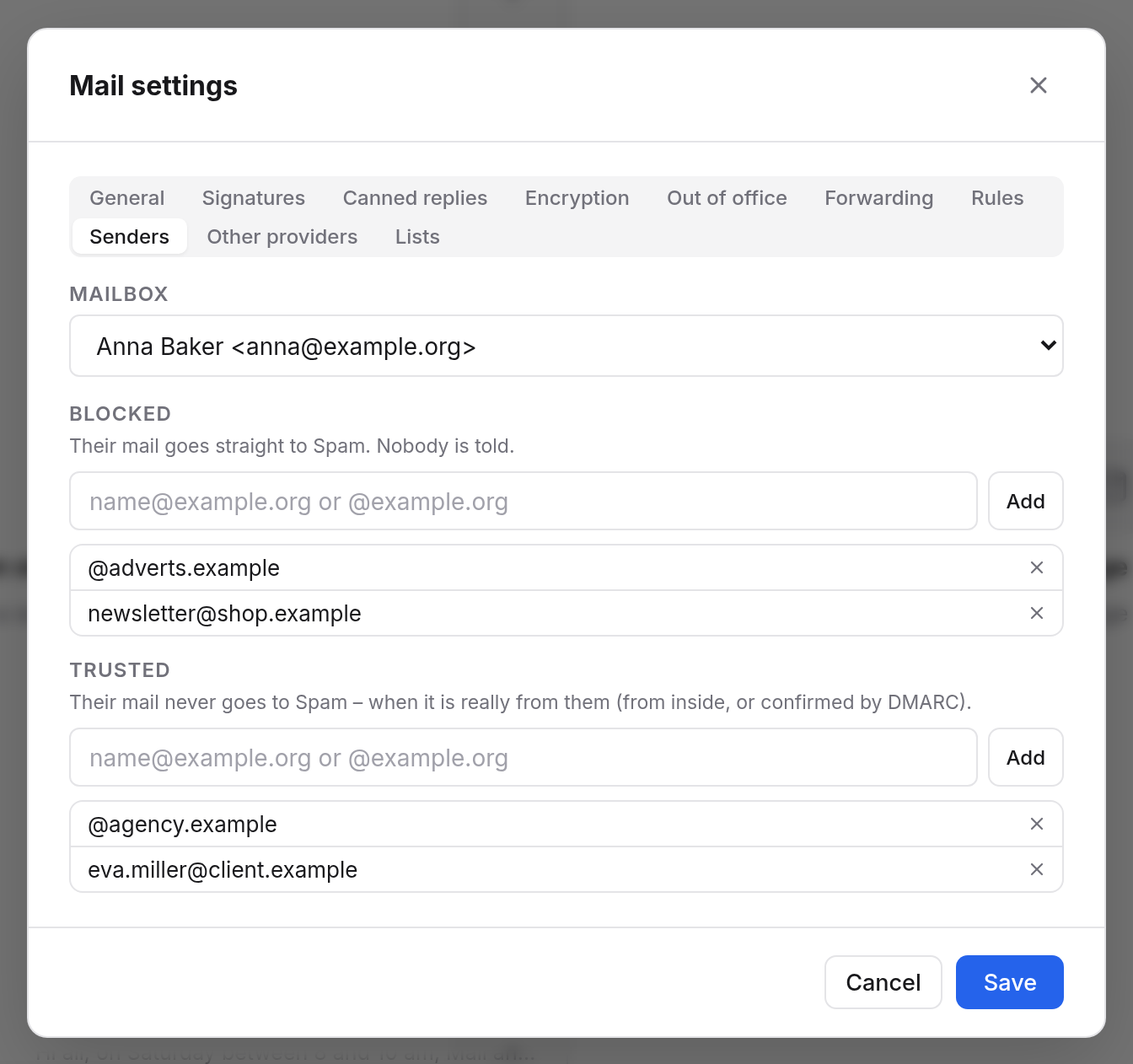
- Choose Settings at the bottom of the sidebar, then the Senders tab.
- Under Blocked or Trusted, enter an address, e.g.
newsletter@shop.example, or with@a whole domain, e.g.@agency.example. - Choose Add.
- Choose Save.
The x beside an entry removes it. When you enter an address in one list, it disappears from the other.
| List | Effect |
|---|---|
| Blocked | Their mail goes straight to Spam. The sender is not told: the mail is not refused. |
| Trusted | Their mail never goes to Spam. This applies only when the mail really comes from them: from inside the organisation, or from outside with the sender confirmed (DMARC). So a forged sender address doesn't get past the filter. |
If you manage a group mailbox, choose under Mailbox at the top which mailbox the lists are for.
Getting rid of newsletters
A newsletter you once signed up for is better unsubscribed from than blocked: with Unsubscribe under the sender, see Unsubscribing. If you want to keep it, just not in the inbox, a rule sorts it into a folder of its own.
Examples
An agency whose mail often ends up in Spam@agency.example under Trusted.
Adverts you can't unsubscribe from@adverts.example under Blocked.