
Reading messages
Mail shows your messages as conversations: a mail and all the replies to it stay together, your own replies from Sent included.
The message list
Each row is a conversation. Unread ones are in bold. When a conversation has several messages, their number is shown, and the arrow in front of it opens it in the list: its messages appear indented below. If one of them is in another folder, the folder is named.
- At the top, choose All or only Unread.
- Hover over a row to archive it, mark it read or unread, or delete it straight away.
- At the very bottom, Show more loads older conversations.
Reading a conversation
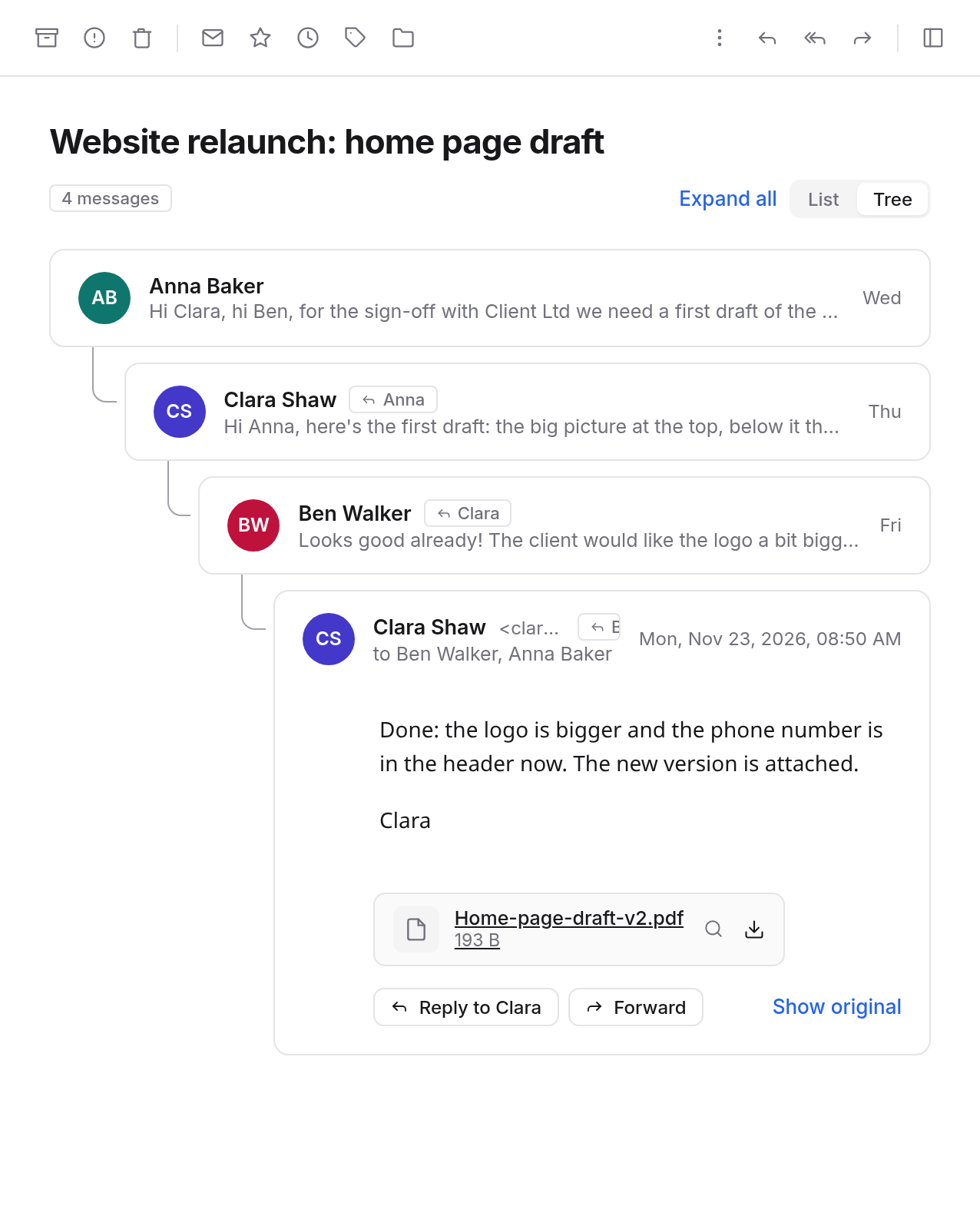
Choose a row. The conversation opens on the right: the latest message and all unread ones are expanded, the others show only the sender and the start of the text. Clicking a message's header expands or collapses it, and Expand all opens them all at once. Whatever you have expanded counts as read.
For longer conversations, choose how to show them:
- List: all messages one below the other, by time.
- Tree: replies are indented under the message they answer. That way you see when a conversation branches.
Next to a name, a small button with an arrow shows whose message someone replied to. Click it to jump there.
What you can do with a conversation
The buttons at the top of the reading pane apply to the whole conversation:
| Button | What happens |
|---|---|
| Archive | The conversation goes to the Archive, where you can still find it. |
| Spam | It goes to the Spam folder, and the spam filter learns from it. In Spam the button reads Not spam and brings it back to the inbox. |
| Delete | It goes to the Trash. In Trash and Spam, there is Delete forever instead. |
| Mark unread | It counts as unread again. |
| Star | It gets a star, see Starred. |
| Snooze | It goes away until later, see Snooze. |
| Labels | Add or remove labels. |
| Move to… | Into another folder. |
| Reply, Reply all, Forward | For the latest message. Under each message you find the same buttons for that one. |
Under More you also find:
- Print: every message of the conversation, expanded.
- Show original: the message as it arrived (see below).
- Mute conversation, see Muting.
- adding the sender to your contacts.
- Make a rule from this…, see Rules.
- blocking the sender, see Senders.
When you move or delete something, Undo brings it back for a few seconds.
Several conversations at once
Tick the box in front of a row. With Shift held down you select everything up to the last one ticked, with Ctrl (⌘ on a Mac) and a click you add single ones. A bar appears at the top with the number and buttons to archive, star, move, label, mark as spam and delete. Clear the selection ends it.
You can also drag conversations onto a folder, a label or Starred in the sidebar.
Messages from outside
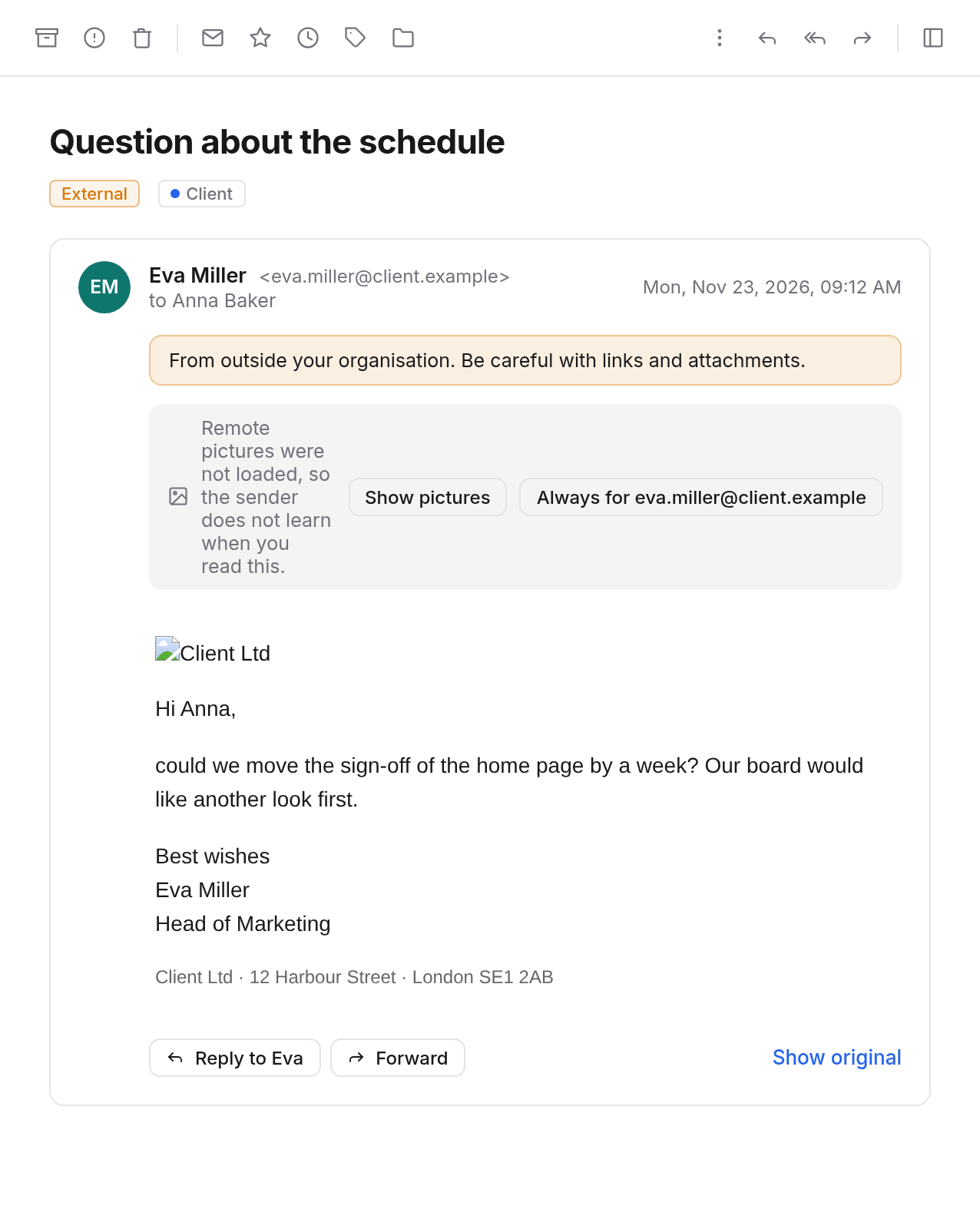
Messages from outside your organisation carry the External badge, and above the text there is a warning to be careful with links and attachments. This helps you spot forged mail pretending to come from colleagues.
Pictures in messages
Mail only shows pictures that would be loaded from other servers when you want it to. Otherwise the sender would learn whether and when you read the mail. A note appears above the text:
- Show pictures loads the pictures of this one message.
- Always for and the sender's address loads them for that sender from now on. This only applies to mail that is confirmed to come from them.
Even then, the server fetches the pictures for you. The sender learns neither your address nor when you read.
Attachments
Attachments are listed below the text. Click one to download it. Pictures and PDF files can be viewed straight away with Preview (the magnifier): pictures in a window, PDFs in a new tab.
Invitations and bookings
When a mail contains an invitation to an event, Mail shows a card above the text with the time, place and organiser. Answer there with Yes, Maybe or No. How invitations get into your calendar is explained under Invitations.
Flight, train and hotel bookings, car rentals, restaurant tables and tickets are recognised when the provider sends them along in machine-readable form. Add to my calendar puts them into your calendar as an event. A second click does not add a second event.
Read receipts
When the sender asks for a read receipt, Mail asks you above the text. Choose Send or Don't send. Mail doesn't ask again afterwards, not even on your phone.
If you asked for a receipt yourself (see Writing), your sent message shows who read it and when.
Unsubscribing from newsletters
Newsletters and mailing lists that name a way to unsubscribe show Unsubscribe under the sender. Mail asks once more and then does it for you, from the server, without your browser opening the sender's page. If the sender only offers a web page, it opens in a new tab.
Mail doesn't offer this for mail in Spam: a click would only confirm to the sender that your address is read.
Seeing the original
Show original (under each message and under More) shows the message as it is stored: the header line by line and the body unchanged. What this server added on delivery is marked. You can Wrap long lines, copy everything for your IT with Copy all or Copy header, and save the file with Download original (.eml).
The first 2 MB are shown; the download has all of it.
Adjusting the view
- Full-width reading hides the message list, Show three columns brings it back.
- Drag the borders between the sidebar, the list and the reading pane to resize them. A double click restores the usual width. Mail remembers the widths for you, in other browsers too.
- On narrow screens, open the sidebar with Show folders.
- Light or dark, and the language, are chosen from your name at the bottom left.
Notifications
In the settings, General tab:
- Notify me of new mail while the page is in the background: your system tells you about new mail while Mail is open in a tab. Your browser asks once whether it may.
- Also tell me by mail about invitations from colleagues: invitations reach your calendar either way. With this, each one also arrives as a message in your inbox, with buttons to answer.
- Open email links (mailto:) here: clicking an email address on a web page then opens Mail. This applies to this browser only.
The bell at the top of the sidebar also tells you about snoozed conversations that are back, and reminders when nobody has replied.