
Find a time
A scheduling poll finds a time that suits as many people as possible: you propose a few times, everyone asked says which suit them, and you choose one. It becomes an event with everyone invited.
A poll is worth it when you can't see the others' calendars, with guests from outside for instance. For colleagues, Find a time when everyone is free in the event form is often quicker, see Invitations.
How a poll works
- You make the poll: title, length, a few times and whom you ask.
- Everyone asked gets a mail with a link of their own. They need no account.
- At the link, they say for each time whether it suits them. They see the others' answers too.
- You see the answers as they come.
- You choose a time. The event goes into your calendar, and everyone asked is invited.
Making a poll
- In the sidebar, choose Find a time, then New poll. If you have none yet, the form opens at once.
- Fill in the fields (see below).
- Choose Send the poll.
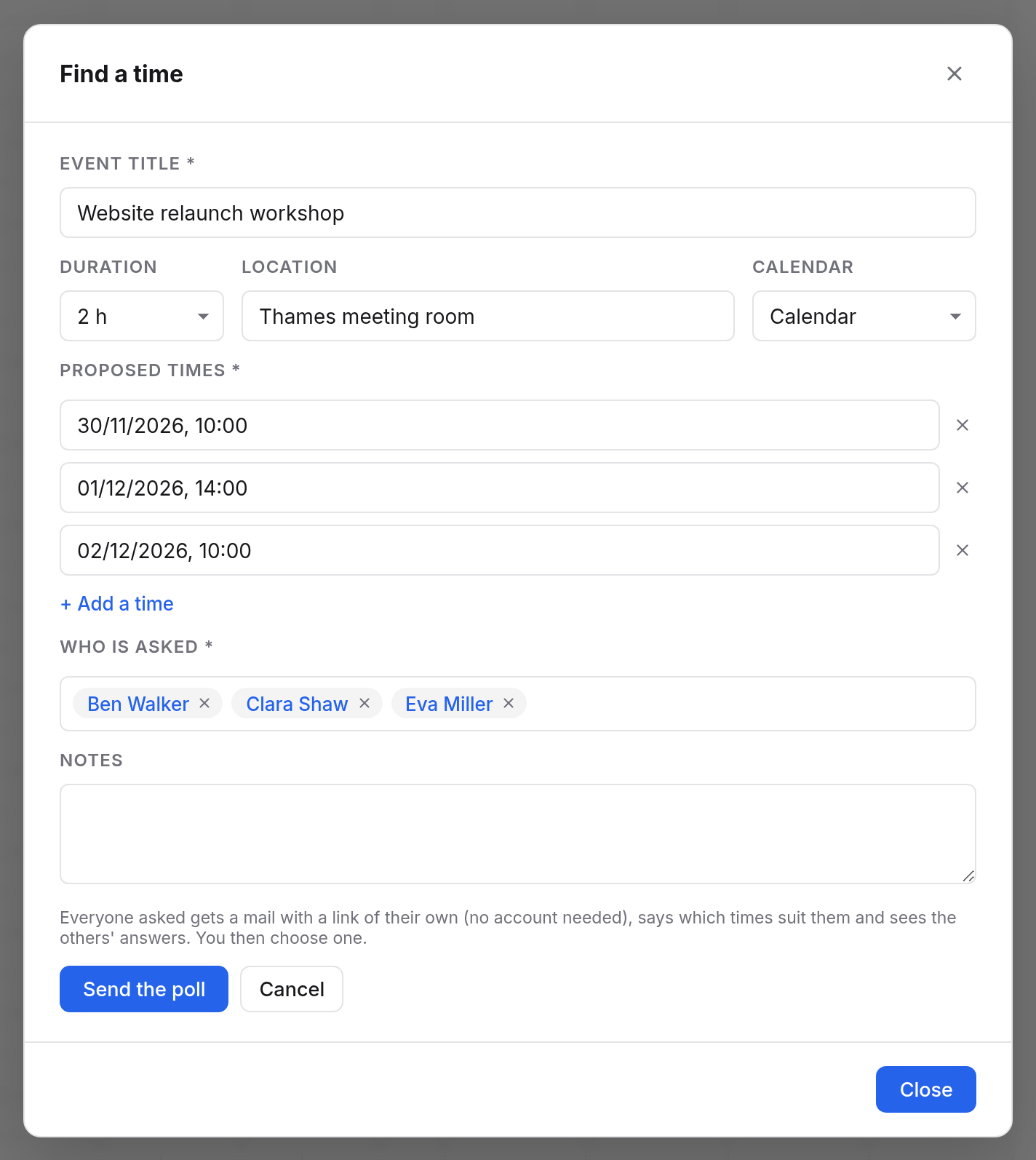
| Field | Meaning |
|---|---|
| Event title | What it is about, e.g. "Website relaunch workshop". Required. |
| Duration | How long the meeting will be, from 15 minutes to 8 hours. |
| Location | Where it takes place, if that is settled. |
| Calendar | Which of your calendars the event goes into in the end. |
| Proposed times | The start times to choose from, in your time zone. At least 2, up to 30 with Add a time. Required. |
| Who is asked | Up to 100 people, from your organisation or outside. A label from your contacts works too. Required. |
| Notes | A text for those asked, such as the agenda. |
You don't need to add yourself: you are the organiser.
The mail to those asked comes from Office's system address, in your name. It lists the times and has the personal link. When someone replies to the mail, the reply comes to you.
What those asked see
Whoever opens the link sees your name, the title, length, place and your notes. Below is a table: the proposed times along the top, the names of those asked down the side. The times show in the person's own time zone, named below the table.
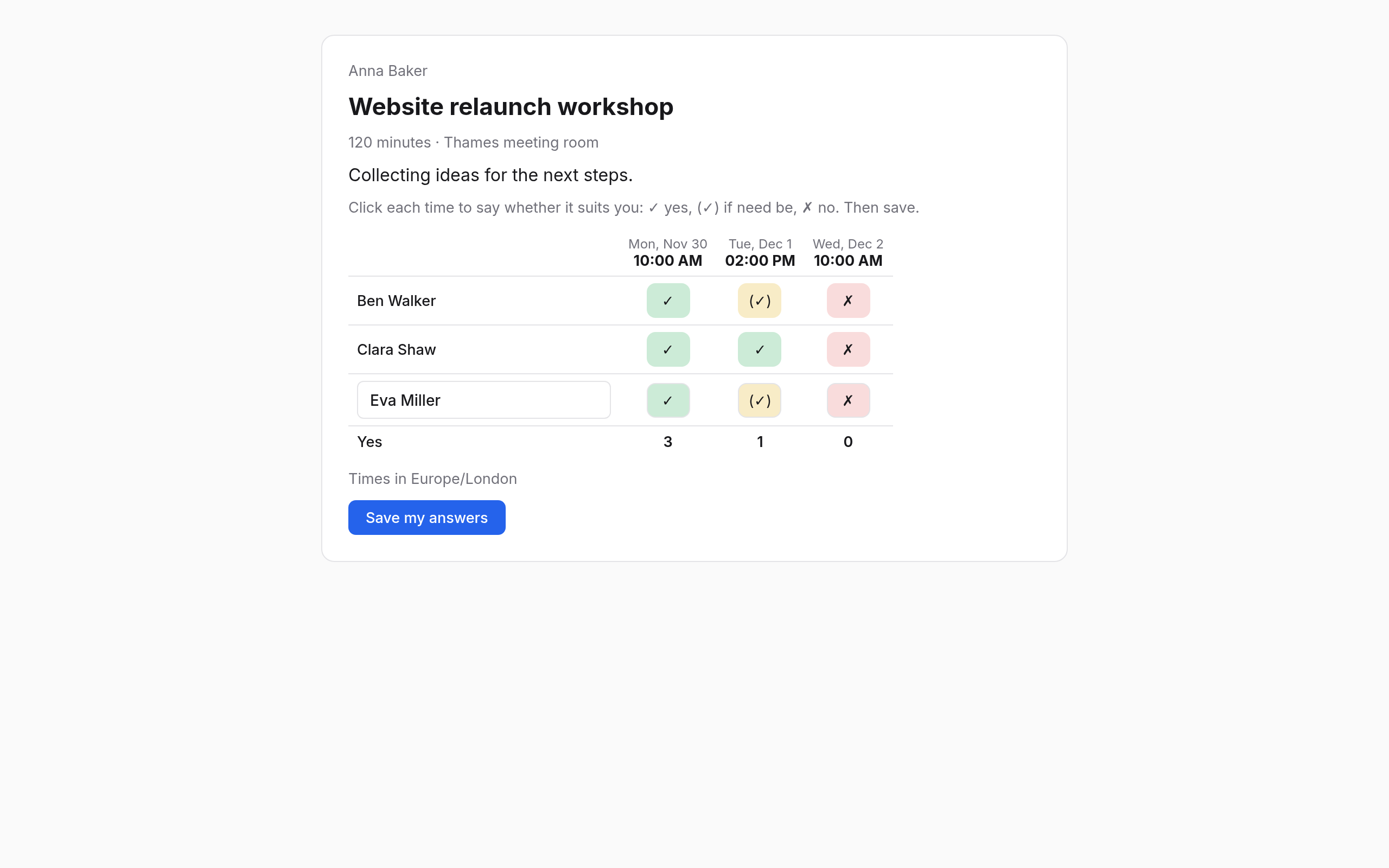
This is how to answer:
- Click each time in your own row. Each click moves on: ✓ Suits me, (✓) If need be, ✗ Does not suit me, empty.
- Change your name in the row, if you like.
- Choose Save my answers.
The Yes row at the bottom counts how many each time suits. Those asked see only the others' names, never their addresses.
Until you have chosen a time, everyone can change their answers at the same link. Once the time is set, the page shows it, and the invitation comes by mail, or for colleagues, into their calendar.
Seeing the answers
Open Find a time in the sidebar. Each poll is listed with its title and how many have answered, such as "2 of 3 answered". Anyone who hasn't answered yet is shown pale.
The table shows every answer. The Yes row counts the yeses per time, followed by the If need be answers with a "+". The time with the most yeses is highlighted.
When someone answers, the bell tells you too.
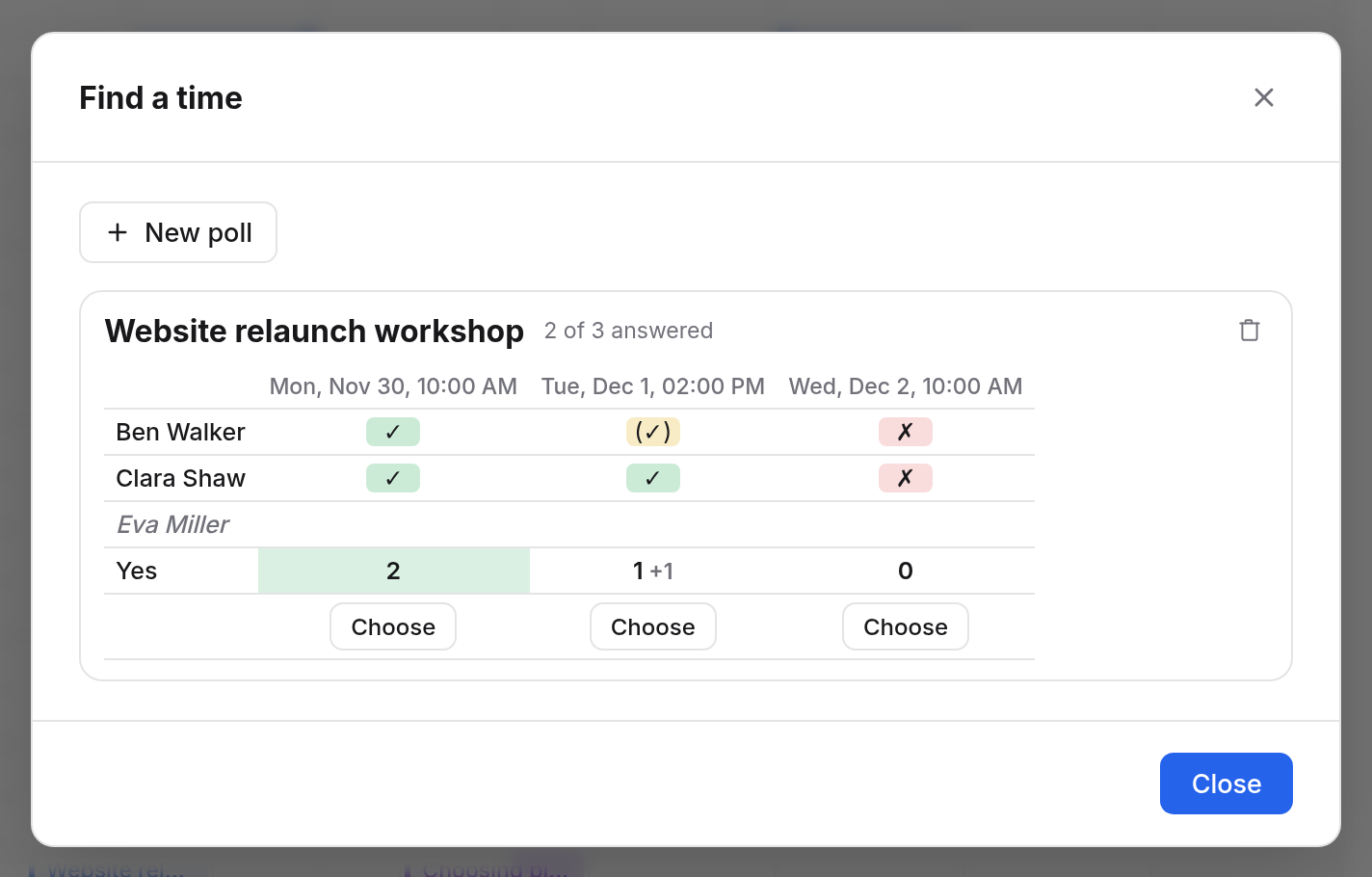
Choosing a time
- Below the time it should be, choose Choose.
- Confirm the question.
It becomes an event in the calendar you chose in the poll, with the poll's title, place and notes. Everyone asked is a guest and invited as for any event. That closes the poll: answers can no longer be changed, and below the table it says which time was chosen.
You then edit the event like any other, see Events.
Deleting a poll
The bin on a poll (Delete the poll) removes it. Its links stop working: whoever opens one reads that the poll is no longer there. If you had already chosen a time, the event stays.
A poll that has gone out can't be changed. For other times or people, delete it and make a new one.