
Encrypting and signing
Ordinary mail can be read by any server along the way. An encrypted mail can be read only by its recipients. A signed mail proves that it comes from you and that nobody changed anything on the way.
Mail knows both usual methods:
| Method | What you need | Common with |
|---|---|---|
| OpenPGP | a key you make in Mail itself, or bring from Thunderbird or GnuPG | Thunderbird, Proton, GnuPG |
| S/MIME | a certificate from a certificate authority, as a file (.p12 or .pfx) | Outlook, Apple Mail, public bodies and large companies |
Encrypting and decrypting happen in your browser. Your secret key is locked with a passphrase only you know. The server never sees it.
Making an OpenPGP key
- Choose Settings at the bottom of the sidebar, then the Encryption tab.
- Beside your address, choose Make a key.
- Enter a Passphrase of at least 10 characters (a few words are good) and repeat it under Passphrase again.
- Leave Publish the public key, so others find it (Web Key Directory) ticked. Other programs then find your key and can write to you encrypted.
- Confirm that you understand the passphrase cannot be reset.
- Choose Make a key.
- Choose Save revocation certificate and keep the file somewhere safe, not only here. Should your key be lost or stolen, it tells others not to use it any more.
Bringing an existing OpenPGP key
If you already have a key in Thunderbird or GnuPG, bring it along:
- Export the secret key there. In Thunderbird: account settings → End-to-end encryption → key → Export secret key. With GnuPG:
gpg --export-secret-keys --armor anna@example.org. - In the Encryption tab, choose Import beside your address.
- Paste the key under Secret key (from Thunderbird, GnuPG …).
- Enter its passphrase. If it has none, choose a new one.
- Confirm and choose Import.
The key must be for your address.
Managing your key
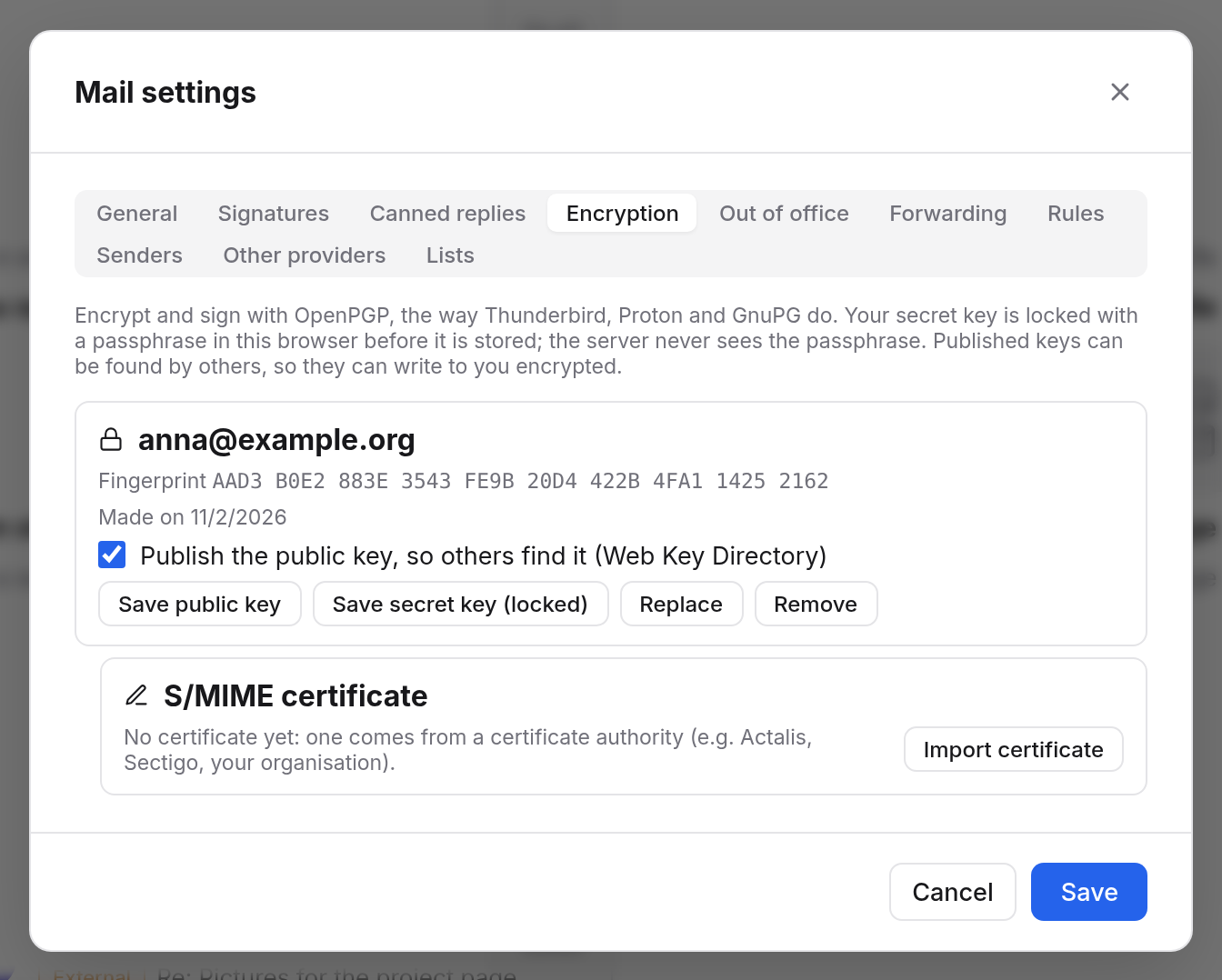
Once there is a key, you see its Fingerprint and when it was made.
- Save public key: as a file, to send to someone, say.
- Save secret key (locked): for another program such as Thunderbird. The file stays locked with your passphrase.
- Replace: import another key.
- Remove: mail encrypted to this key can then no longer be read here.
Your key is available on every device where you sign in to Mail. Everywhere, you unlock it with the passphrase.
Importing an S/MIME certificate
You get an S/MIME certificate from a certificate authority, such as Actalis or Sectigo, or from your organisation, as a file with a password.
- In the Encryption tab, beside your address under S/MIME certificate, choose Import certificate.
- Choose the file under Certificate file (.p12 or .pfx).
- Enter The file's password.
- Enter a Passphrase of your own (at least 10 characters) and repeat it. If you take the same one as for your OpenPGP key, one unlock opens both.
- Confirm and choose Import.
You then see who issued the certificate, how long it is valid and whether the server trusts the authority. If it doesn't, your recipients may be warned.
Signing and encrypting while writing
If you have a key or a certificate for the address under From, two buttons appear in the bar above the text:
- Sign: recipients can check the message comes from you, unchanged. With a certificate Mail signs with S/MIME, otherwise with OpenPGP.
- Encrypt: only the recipients and you can read the message. It is signed as well.
When encrypting, Mail looks for the recipients' keys: colleagues' here, the key directory of the recipient's domain, and in signed mail they have sent you. If every recipient has an S/MIME certificate, Mail encrypts with S/MIME, otherwise with OpenPGP. Under the subject you see whether everything is ready or for whom a key is still missing. Without someone's key, they cannot read the message. Take them out of the recipients, or write to them unencrypted.
If your key is still locked, enter the passphrase in the field and choose Unlock. Send then becomes Send encrypted.
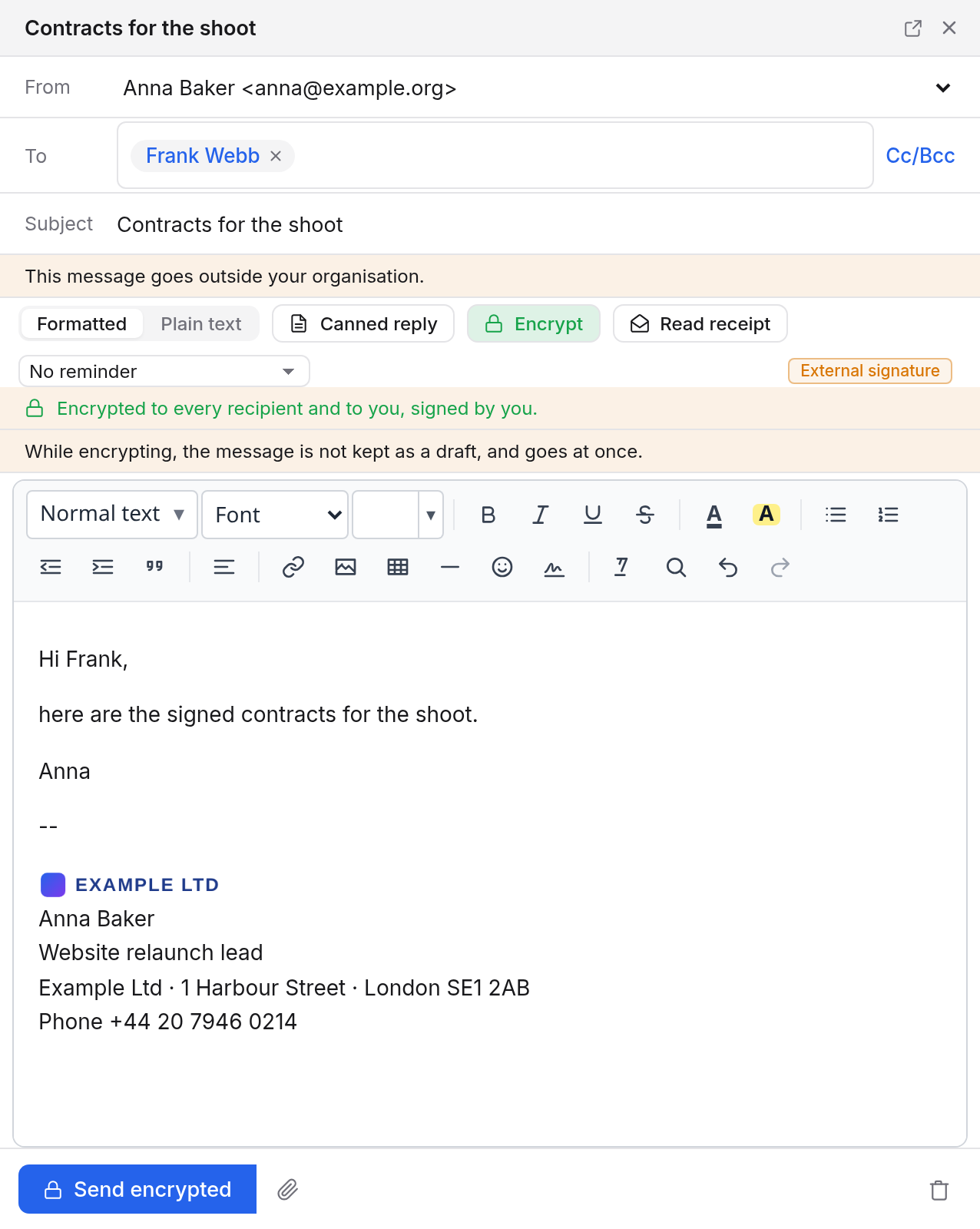
Your copy in Sent is encrypted too. When you reply to encrypted mail, the reply is encrypted from the start.
Reading encrypted mail
Instead of the text, Mail shows a field for your passphrase.
- Enter the passphrase and choose Unlock.
- Mail decrypts the message in your browser and shows it.
Your key stays unlocked in this tab until you close it or choose Lock. More encrypted mail then opens without typing it again. The decrypted text is not stored anywhere, so searching doesn't find it.
Recognising signed mail
Above the text of a signed mail, Mail says whether the signature holds:
| Note | Meaning |
|---|---|
| The signature holds | The mail comes unchanged from the sender shown. |
| Nobody vouches for the key | The mail is unchanged, but it is not confirmed whose key it is, for example because it only came with the mail itself or the certificate is from an unknown authority. |
| Not the sender shown | Someone other than the sender named signed it. Be careful. |
| The signature does not hold | The mail was changed after signing, or is forged. |
| Cannot be checked | The sender's key is not known here. |
Hover over the note to see details, such as the key's fingerprint or who issued the certificate.
On other devices
To read encrypted mail in Thunderbird or on your phone too, the program there needs your secret key. Save it with Save secret key (locked) and import it there. The program's own help explains how.