
Meeting now
An ad-hoc meeting has no set time: it begins when you start it and runs while anyone is in it. You don't have to plan it, and you don't have to end it.
Starting a meeting
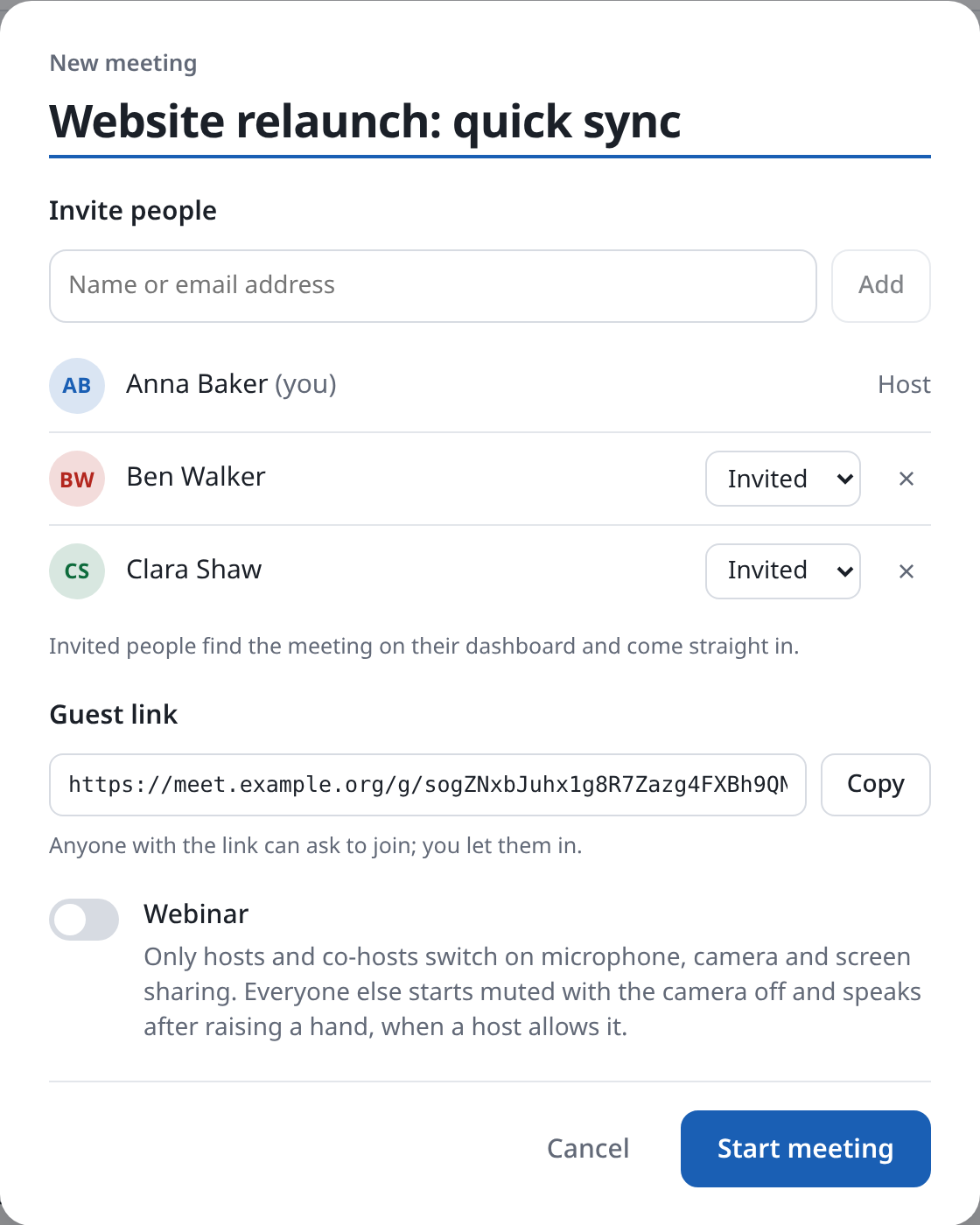
- Choose New meeting on the dashboard. A window opens.
- At the top is the title, such as "Meeting of Anna Baker". Type over it if you like, for example with "Website relaunch: quick check-in".
- Under Invite people, type names or email addresses (see Inviting). You can also skip this and hand out the link.
- Under Guest link, copy the link for people without an account, for example for Eva Miller of Client Ltd.
- Turn on Webinar if only you should speak and present (see Webinars).
- Choose Start meeting. You are in the call straight away.
Cancel, Esc or a click beside the window throws the meeting away again. The guest link then stops working.
Who gets in, and how
| Who | What happens |
|---|---|
| People invited, with an account | They find the meeting on their dashboard and come straight in. |
| Guests with the guest link | They type a name and wait until you let them in (see Waiting room). |
| Everyone else | They don't get in. |
In an ad-hoc meeting the guest link is always on, and guests always wait. If you want it otherwise, schedule the meeting instead (see Scheduling meetings).
You can invite more people during the call too, in the Participants panel (see In the call).
When the window stays open a long time
The meeting exists while the window is open, as the guest link has to work. If nobody comes in for ten minutes, it expires. The window warns you two minutes before.
If you choose Start meeting after that, Meet makes a new meeting, with a new guest link. A link you have already sent out has to be sent again.
When everyone has left
When the last person leaves the call, the meeting shows on the dashboard under Now as Ended. For ten minutes anyone can come back, from the dashboard or with the guest link, and it carries on.
After that, Meet deletes the meeting, and the guest link stops working.