
iPhone, iPad and Mac
Apple's Mail, Calendar and Contacts apps connect to Office directly. You need an app password for them. For files from Box, use the Nextcloud app.
First: make an app password
- In the browser, open Mail, Calendar or Contacts.
- Click your name at the bottom left and choose App passwords….
- Under Device name, enter for example "Anna's iPhone" and choose Create password.
- Keep the dialog open until you are done. The password is shown only this once.
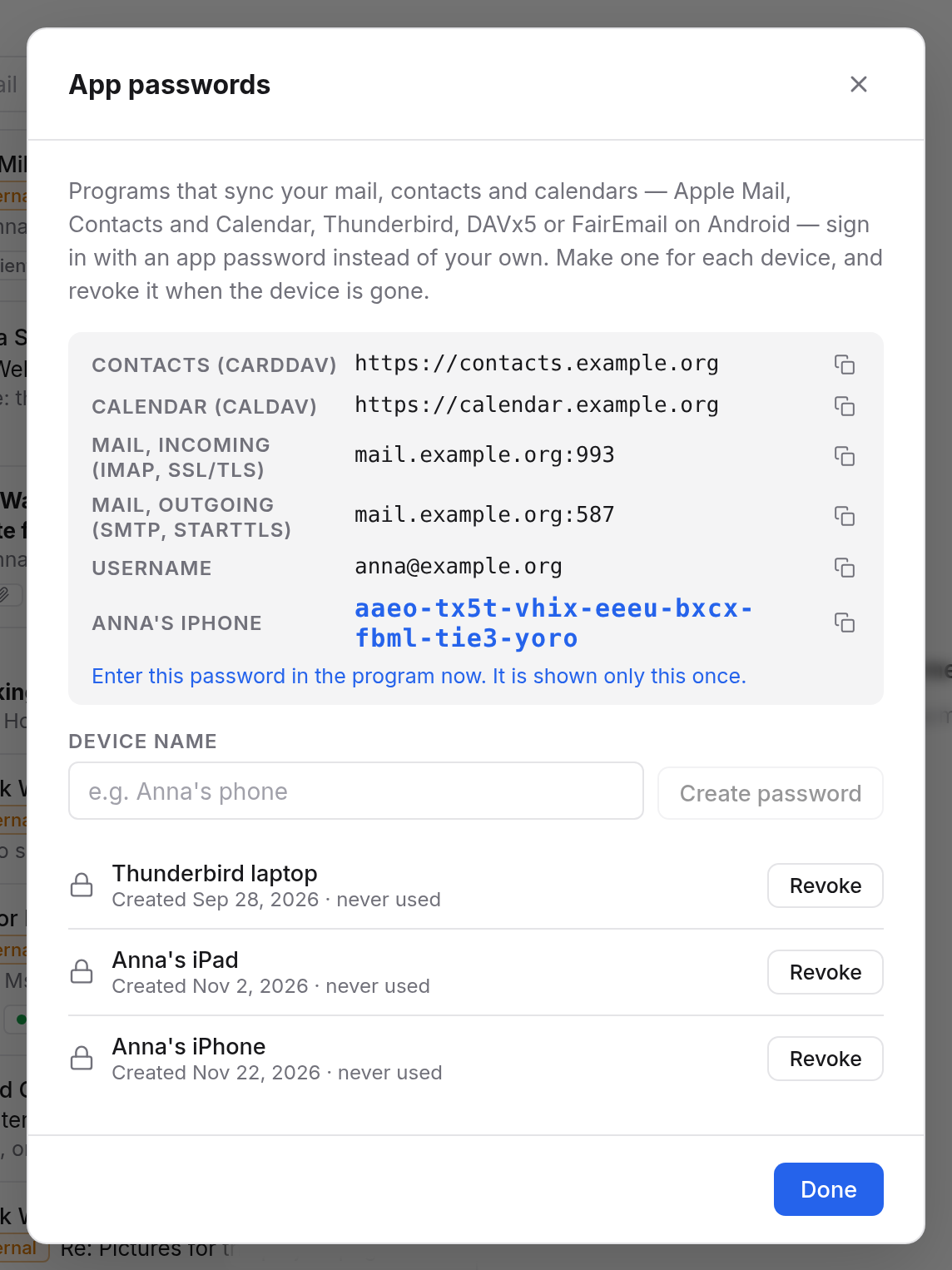
One app password covers all three on the same device: Mail, Calendar and Contacts. Make a separate one for your Mac.
These are the details you enter:
| Field | Value |
|---|---|
| Email address, user name | your email address, e.g. anna@example.org |
| Password | the app password |
| Mail server, incoming and outgoing | mail.example.org |
| Calendar server | calendar.example.org |
| Contacts server | contacts.example.org |
iPhone and iPad
The menu names are those of current iOS versions. In older ones, Mail, Calendar and Contacts sit directly in Settings, without Apps.
- Open Settings → Apps → Mail → Mail Accounts → Add Account → Other.
- Choose Add Mail Account.
- Enter your name, your email address and the app password, and as the description, say, "Office". Tap Next.
- If the iPhone asks for the servers, choose IMAP and enter
mail.example.orgunder both Incoming Mail Server and Outgoing Mail Server, with your email address as the user name and the app password. - Tap Next, then Save.
Calendar
- Open Settings → Apps → Calendar → Calendar Accounts → Add Account → Other.
- Choose Add CalDAV Account.
- As the Server, enter
calendar.example.org, as the User Name your email address and as the Password the app password. Tap Next and Save.
Your calendars then appear in the Calendar app.
Contacts
- Open Settings → Apps → Contacts → Contacts Accounts → Add Account → Other.
- Choose Add CardDAV Account.
- As the Server, enter
contacts.example.org, plus your email address and the app password. Tap Next.
Mac
- Open System Settings → Internet Accounts and choose Add Account.
- At the very bottom, choose Add Other Account.
- Choose, one after the other:
- Mail account: name, email address and app password. If the Mac asks for the servers, choose IMAP and enter
mail.example.orgtwice. - CalDAV account: account type Manual, your email address, the app password and
calendar.example.orgas the server address. - CardDAV account: account type Manual, your email address, the app password and
contacts.example.orgas the server address.
- Mail account: name, email address and app password. If the Mac asks for the servers, choose IMAP and enter
Mail, Calendar and Contacts on the Mac then show the accounts by themselves.
Files from Box
Box needs no app password to type in:
- iPhone and iPad: install the Nextcloud app from the App Store. Your files then also show up in the Files app.
- Mac: install the Nextcloud desktop client. It keeps a folder on your Mac in step with Box.
When setting up, you enter https://box.example.org and allow the device in the browser. How that works is under Nextcloud apps and WebDAV.
If it doesn't work
- "Cannot verify account" or wrong password: use the app password, not your usual one, and your full email address as the user name.
- Mail arrives, but sending fails: open the outgoing mail server of the mail account and check that SSL is on and the port is 587.
- It worked for a long time and suddenly stopped: the app password may have been revoked, or you haven't signed in in the browser for a while. See App passwords.
- Lost your iPhone: revoke its app password in the App passwords… dialog. Everything else keeps working.