
Meet
Meet is for video meetings: right now or scheduled, with colleagues or with guests who have no account. Picture and sound run in the browser; you don't need an app.
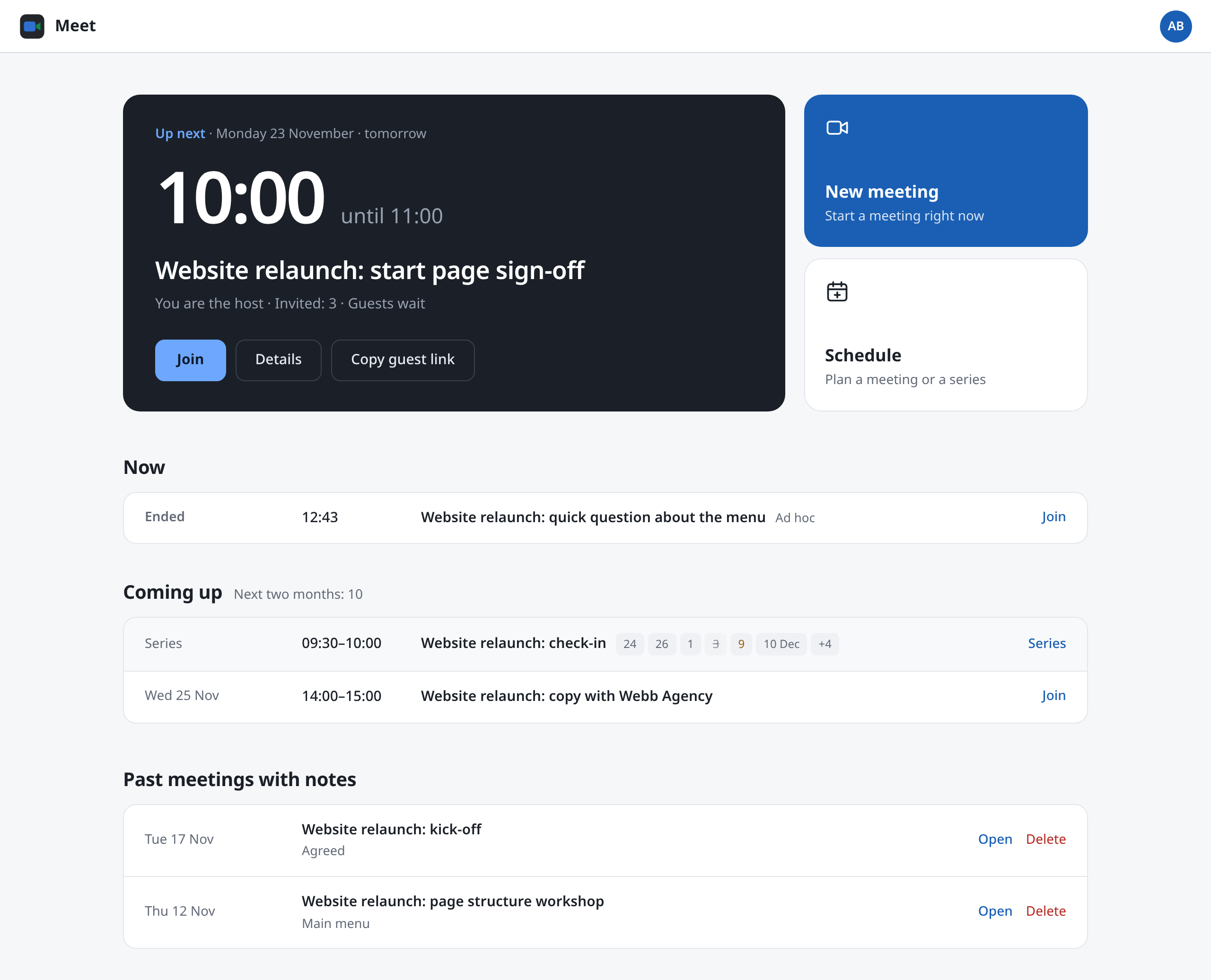
The dashboard
When you open Meet, you see your meetings for the next two months:
- Large at the top is the meeting running now, or the next one. Join takes you in, Details shows everything about it.
- Beside it, New meeting starts one right away and Schedule plans one for later.
- Under Now is whatever else is running, and ad-hoc meetings that have just ended.
- Under Coming up are the dates after that. A series takes one line, with its next dates.
- At the very bottom, under Past meetings with notes, are the notes of earlier meetings.
What you do in Meet
| Task | Page |
|---|---|
| Start a meeting right now and hand out the link | Meeting now |
| Schedule a meeting or a series, move or cancel dates | Scheduling meetings |
| Invite people and guests, give roles | Inviting |
| Decide who waits, and let waiting people in | Waiting room |
| In the call: manage participants, end the meeting | In the call |
| Present to many who only listen | Webinars |
| Take notes together and find them later | Notes |
Who may join
Only people invited get into a meeting, and, if you like, guests with the guest link.
| Role | May |
|---|---|
| Host | everything: edit, invite, admit, remove, choose co-hosts, delete |
| Co-host | nearly everything the host may. But only the host chooses co-hosts, and only the host deletes the meeting. |
| Invited | join and write in the notes |
| Guest | join through the guest link, without an account. Their name carries an addition such as "(Guest)". |
The host is whoever made the meeting. More under Inviting.
In this section
- Meeting nowStart an ad-hoc meeting, invite people, hand out the guest link. What happens once everyone has left.
- Scheduling meetingsSet up a meeting or series with date, duration and time zone, cancel or move single dates, add it to your calendar, delete it.
- InvitingInvite people with an account or by email address, give roles, decline invitations, the guest link and what guests see.
- Waiting roomDecide who waits, what waiting people see, admit or decline them, and how hosts hear of it.
- In the callJoining, the Participants panel for hosts, removing people, choosing co-hosts, inviting during the call, ending the meeting, leaving and rejoining.
- WebinarsOnly hosts and co-hosts speak and present. Everyone else listens and raises a hand to speak.
- NotesTake notes together in the call, with headings, lists and to-dos. Find them later, download, delete or hide them.