
Accounts
Accounts is the sign-in service of Office. You sign in here, and here you manage how you sign in and where you are signed in. How signing in itself works is under Signing in and switching apps.
Opening your account settings
- On the Accounts start page: the Settings tile.
- From any app: the account menu (behind your name) and Account settings. The settings open in a new tab.
Back to apps takes you to the Accounts start page.
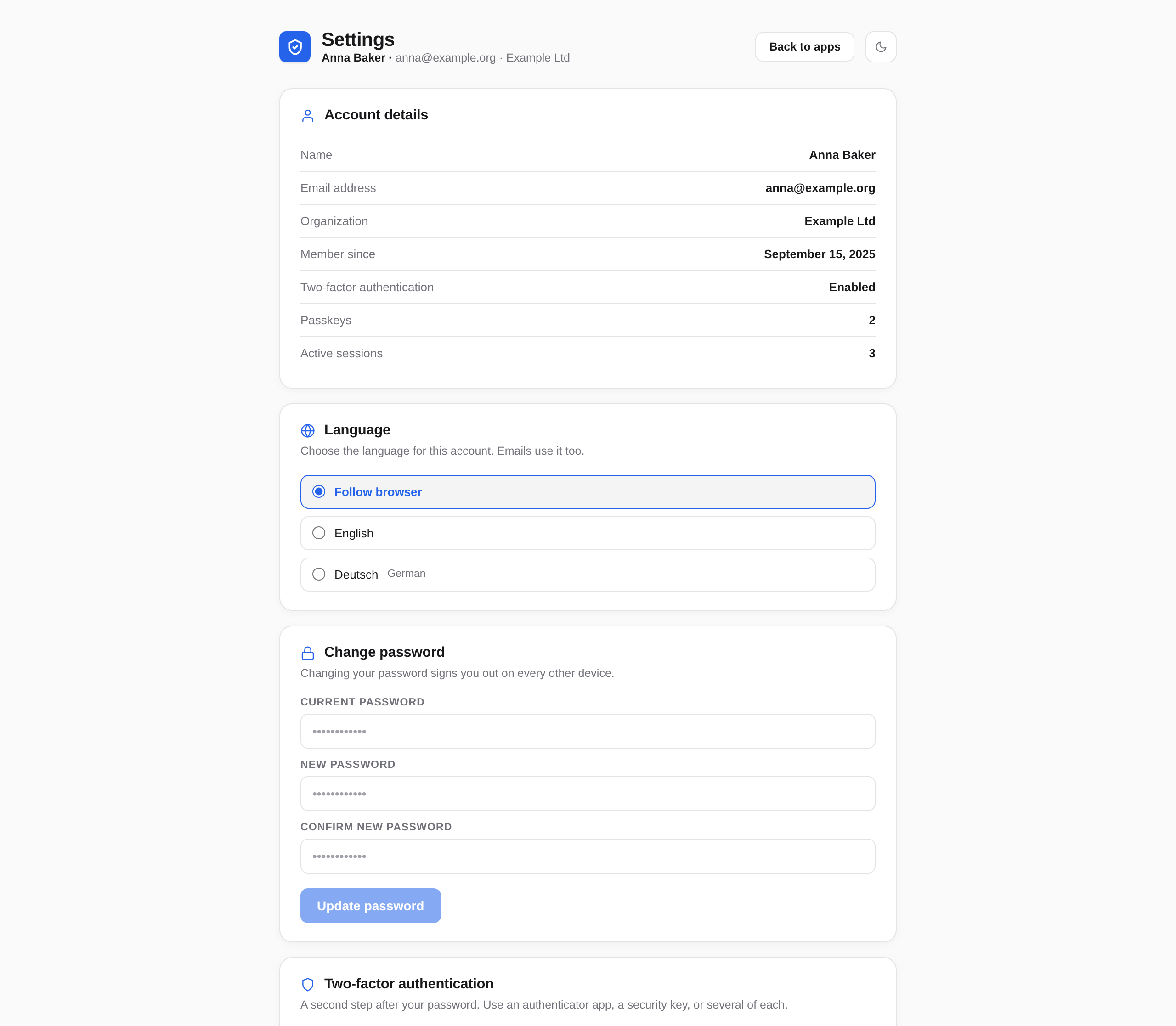
What you find there
| Section | What for | More |
|---|---|---|
| Account details | Name, email address, organisation, since when you have been a member, and whether two-factor is on. Your administrators look after name and organisation. | |
| Language | The language of Accounts and of the mails Accounts sends you. | Language and appearance |
| Change password | Set a new password. This signs you out on every other device. | Password |
| Two-factor authentication | A code from an authenticator app, or a security key, on top of your password. | Two-factor |
| Passkeys | Sign in without a password, with your fingerprint, face, Windows Hello or a security key. | Passkeys |
| Active sessions | See where you are signed in, and sign out single devices or all of them. | Sessions |
| Security log | Read up on sign-ins, failed attempts and changes to your account. | Security log |
What Accounts doesn't manage
- App passwords for mail programs, phones and sync programs are made in the apps themselves, not in Accounts. See App passwords.
- Your name, email address and which apps you may use are set by your administrators.
- Language and appearance of the other apps are set in each app. See Language, appearance and notifications.
When something is wrong
- Forgot your password? Choose Forgot? when signing in. See Resetting your password.
- Lost your authenticator? Choose Lost your authenticator? at the code. There are no recovery codes. See Two-factor authentication.
- Something in the security log that wasn't you? Change your password and sign out everywhere. See Sessions and security log.
In this section
- Changing and resetting your passwordChange your password in Accounts, reset a forgotten one by email, and what happens to your devices afterwards.
- PasskeysSign in without a password, with your fingerprint, face, device PIN or a security key. Adding, using, renaming and removing passkeys.
- Two-factor authenticationA code from an authenticator app, or a security key, on top of your password. Setting it up, several devices, removing, and what to do when your phone is gone.
- Sessions and security logSee where you are signed in, sign out single devices or all of them, and read in the security log what happened to your account.