
Invitations
When you invite someone to an event, the invitation goes into their calendar. They answer Yes, Maybe or No, and your event shows who is coming.
Inviting guests
- Open an event or make a new one.
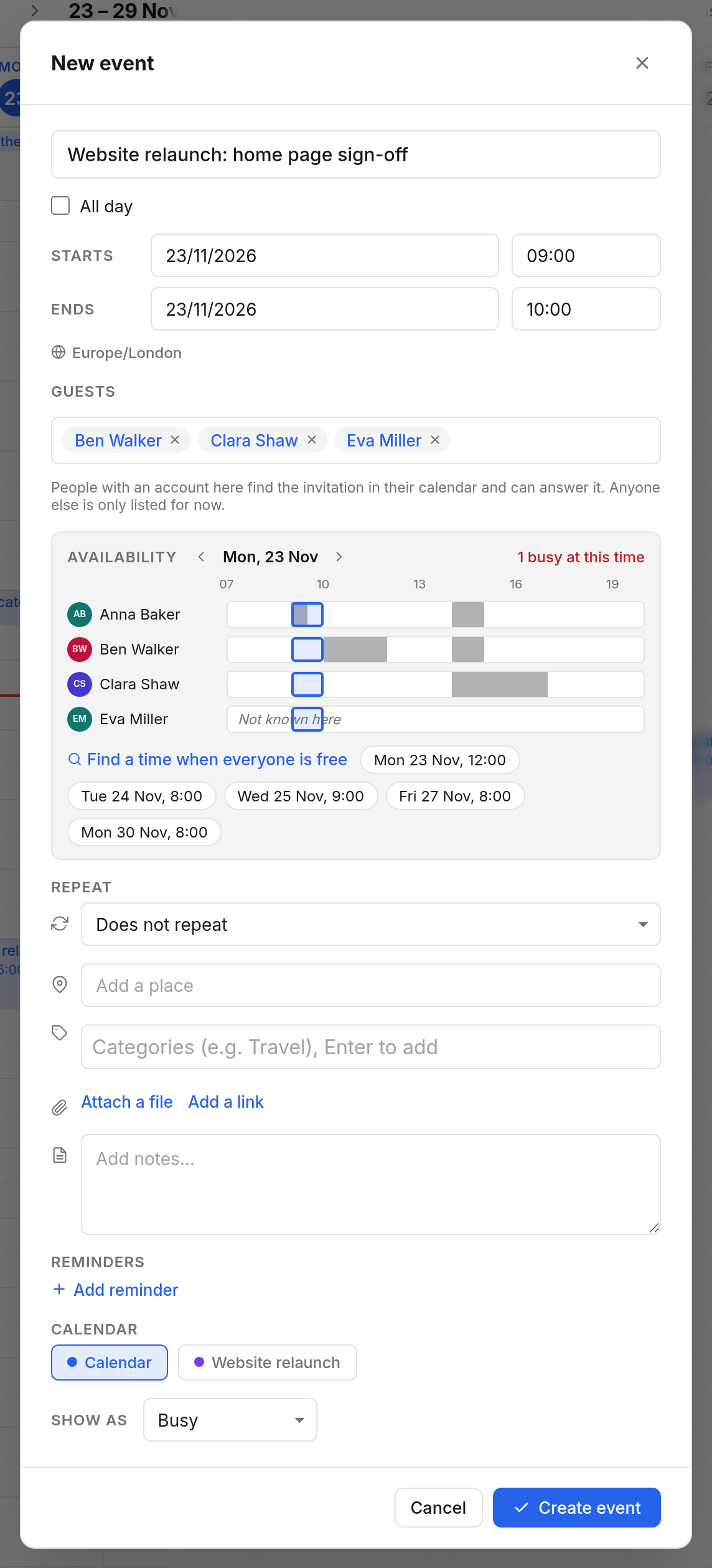
- Under Guests, type a name or an address, for example "Ben". Calendar suggests people from your contacts, your organisation and earlier mail.
- Pick the person with Enter or a click. Add more guests the same way.
- Save the event. Only then do the invitations go out.
You can also type a whole address, or paste a list such as ben@example.org; clara@example.org. A label from your contacts, such as "Project team", adds each person with that label (see Labels and companies).
Who gets what:
- Colleagues with an account find the invitation in their calendar and answer there.
- Guests from outside, such as Eva Miller from Client Ltd, get the invitation by mail, in your name, and can answer it. When the time or place changes, they get a new mail.
You are the organiser by yourself. If you later change the time, all guests are asked again. A new title or place keeps their answers. If you take someone off the guest list or delete the event, it shows as cancelled for the guests.
Availability and free times
As soon as an event has guests, the form shows a row for each person under Availability, for the event's day. Bars are busy times, paler bars tentative ones. Your planned event is laid over them as a frame.
- On the right is Everyone is free, or how many people are busy at this time.
- Click into a row, and the event moves there, on the half hour, keeping its length.
- The arrows beside the date go a day back or forward.
- Away means the person has an automatic out-of-office reply on. See Out of office.
- Not known here means Calendar doesn't know this person's times, for guests from outside for instance. So they are not necessarily free.
You only see when someone is busy, never what they are doing.
Find a time when everyone is free
Choose Find a time when everyone is free. Calendar looks through the next two weeks for times when everyone it knows about is free, and suggests up to five: on weekdays between 8:00 and 18:00, at most one a day. A click on a suggestion moves the event there.
If it finds nothing, it says there is no common free time in the next two weeks. A poll, where everyone says what suits them, helps then.
Who is coming?
Your event's card shows the answers: a summary at the top such as "2 going · 0 not going · 1 waiting", then each person with their answer: Going, Not going, Maybe or Awaiting answer.
Answering an invitation
- Click the invitation in your calendar.
- At Going?, choose Yes, Maybe or No.
Your answer goes to the organiser at once. You can change it any time.
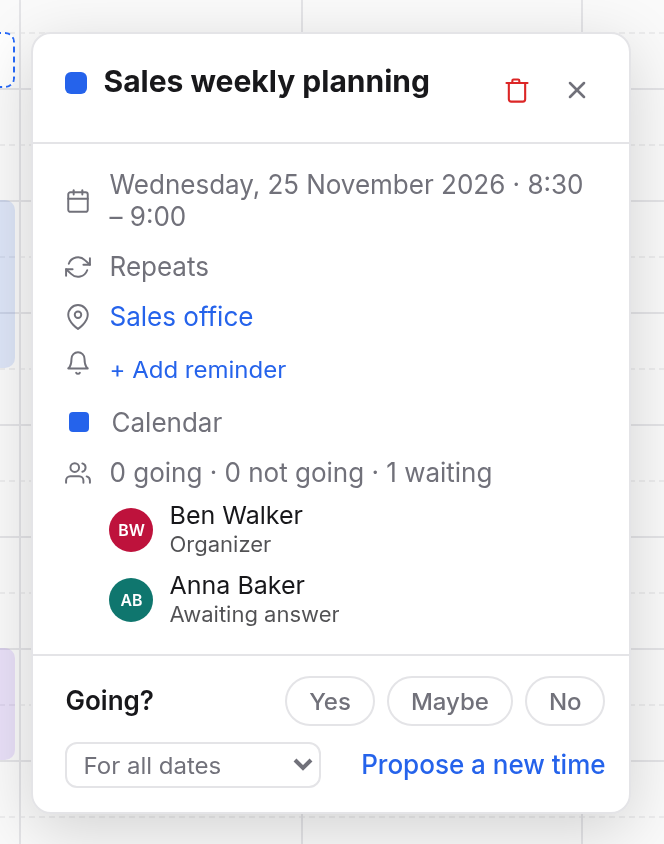
For a series, first choose whether your answer is For all dates or For this date only. That way you can decline one Tuesday and stay in for the rest.
Your own reminders: on an invitation's card you can add and remove reminders of your own. They are only for you. Nothing else about an invitation can be changed by you: that is the organiser's part.
Removing: Remove from my calendar (the bin on the card) takes the invitation out of your calendar. That counts as declining.
Proposing a new time
If the time doesn't suit you, propose another one to the organiser:
- Click the invitation and choose Propose a new time.
- Set the date, start and end. Below you see the availability of the organiser and the other guests. Find a time when everyone is free helps here too.
- Under Note to the organizer, say why this time suits better, if you like.
- Choose Send proposal.
For a series, your proposal is for the one date you clicked. The card then shows your proposal. Withdraw takes it back.
You can't propose a new time for an all-day event.
When someone proposes a time to you
As the organiser, you see a proposal on your event's card, with the name, the new time and the note.
- Accept moves the event to the proposed time. All other guests are asked again. Whoever proposed it counts as going.
- Dismiss drops the proposal. The time stays.
If you move the event yourself, proposals for it are dropped.
Invitations waiting
Not every invitation goes straight into your calendar. Which ones wait depends on your setting (see below). When some wait, the top of the sidebar below New event says how many. A click opens Invitations.
| Button | What happens |
|---|---|
| Yes or Maybe | The event comes into your calendar, and the organiser hears your answer. |
| No | The organiser hears that you decline. |
| Ignore | The invitation goes away. Nobody hears anything about it. Just right for invitations from strangers. |
Invitations waiting don't make you busy and don't reach your phone. When the organiser changes or cancels the event, you see that here too.

Which invitations come into your calendar
In the calendar settings, Add invitations to my calendar says which invitations go straight into your calendar:
| Setting | Meaning |
|---|---|
| From everyone | Every invitation goes straight in. |
| Only from people I know | The default. Invitations from people you know go straight in, all others wait under Invitations. |
| Only when I answer | No invitation comes into your calendar without your answer. All wait under Invitations. |
People you know are: your colleagues, people who share a calendar with you or you with them, people in your contacts, and people you have invited or written to.
Inviting for someone else
If you may edit someone else's calendar, as a delegate for instance, and invite guests there, the calendar's owner is the organiser. The guests see "Organizer · sent by" and your name.