
Notes
Every meeting has shared notes. Everyone in the call writes in them at once: agenda, decisions, to-dos. After the meeting they are still there, for everyone invited.
Opening the notes
In the call, choose Notes in the toolbar. The notes open to the right of the picture. At the top it says "Shared live with everyone in the meeting": what you write, the others see at once.
If someone wrote something while your notes were closed, the Notes button gets a red dot. It does too when you come into a call in which something is written already.
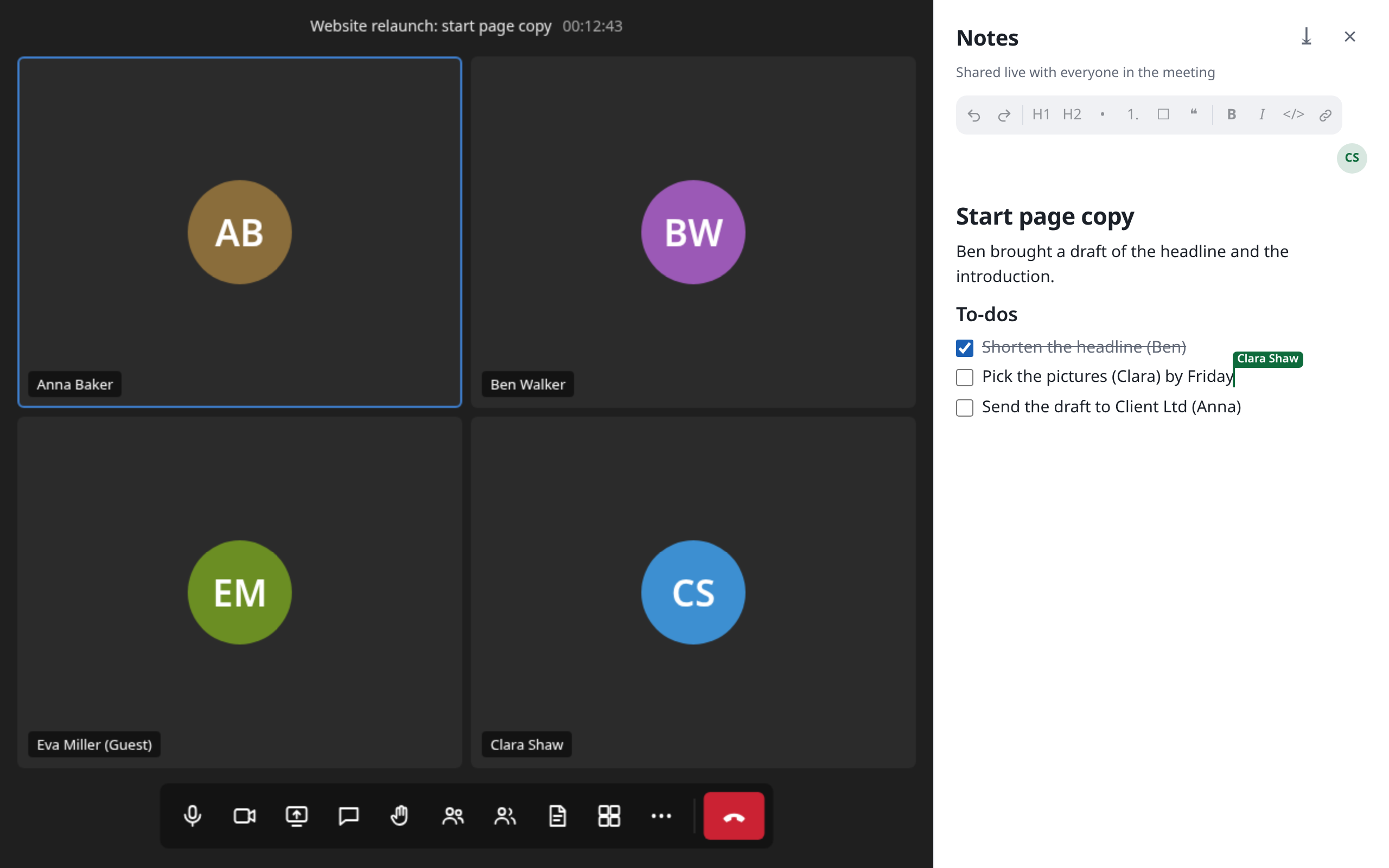
The Participants panel and the notes share the space: opening one closes the other.
Writing
The notes are made of lines. The line you are writing in shows its Markdown text; all others are formatted already. Enter starts a new line, in a list with the next item.
The bar above the notes formats the current line or the selection:
| Button | Effect |
|---|---|
| Arrows | Undo (Ctrl + Z) and redo (Ctrl + Shift + Z). This only covers your own changes. |
| H1, H2 | Heading, Subheading |
| •, 1. | Bullet list, Numbered list |
| ☐ | To-do with a box to tick |
| ❝ | Quote |
| B, I | bold (Ctrl + B), italic (Ctrl + I) |
</> | Code |
| Chain | Link (Ctrl + K) |
Choosing the button of the kind a line already is turns it back into plain text.
Markdown shortcuts
It's quicker with shortcuts at the start of a line, followed by a space:
| Type | Result |
|---|---|
# | Heading |
## | Subheading |
### | Small heading |
- or * | Bullet list |
1. | Numbered list |
[] | To-do, [x] one already done |
> | Quote |
Text with these marks that you paste, say from another Markdown file, is formatted the same way. Ctrl and a click opens a link.
Selecting several lines
Drag the mouse over several lines, click with Shift held down, or use Shift and the arrow keys. Ctrl + A selects the line, a second time everything. You can delete, format or type over such a selection, or copy it as Markdown.
Seeing the others
You see the others' cursors and selections live, in their colour and with their name. Beside the bar, small pictures show who is in the notes right now.
Who may write
| Who | In the call | Afterwards |
|---|---|---|
| Hosts and co-hosts | read and write | read, write, delete |
| People invited, with an account | read and write | read and write |
| Guests | read and write while they are in the call | nothing any more |
In a webinar, only hosts and co-hosts write. Everyone else reads along and sees: "In a webinar only hosts edit the notes."
Notes per date
Each date has its own notes. So in a series every Tuesday starts with a blank page, and last week's notes stay as they are.
An ad-hoc meeting with notes is kept too, so that the notes aren't lost (see Meeting now).
Finding earlier notes
At the very bottom of the dashboard, under Past meetings with notes, are all meetings whose notes have something in them, newest first, with the start of the text. Show more adds older ones.
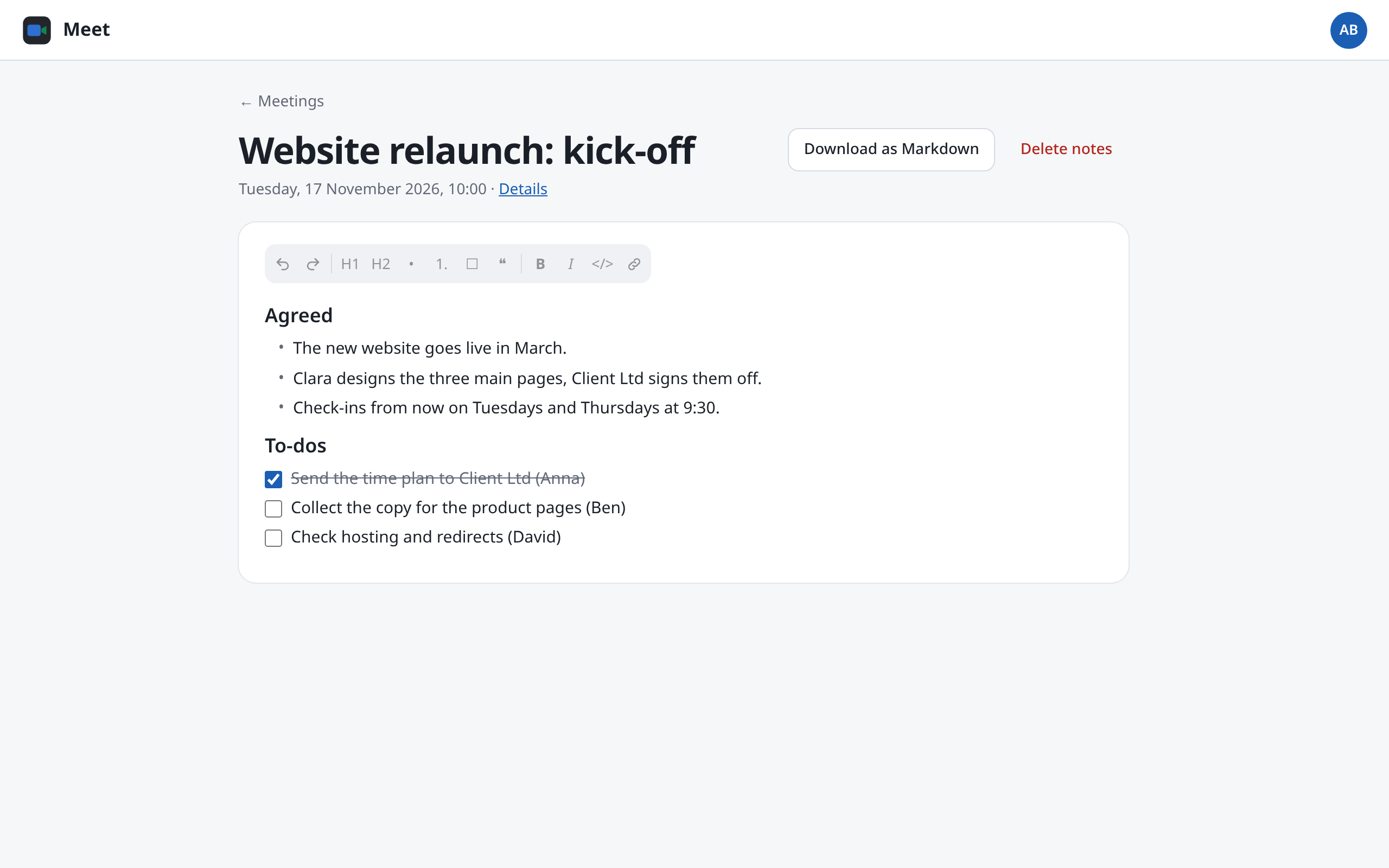
Open gives the notes a page of their own. There you read them and go on writing, together with everyone who has them open. Details leads to the meeting.
Downloading
Download as Markdown saves the notes as an .md file, named after the meeting's date and title, such as 2026-11-24 Website relaunch review.md. In the call it's the arrow at the top of the notes; on the page of earlier notes, a button of its own. Open the file in any text editor, or keep it in Box.
Deleting or hiding
- Hosts and co-hosts choose Delete notes on the notes' page, or Delete on the dashboard. The notes are then gone for everyone. This cannot be undone.
- Everyone else chooses Hide. The notes disappear from their own dashboard only; the others keep them.