
Keyboard shortcuts
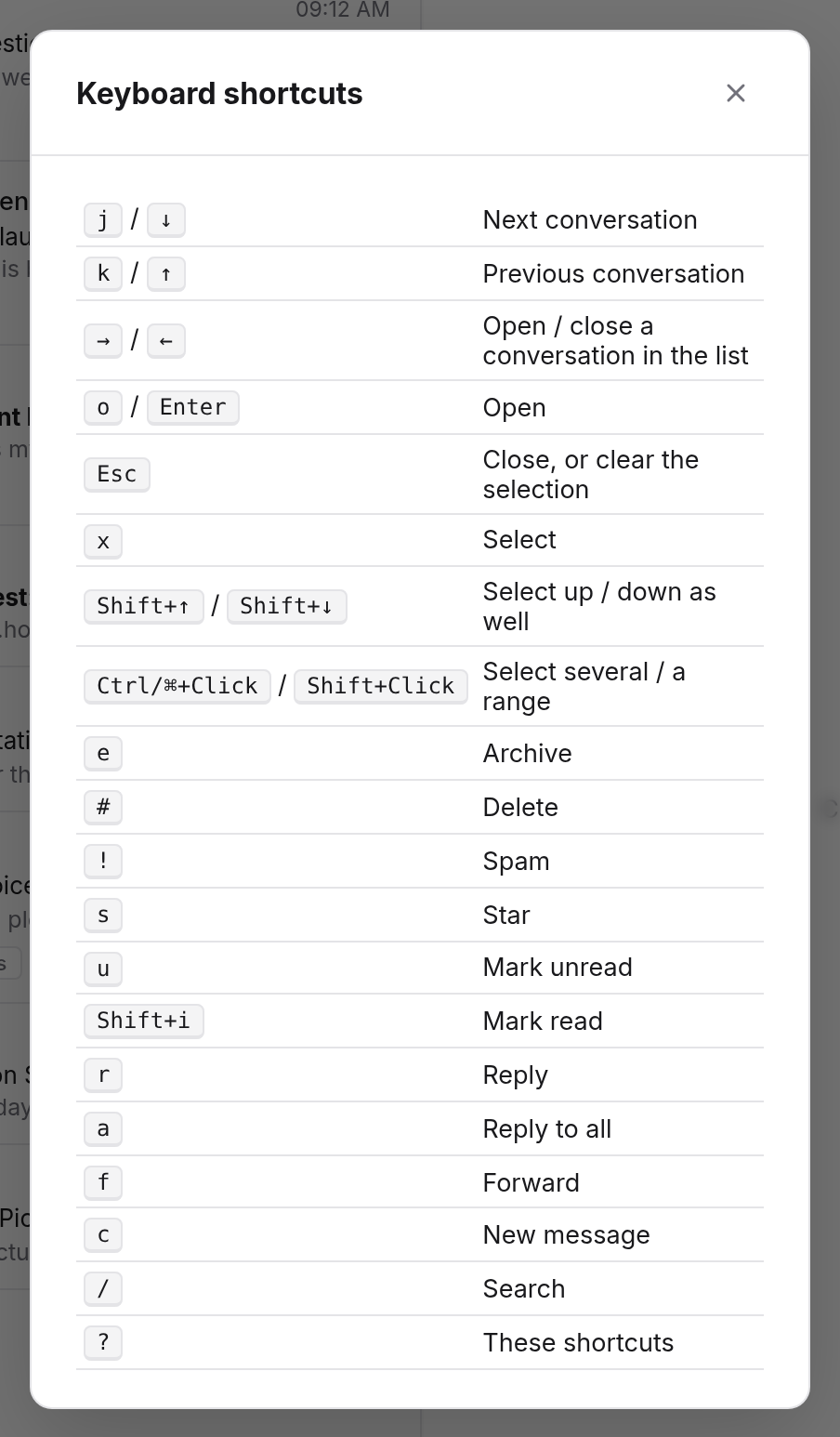
The keyboard gets you through your inbox quickly. Press ? and Mail lists every shortcut in the Keyboard shortcuts dialog.
Moving through the list
| Key | What happens |
|---|---|
| j or ↓ | Next conversation |
| k or ↑ | Previous conversation |
| → / ← | Open / close a conversation in the list |
| o or Enter | Open |
| Esc | Close, or clear the selection |
| / | Jump to the search field |
While a conversation is open, j and k open the next or previous one straight away.
Selecting
| Key | What happens |
|---|---|
| x | Select |
| ++Shift+↑++ / ++Shift+↓++ | Select up / down as well |
| Ctrl + click (Mac: ⌘ + click) | Add single ones |
| Shift + click | Select a range |
Acting
These keys apply to the selected conversations, otherwise to the one you are on.
| Key | What happens |
|---|---|
| e | Archive |
| # or Delete | Delete |
| ! | Spam |
| s | Star (add or remove the star) |
| u | Mark unread |
| ++Shift+I++ | Mark read |
Writing
| Key | What happens |
|---|---|
| c | New message |
| r | Reply |
| a | Reply to all |
| f | Forward |
Reply and forward apply to the latest message of the open conversation.
When shortcuts don't apply
- While you are typing: in the search field, while writing, or in a form. Esc leaves the field, after which the shortcuts work again.
- While a dialog is open, such as the settings.
- With Ctrl, Alt or ⌘: those combinations belong to your browser.
In the notes of a group mailbox, ++Ctrl+Enter++ adds a note.