
Files and folders
All files holds your folders and files. At the top you see where you are, such as "All files › Website relaunch › Drafts". A click on any part of it takes you back there.
Making a folder
- Open the folder the new one should go in.
- Choose New at the top, then New folder.
- Type a Folder name, such as "Drafts", and choose Add.
Under New you also make a Markdown document: a text file that opens straight away for writing (see Editing Markdown).
List or grid
At the top right, choose the view:
- List: one line per item, with its Size and when it was last Modified.
- Grid: large previews, good for photos.
In the list, a click on Name, Size or Modified sorts by it. A second click reverses the order. Folders always come before files. Box remembers the view and the sorting.
Selecting
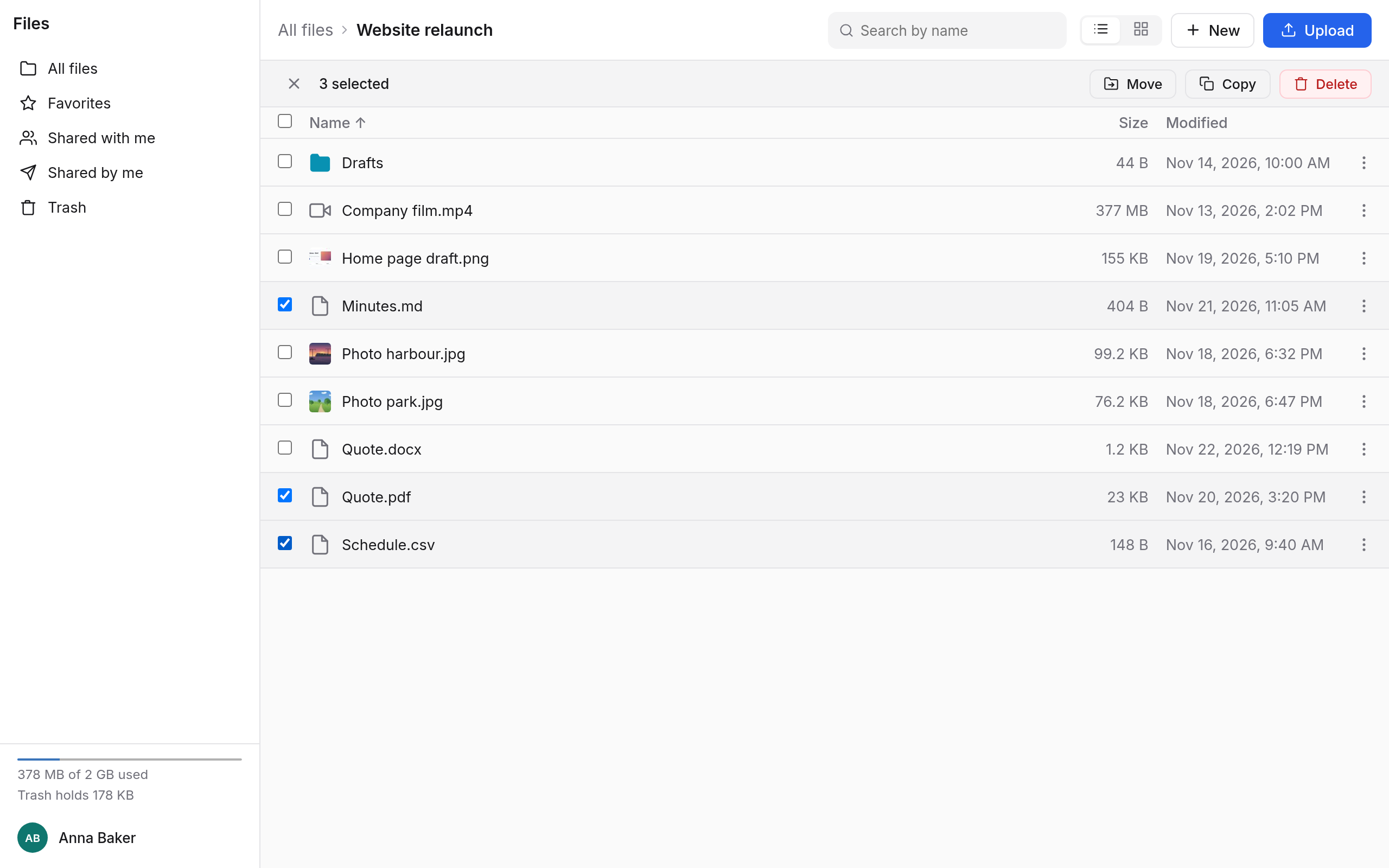
The box in front of an item selects it; the box at the head of the list selects all. A bar then appears at the top with what you can do with the selection:
| Button | Effect |
|---|---|
| Download | only with exactly one item. A folder comes as a ZIP file. |
| Move | to another folder |
| Copy | to another folder |
| Delete | to the trash (see Versions and trash) |
× clears the selection.
An item's menu
Every line has a menu with three dots on the right:
| Item | Effect |
|---|---|
| Download | Get the file, or the folder as a ZIP file, onto your computer. |
| Add to favorites | Star it (see Favourites). |
| Share… | Share with people or make a link (see Sharing). |
| Rename | Give it a new name. |
| Move to… | Move it to another folder. |
| Copy to… | Put a copy in a folder. |
| Versions… | A file's earlier versions (see Versions). |
| Delete | Into the trash. For something others share with you, it says Remove from my files here. |
The menu only holds what you may do with this item. In a folder someone shares with you for viewing only, rename and delete are missing, for example.
Moving and copying
With the menu: choose Move to… or Copy to…. In the window, go to the target folder and choose Move here or Copy here.
By dragging: drag an item, or several selected ones, onto a folder in the list, onto a part of the path at the top, or onto All files in the sidebar. Hold down Ctrl or Alt while you do, and it copies instead of moving.
After a move, a message such as "Quote.pdf moved to Drafts" shows at the bottom, with Undo. When you copy something into the same folder, the copy gets a number, such as "Quote (1).pdf".
If something of the same name is already in the target, Box tells you, and nothing is overwritten. A folder can't be moved into itself.
Renaming
Choose Rename in the menu, type the name under New name and confirm with Rename. A name can't contain /, and can't be just . or ...
Favourites
Choose Add to favorites in the menu. The item then shows under Favorites in the sidebar, whatever folder it is in. Remove from favorites takes it out again.
Your favourites are yours alone. If you star a shared folder, the others see nothing of it.
Searching
Type part of the name into Search by name at the top, such as "Quote", and press Enter. Box searches all your folders, including what others share with you. Each result shows which folder it is in.
Box searches names, not what is inside the files. The search doesn't find what is in the trash.
Viewing files
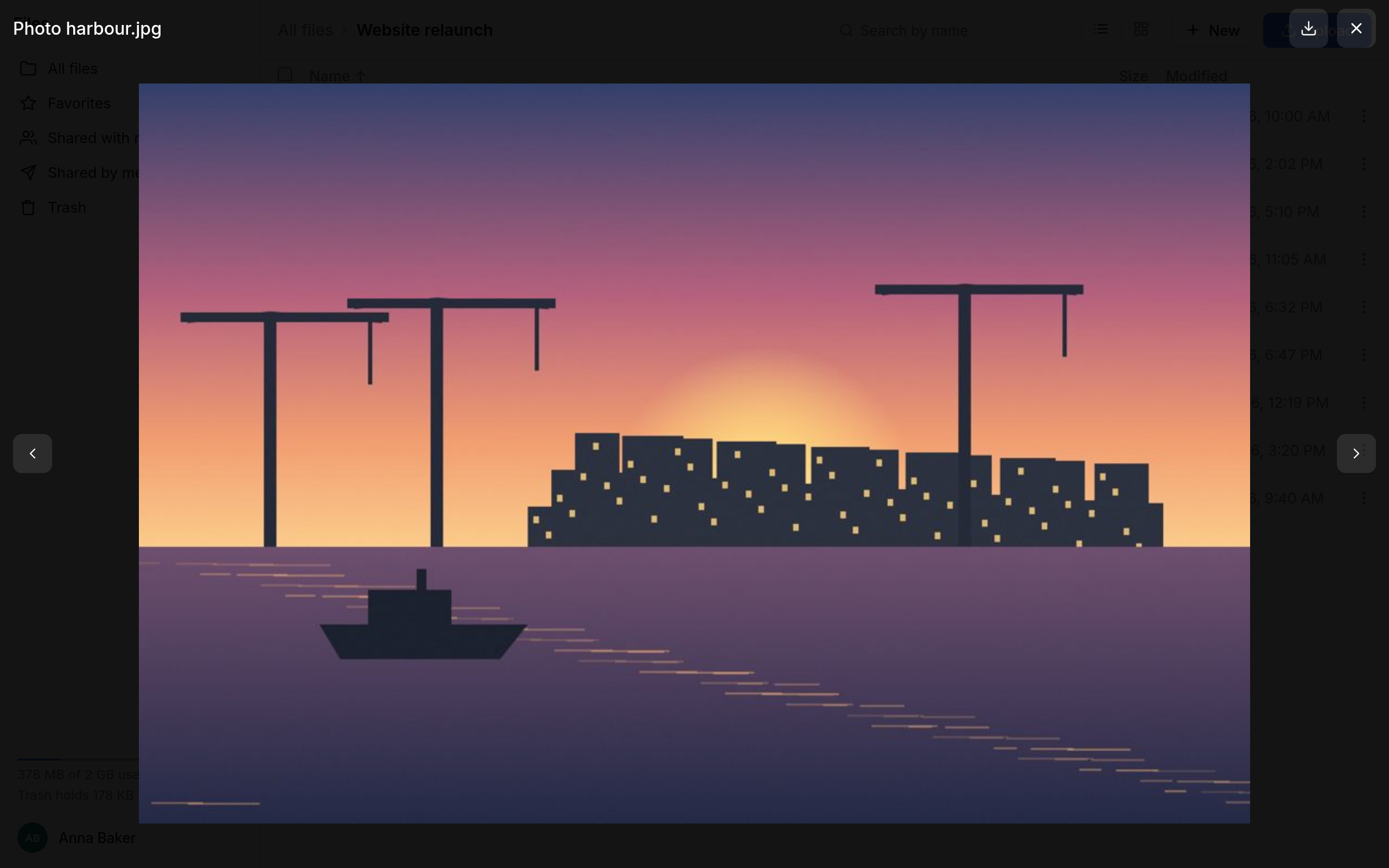
A click on a file opens it in the browser, if Box can show it:
| Kind | Examples |
|---|---|
| Pictures | JPEG, PNG, GIF, WebP |
| Video | MP4, WebM, Ogg, QuickTime |
| Music and sound | MP3, AAC, Ogg, Opus, FLAC, WAV |
| page by page | |
| Markdown | formatted, and for editing too (see below) |
The arrows left and right, or the arrow keys, go to the previous and next file in the folder. At the top there is a download button; Esc closes the view. Anything else downloads with a click.
Editing Markdown
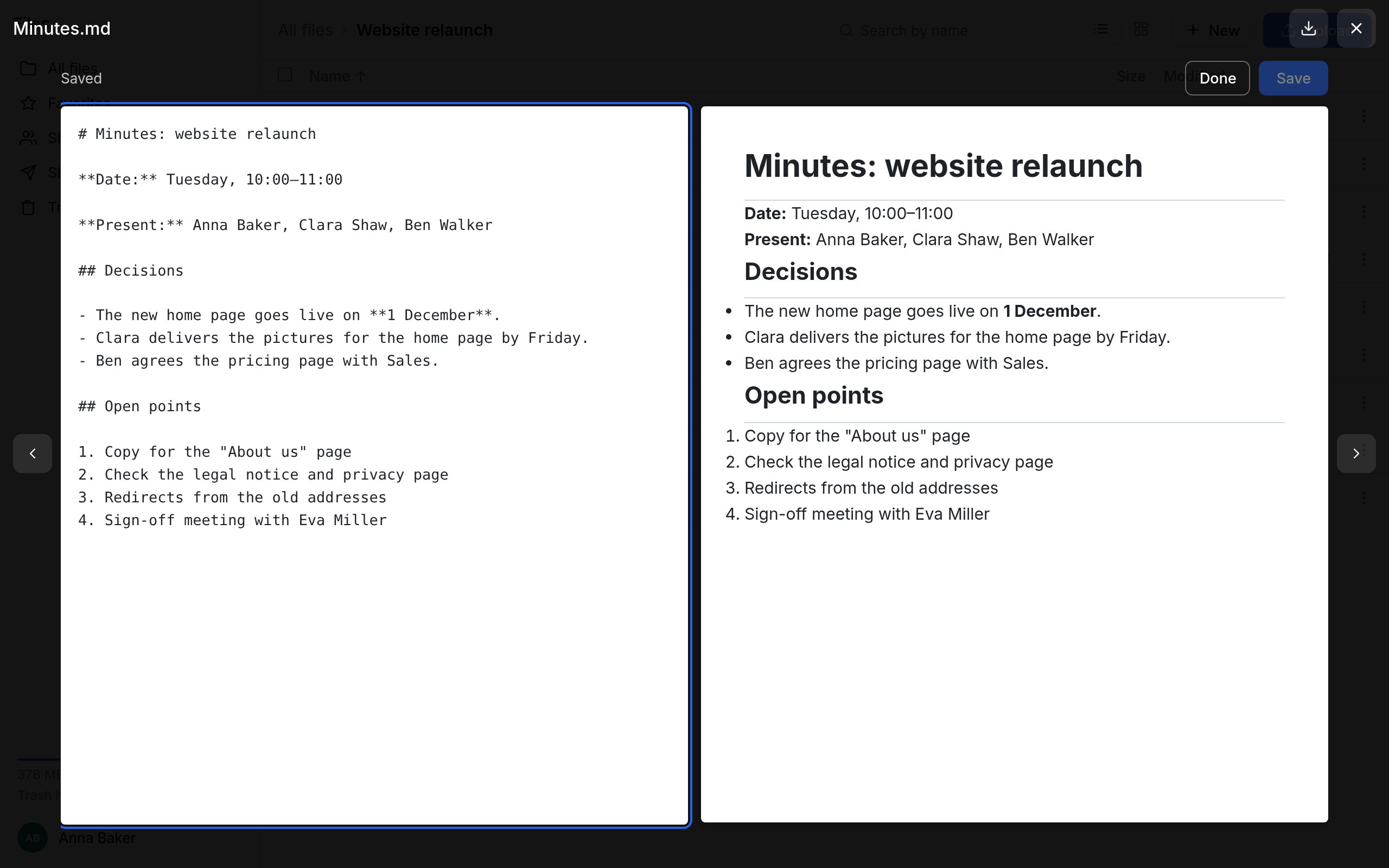
Box shows Markdown files (.md) formatted, with headings, lists and links. If you may change the file, Edit is at the top:
- Choose Edit. The text is on the left, the Preview on the right.
- Write. Save or Ctrl + S saves; Saved then shows at the top.
- Choose Done when you have finished. If you haven't saved yet, it says Cancel there, and Box asks whether to discard your changes.
If someone else changed the file since you opened it, Box doesn't save, so that nothing is lost. Copy your text, choose Reload, and put your changes back in.