
Group mailboxes and shared mailboxes
Some mailboxes are used by several people:
- Group mailboxes such as
support@example.orgorinfo@example.orgbelong to a team. Each mail exists only once: when Ben has read, answered or moved it, Clara sees that too. - Personal mailboxes can be shared with others, for example with whoever stands in for you on holiday. Colleagues can share theirs with you in the same way.
In the sidebar
Mailboxes you may use besides your own are listed in the sidebar below your folders and labels, each with its name, your role and its folders. Click a folder to see its mail. The menu beside the name changes the order with Move up and Move down.
With the Read role you can only look at the mail. With the other roles you can also move, star and delete it as in your own mailbox.
The roles
| Role | What it allows | For |
|---|---|---|
| Read | seeing and searching folders and mail | both |
| Read and sort | also moving, starring, labelling and deleting | both |
| Write on behalf | also writing in the person's name. Recipients see “Ben Walker on behalf of Anna Baker”. | personal mailboxes |
| Write as the mailbox | also writing as the mailbox. Recipients see only “Support”. | group mailboxes |
| Manage | everything, plus setting the mailbox's out of office, forwarding, rules and senders, and deciding who may use it | group mailboxes |
Sharing your mailbox
- Choose Share at the bottom of the sidebar (beside Settings).
- Choose the role on the right, e.g. Read.
- Look for the person under Name or email address and choose them. They then appear in the list below, where you can change their role at any time.
- If their access should end, enter a date in the list. The person may use your mailbox until the end of that day, and not after.
- Choose Close.
Changes apply at once. The x beside a person takes their access away.
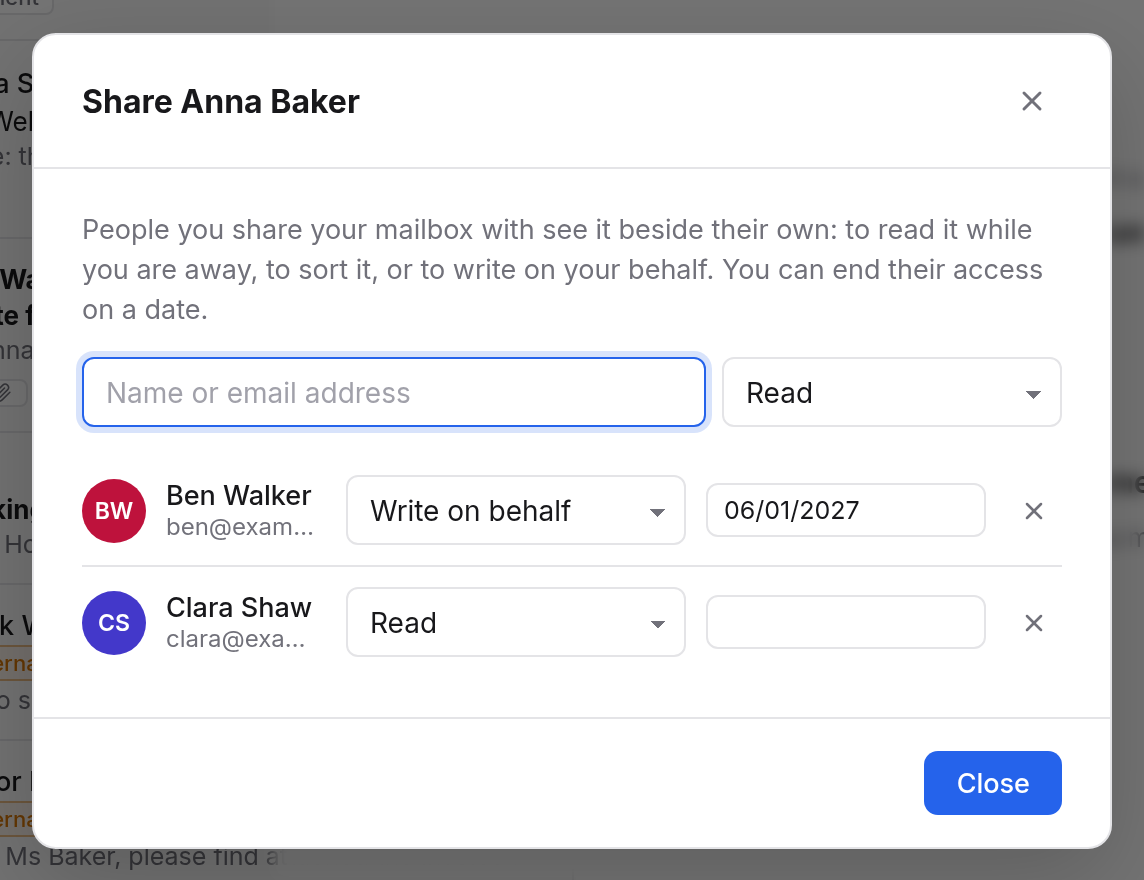
Sharing a group mailbox
If you have the Manage role, open the menu beside the group mailbox's name in the sidebar and choose Share. The dialog is the same, with the roles for group mailboxes. Everyone you add sees the mailbox beside their own.
Writing from a shared mailbox
If you may write as a group mailbox or on someone's behalf, it is offered under From while you write. When you reply to a mail in that mailbox, Mail picks the right address by itself.
- As a group mailbox: recipients see only “Support <support@example.org>”. A copy is kept in your Sent folder and in the group mailbox's, so the whole team sees it.
- On behalf: recipients see your name and the person's. They get a copy in their Sent folder, so they see what you wrote in their name.
Group mailboxes can have shared signatures and canned replies.
Working as a team
When several people use a mailbox, Mail shows above each conversation who is looking after it, and below it notes for the team.
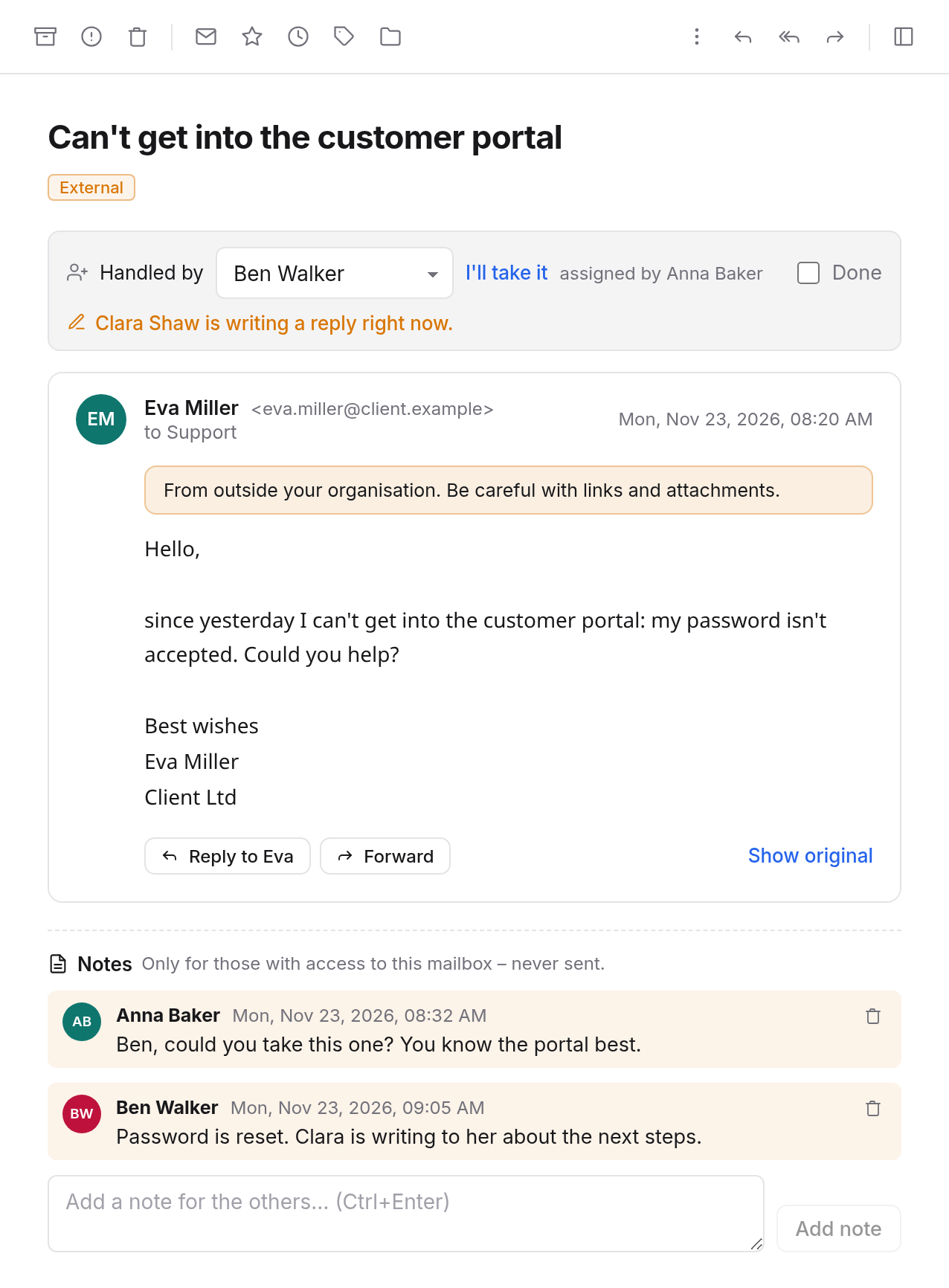
Assigning
- I'll take it makes you responsible for the conversation.
- Under Handled by you assign it to someone else in the team, or to nobody with Nobody yet.
- When an assigned conversation is answered from the mailbox, it counts as Done. You can also tick or untick that yourself. When new mail arrives in the conversation, it is open again.
Anyone with the Read and sort role or more can assign.
Above the message list, choose whose conversations you see: All, Mine or Unassigned. In the sidebar, the number beside the mailbox says how many open conversations are yours.
Notes
Below the messages are the conversation's Notes: “The client has already phoned”, “Ben has the quote”. Write your note in the field and choose Add note, or press ++Ctrl+Enter++.
Notes are seen only by those with access to the mailbox. They are never sent. You remove your own with Remove note; whoever manages the mailbox can remove any.
Who is replying right now
When someone is writing a reply to the conversation, it says so at the top, e.g. “Clara Shaw is writing a reply right now.” That way two people don't answer the same mail. The line goes away shortly after they close the window.
Out of office, forwarding and rules
Whoever manages a group mailbox also sets its out of office, forwarding, rules and senders in the settings. Choose the group mailbox under Mailbox at the top of the tab.
Further mailboxes of your own
It is listed in the sidebar with its address below your first one. It is yours just like your first: with its own folders, storage, out of office, rules and Sent. You can share it too, from its menu in the sidebar.
On your phone and in Thunderbird
Group mailboxes and mailboxes shared with you appear in your mail program as extra folders, without an account of their own. A further mailbox of your own, on the other hand, is set up as an account of its own: the user name is its address, the password your app password.