
Passkeys
A passkey signs you in without a password: you confirm with your fingerprint, face, your device's PIN or a security key. A passkey can't be guessed, and it can't be caught on a fake page. It replaces your password and your second factor: with a passkey, Accounts asks for no code.
What works
| Device | Confirm with |
|---|---|
| iPhone, iPad, Mac | Face ID, Touch ID or your passcode. The passkey is kept in iCloud Keychain and is there on your other Apple devices too. |
| Windows | Windows Hello: face, fingerprint or PIN |
| Android | fingerprint, face or screen lock. The passkey is kept in Google Password Manager. |
| Password managers | Many password managers can store passkeys and use them across your devices. |
| Security keys | a FIDO2 key over USB or NFC, with its PIN |
You can have several passkeys, say one on your laptop and one on your phone. That's a good idea: if you lose one device, you get in with the other.
Adding a passkey
- Open your account settings: Settings on the Accounts start page, or the account menu in any app and Account settings.
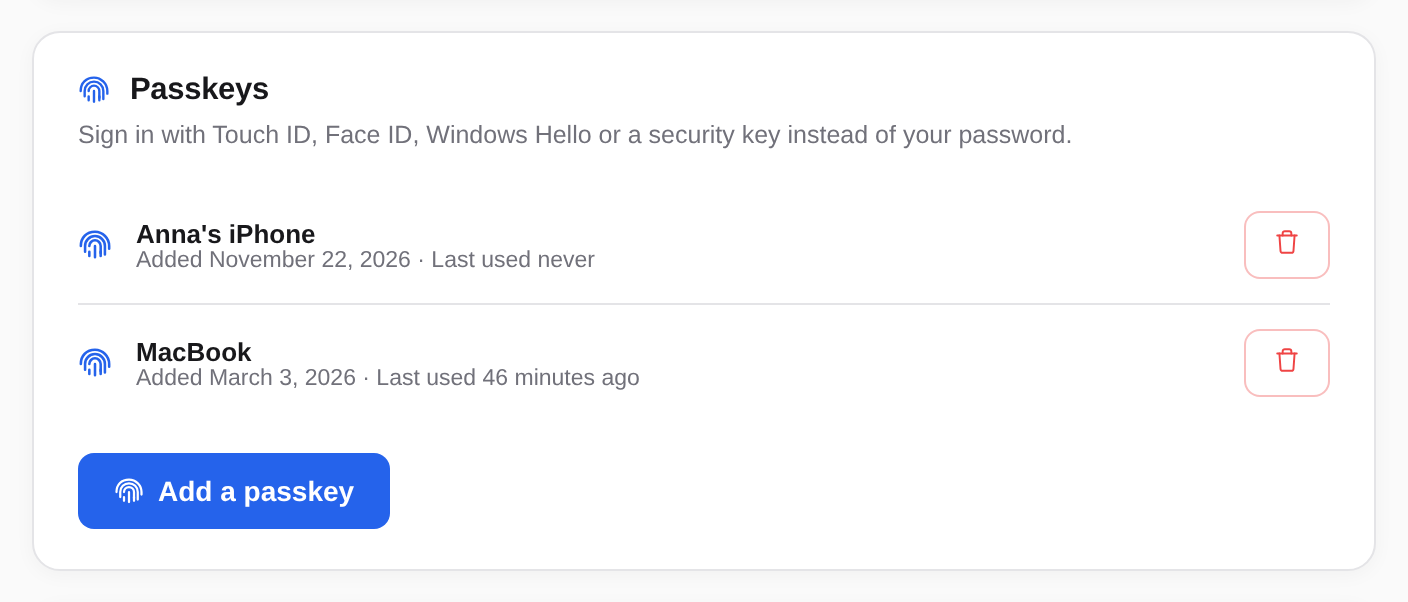
- In the Passkeys section, choose Add a passkey.
- Your browser asks where to save the passkey. Choose this device, your password manager or a security key, and confirm.
The new passkey then appears in the list. Accounts names it after where it is kept; you can rename it.
Signing in with a passkey
- When signing in, enter your email address and choose Continue.
- Choose Use passkey.
- Confirm with your device or security key.
You are signed in, with no password and no code. The passkey itself knows which account it is for. Keep me signed in works here too.
Renaming and removing
- Rename: click the passkey's name, type a new one and press Enter. Esc keeps the old name.
- Remove: choose the bin icon next to the passkey (Remove passkey). It is removed at once, without asking.
A removed passkey no longer works at Accounts. It stays saved on your device or in your password manager, though, until you delete it there.
Under each passkey you see when you added it and when you last used it. One you haven't used in a long time, or don't recognise, is best removed.
If it doesn't work
- This browser does not support passkeys. Use a current browser, such as the latest Safari, Chrome, Edge or Firefox.
- This device already has a passkey for your account. Then you don't need a second one. It is in the list.
- The prompt appears and disappears again, or you cancelled it. Choose Add a passkey or Use passkey again.
- No passkey to hand? Sign in as usual with your password and, if you use one, your second factor.