
Out of office
When you are on holiday, ill or travelling, Mail replies for you: whoever writes to you learns that you are away and whom to turn to. You can tell colleagues more than clients.
Turning out of office on
- Choose Settings at the bottom of the sidebar, then the Out of office tab.
- Tick Send automatic replies.
- Enter the period under From (optional) and Until (optional). Without a period, out of office starts at once and lasts until you turn it off again.
- Write the Reply inside the organisation.
- Choose what senders from outside get (see below), and write the Reply outside the organisation if needed.
- Choose Save.
With a period, out of office starts and ends by itself. So you can set it up days in advance and don't need to turn anything off after your holiday.
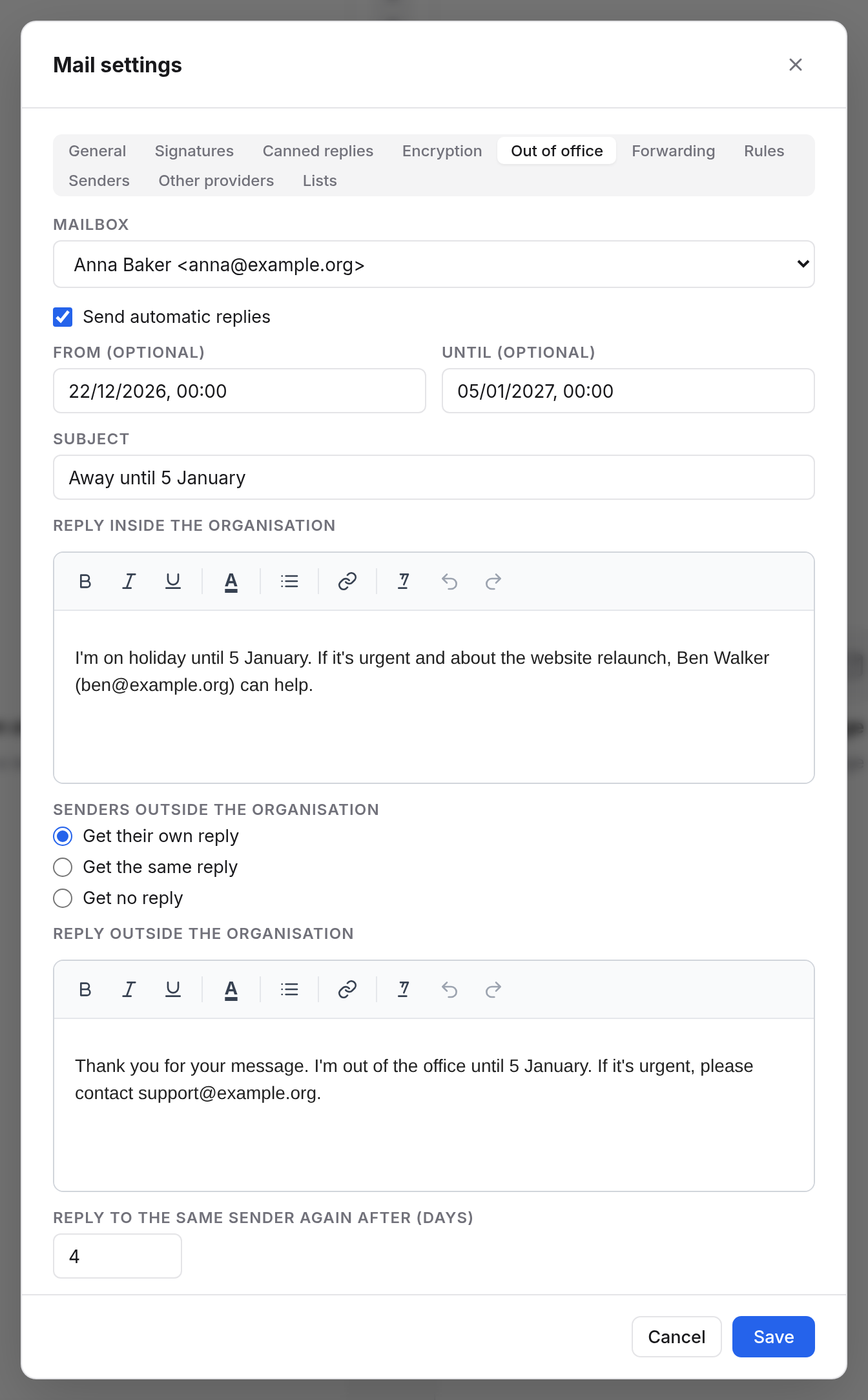
The fields
| Field | Meaning |
|---|---|
| From (optional), Until (optional) | When the automatic replies start and end, with a time. |
| Subject | The reply's subject. Empty: “Re: ” and the subject of the mail being answered. |
| Reply inside the organisation | What colleagues get. |
| Senders outside the organisation | Get their own reply, Get the same reply or Get no reply. |
| Reply outside the organisation | Only with a reply of their own: what senders from outside get. |
| Reply to the same sender again after (days) | Someone who writes several times gets the reply only once in this time. The default is 4 days. |
You can format the replies, with bold, lists and links. Pictures are not possible in them.
Who gets no reply
So that nobody is flooded with replies and no loops start, Mail never replies to:
- distribution lists, mailing lists and newsletters,
- bulk mail and other automatic mail, other out-of-office replies included,
- spam,
- error reports from mail servers,
- mail where your address is not among the recipients at all, such as a blind copy (Bcc) or a forward.
In the calendar
While out of office is on, colleagues see in your availability that you are away, and until when. They don't see the text of your reply there. When finding a time, the period counts as busy.
For a group mailbox
If you manage a group mailbox, you can set up out of office for it too, for example for support@example.org between Christmas and New Year. Choose the group mailbox under Mailbox at the top of the tab. Save your changes before switching mailbox.
Examples
Reply inside the organisation
I'm on holiday until 5 January. For anything urgent about the website relaunch, Ben Walker (ben@example.org) can help.
Reply outside the organisation
Thank you for your message. I'm out of the office until 5 January. For urgent matters, please contact support@example.org.