
Address books
Your contacts are in address books. Everyone has one: My contacts. Make more, such as "Club" or "Website relaunch", and share them with others.
In the sidebar, Address books lists your own and your organisation's directory, and below, under Shared with me, other people's address books. Each shows how many contacts it has.
Making an address book
- In the sidebar, choose the + beside Address books.
- Under Name, enter a name, and pick a Colour.
- Choose Create.
The new address book opens at once. New contacts go into it while it is chosen.
An address book's menu (the three dots) has:
| Item | What it does |
|---|---|
| Share… | Share it with others (see below). |
| Settings… | Change its name and colour. Only for address books you made yourself. |
| Delete address book | Deletes the address book with all its contacts, for good. |
| Import vCard file… | Add contacts from a file (see below). |
| Export (.vcf) | Download all contacts as a file. |
| Leave address book | For shared address books: take it off your list. |
My contacts can be shared, imported into and exported, but not renamed or deleted.
Sharing an address book
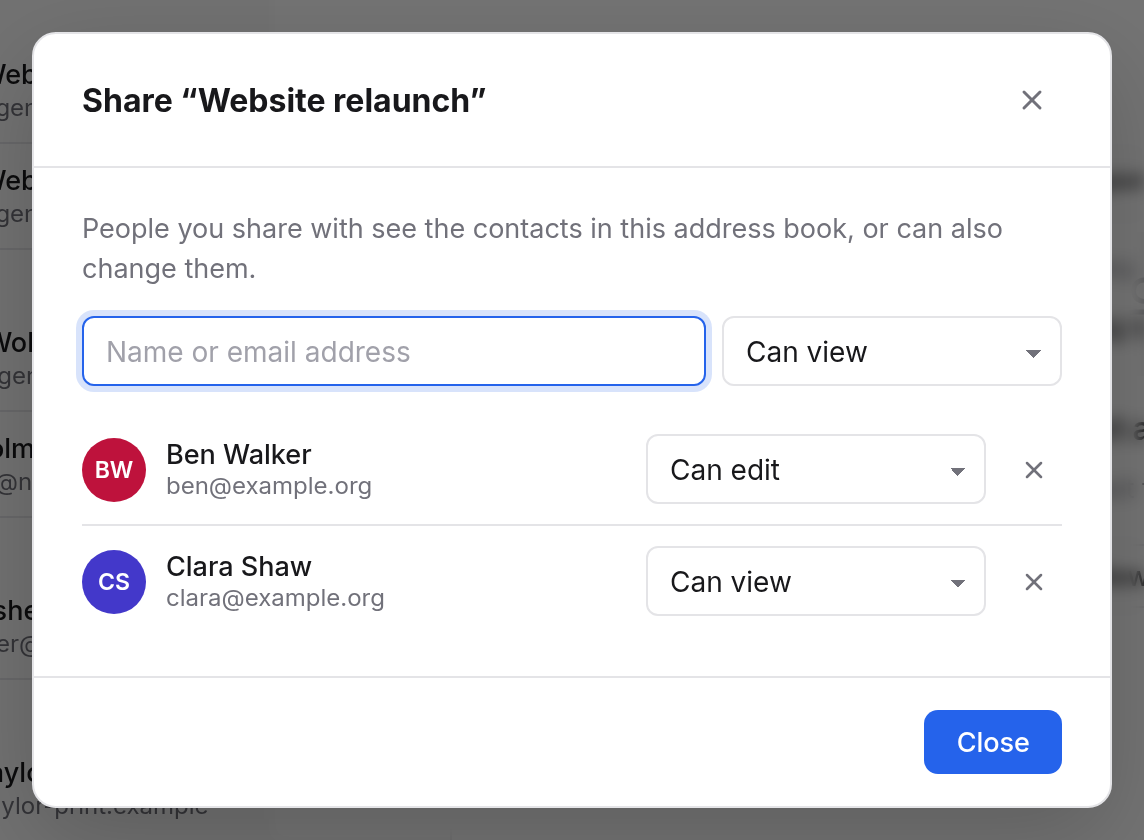
- Open the address book's menu and choose Share….
- At Name or email address, type a name such as "Ben", and pick the person.
- Beside it, choose Can view or Can edit.
| Access | What the person can do |
|---|---|
| Can view | View and search the contacts, and star them for themselves. |
| Can edit | Also add, change and delete contacts. |
Change the access in the list; the ✕ takes someone's access away. It takes effect at once. Only you can rename, delete and share further, and only you see whom the address book is shared with.
If someone has no account yet, enter the whole email address. They show in the list as Invited, not signed in yet and get the address book when they first sign in.
Using shared address books
Other people's address books are under Shared with me, with the owner's name. A lock means you may only view. Contacts in it are marked Read-only.
To keep a contact from such an address book yourself, choose Add to my contacts in the contact. It is copied into My contacts.
Leave address book in the menu takes a shared address book off your list. The owner can share it with you again.
Your organisation's directory
The directory is an address book with all your colleagues. You see it under Address books, can search it and export it, but change nothing. Mail and Calendar suggest its people as you type.
Add to my contacts copies someone into your own address book. There you can add notes and labels.
Importing contacts
Bring contacts from another program or your phone in as a vCard file (.vcf):
- Export the contacts from the other program as vCard.
- In the menu of the address book they should go into, choose Import vCard file….
- Pick the file.
Contacts then reports how many contacts were added, updated and merged:
- Updated: the contact was imported before (the same identifier) and is replaced.
- Merged: the address book already has a contact with one of the email addresses, or with the same name and number. No second one is added. The contact that is there gets what it lacks: more addresses, numbers, postal addresses, links, labels, and company, job title, birthday, note or photo when it has none. What it has stays.
- Added: all others.
So you can import the same file twice without having everything double. Whatever is double anyway shows under Possible duplicates.
Exporting contacts
Export (.vcf) in an address book's menu downloads all its contacts as one vCard file, with photos. Any address book program reads it.
For your phone and computer, syncing is better: the contacts then stay the same everywhere. See App passwords.