
Mailboxes at other providers
If you still have a mailbox elsewhere, at Gmail, your hoster or a former employer, Mail can fetch it for you. Its mail then appears in Mail, in a section of its own in the sidebar, and you can reply from there.
Adding a mailbox
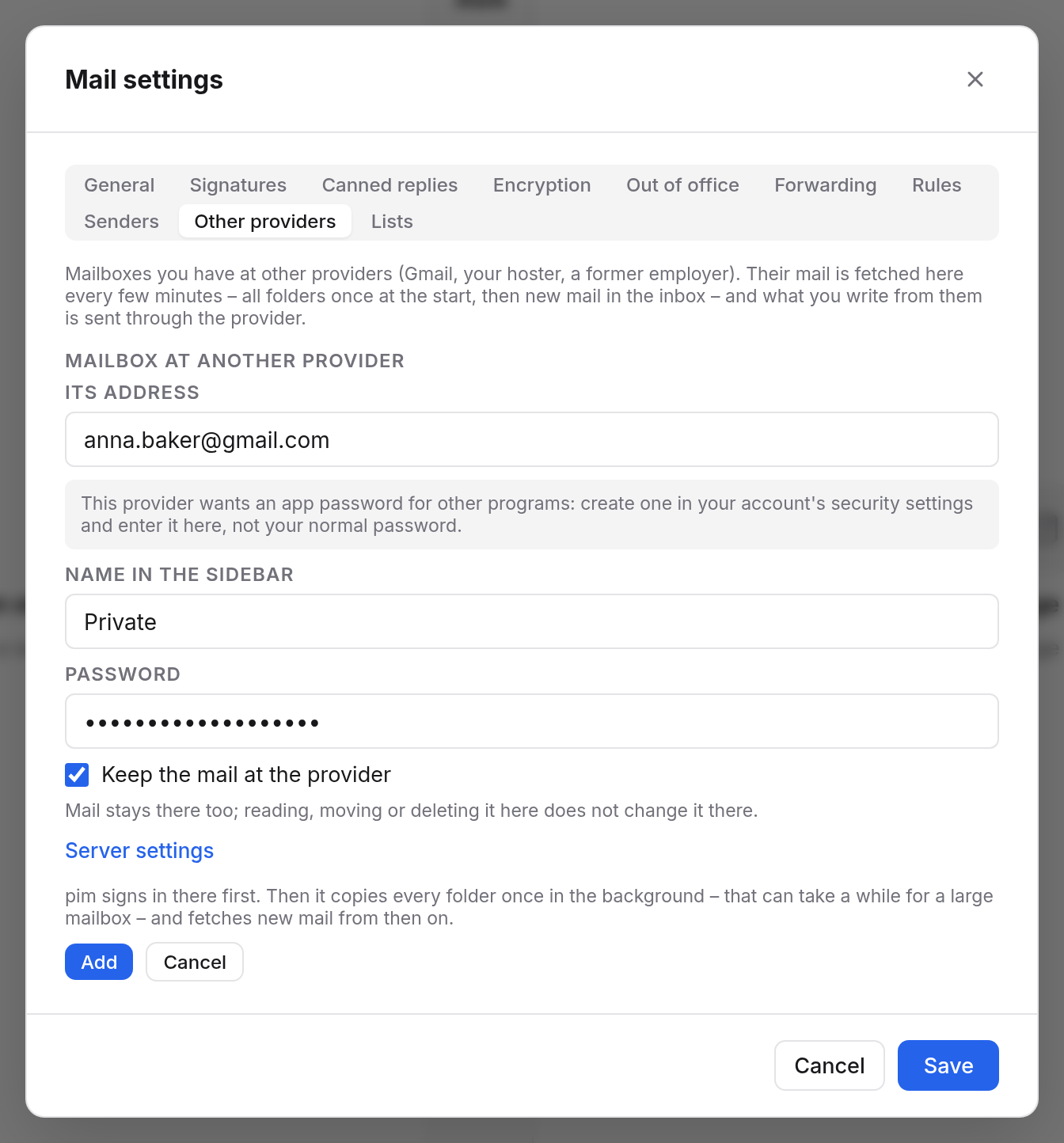
- Choose Settings at the bottom of the sidebar, then the Other providers tab.
- Choose Add a mailbox from another provider.
- Enter the address under Its address, e.g.
anna.baker@gmail.com. - Enter a name under Name in the sidebar, e.g. “Private”.
- Enter the Password. At many providers this is an app password of its own (see below).
- Decide whether the mail should stay at the provider (see below).
- Choose Add.
Mail first signs in at the provider, for fetching and for sending. If that fails, Mail tells you what went wrong and keeps nothing.
The servers
For well-known providers, Mail fills in the servers itself. For all others, Mail guesses the usual names (imap. and smtp. before the domain) and says so. If signing in fails, open Server settings and enter your provider's details: the User name, and for Incoming (IMAP) and Outgoing (SMTP) each the server, port and encryption.
| Provider | What you need to know |
|---|---|
| Gmail, iCloud, Yahoo | Create an app password in your account's security settings there and use it, not your normal password. |
| GMX, web.de | First turn on access by IMAP in the provider's settings (POP3/IMAP). |
| t-online | Use the separate e-mail password from the e-mail center, not your login password. |
| Outlook.com, Hotmail, Live | Microsoft usually allows signing in only through Microsoft itself. Mail can't do that yet, so it may not work. |
What happens when fetching
- At first, Mail copies every folder once in the background, the inbox first. Inbox, Sent, Drafts, Archive, Spam and Trash go into the matching folders, all others into folders of their name. For a large mailbox this takes a while. The sidebar shows how far Mail has got.
- After that, Mail fetches new mail from the inbox every few minutes. Fetch now does it at once.
- Read, starred and answered come along, and so does the date.
- At Gmail, Mail leaves out views such as “All Mail”, “Starred” and “Important”. Their mail comes through its folders anyway.
Your rules and blocked senders apply to fetched mail too. For them, choose the fetched mailbox under Mailbox at the top of the settings.
Keeping or deleting at the provider
| Keep the mail at the provider | What happens |
|---|---|
| ticked | Mail stays at the provider too. Reading, moving or deleting it in Mail doesn't change it there. |
| not ticked | New mail is deleted at the provider once it is safely in Mail, as with POP. What was fetched before stays there. |
Writing from it
While you write, the address is offered under From. When you reply to fetched mail, Mail picks it by itself. The message is sent through the provider, as if it came straight from there. A copy is kept in that mailbox's Sent in Mail.
In the sidebar
The fetched mailbox is listed by its name below your folders. If something isn't working, a short note shows there, such as “Fetching paused” or that it could not be fetched. Clicking it opens the settings. The menu beside the name offers Fetch now, Settings for other providers and New folder.
Changing, pausing, removing
The Other providers tab lists each mailbox with how it stands, e.g. “Up to date · last fetched …”.
- Change: the name, password, servers, and whether mail stays at the provider. If you leave the password empty, it stays unchanged.
- Pause and Resume: stop fetching and start again.
- Remove: the mailbox leaves Mail, with all mail fetched here. Everything stays as it is at the provider.
If the provider reports an error, such as a wrong password, Mail only tries again after half an hour. That way the provider doesn't lock you out for too many attempts. If your mailbox here is full, Mail fetches nothing until there is room again.
What doesn't work
- Fetched mailboxes have no out of office and no forwarding. Set those up at the provider.
- On your phone you don't see them through your account here. Set them up there directly with the provider.
- Whoever writes to this address still reaches the provider. Mail only fetches the message.
- Colleagues are not offered the address, and you can't share a fetched mailbox.