
Subscribing, import and export
Besides your own calendar, you can make more, subscribe to calendars from elsewhere, and bring events in and out as files.
Making a new calendar
- In the sidebar, choose the + beside My calendars.
- Leave New calendar chosen at the top.
- Under Name, enter a name such as "Website relaunch", and pick a colour.
- Choose Create.
In a calendar's menu (the three dots), Settings… changes its name and colour, and Delete calendar deletes it. Your personal calendar, Calendar, can only be recoloured, not renamed or deleted.
Subscribing to a calendar
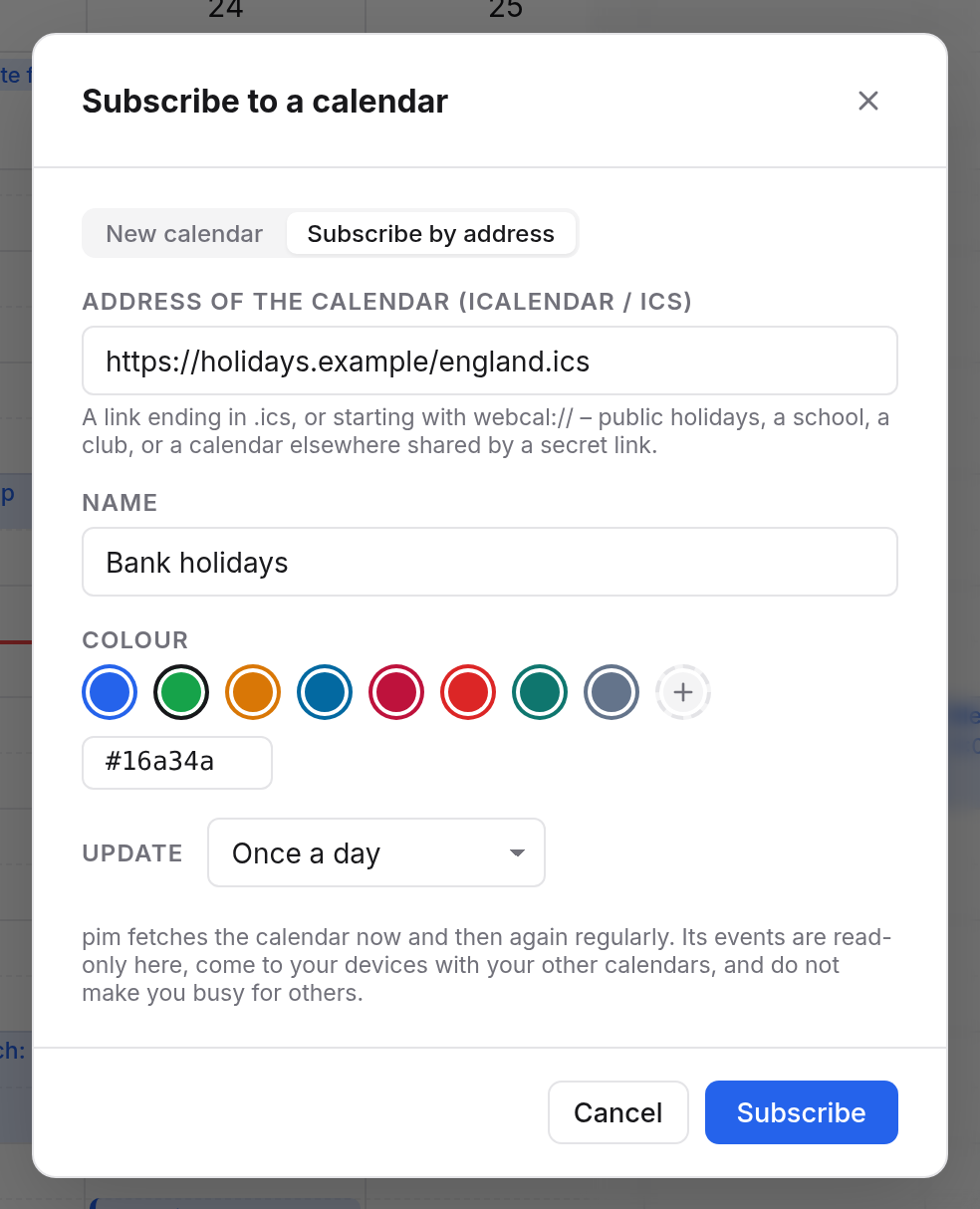
Many places publish calendars at an address: public holidays, school terms, a club, fixtures. Calendars at other providers can often be shared by a secret link too. You subscribe to such calendars:
- Choose the + beside My calendars, and Subscribe by address at the top.
- Paste the link under Address of the calendar (iCalendar / ICS). It usually ends in
.icsor starts withwebcal://. - Enter a name if you like. Without one, the calendar is called what it calls itself.
- Under Update, choose how often it is fetched again: Every hour, every 6 hours, Once a day or Once a week.
- Choose Subscribe.
The events are fetched at once. If the address gives no calendar, you are told so, and nothing is added.
What holds for subscribed calendars:
- You can view their events, but not change them.
- They don't make you busy for others, and they don't remind you.
- They reach your devices with your other calendars.
- You can rename them, recolour them and share them.
Changing, updating or ending a subscription
In the calendar's menu, Settings… opens its address, name, colour and how often it is updated. It also says when it was last fetched and with how many events. Update now fetches it at once.
When fetching fails, the sidebar shows Not updated – see settings below the calendar. The events so far stay until it works again. Calendar keeps trying at longer and longer intervals, up to a day. When it fails three times in a row, the bell tells you.
Unsubscribe in the menu removes the calendar and its events. The calendar at the address stays as it is.
webcal links in one click
Many web pages have a "subscribe to calendar" link starting with webcal:. To have such links open Office's calendar, choose Open calendar links (webcal:) here in the calendar settings. Your browser asks once. After that, a click on a webcal: link opens the dialog for subscribing, with the address filled in. Nothing is subscribed to until you choose Subscribe.
This applies only to the browser where you set it up. Safari can't do it.
Importing events
Bring events from another program in as an iCalendar file (.ics):
- Export the events from the old program as an
.icsfile. - In the menu of the calendar they should go into, choose Import iCalendar file….
- Pick the file.
Calendar reports how many events were added and how many updated.
- An event that is already there (the same identifier) is replaced. Importing twice therefore makes nothing double.
- Importing invites nobody, even when the events have guests.
- Only events are imported. Tasks and other entries in the file are left out, and the report says how many.
Exporting events
Export (.ics) in a calendar's menu downloads it as one .ics file. Any other calendar program can import it, or you keep it as a backup.
To have your events on your phone or computer for good, syncing is better than exporting, see App passwords.
The birthdays calendar
The Birthdays calendar fills itself: every year it shows the birthday of every contact you can read, as an all-day event. When the year of birth is known, the card says how old the person turns. Open contact goes to the contact.
Birthdays can only be changed in Contacts. You can recolour, hide and export the birthdays calendar, but not share it. Someone born on 29 February shows on the 28th in other years.