
Booking pages
With a booking page, others can ask for an appointment with you: customers, applicants, parents, whoever. They need no account. They only see times when you are free, and you decide on every request.
How a booking works
- You make a booking page: how long an appointment is, and on which days and hours you are available.
- You share the link, for example
https://calendar.example.org/book/anna/consultation. - Someone opens the link, picks a free time and sends a request.
- The time is held as busy in your calendar for now, and you get a notification.
- You accept or decline. Accepted, it becomes a real event, and the person gets an invitation by mail.
Making a booking page
- In the calendar's sidebar, choose Booking pages, then the Pages tab.
- Choose New booking page.
- Fill in the fields (see below) and save.
- Copy the link with Copy link and pass it on, in your mail signature or on your website, for instance.
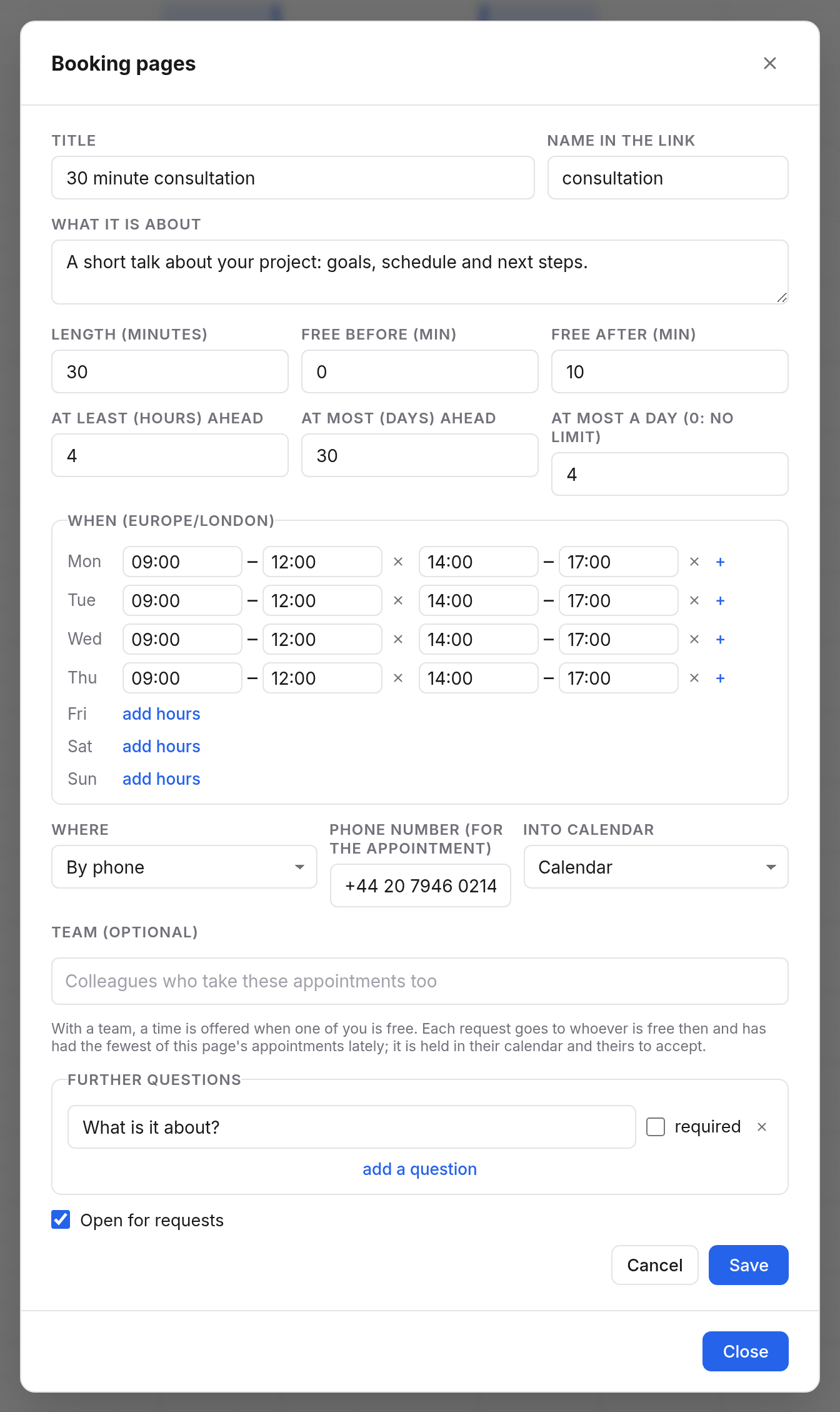
The fields
| Field | Meaning |
|---|---|
| Title | What is offered, e.g. "30 minute consultation". |
| Name in the link | The last part of the link, e.g. consultation. |
| What it is about | A text for visitors. |
| Length (minutes) | How long an appointment is. |
| Free before (min) and Free after (min) | Buffers around each appointment in which nothing else may be. |
| At least (hours) ahead | How short notice a booking may be. |
| At most (days) ahead | How far ahead times are offered. |
| At most a day (0: no limit) | The most appointments from this page on one day. |
| When | Your hours per weekday, in the page's time zone. add hours gives a day several windows, such as mornings and afternoons. |
| Where | Not said, a video meeting, by phone (with a number) or at a place. |
| Into calendar | Which of your calendars the appointments go into. |
| Further questions | What you want to know beforehand, e.g. "What is it about?". Each question can be required. |
| Team (optional) | Colleagues who take the appointments too (see below). |
| Open for requests | Turn off when the page should take no requests for a while. |
Only times when your calendar shows you free are offered, with the buffers before and after. Events you marked as Free block nothing.
What visitors see
Whoever opens your link sees the title, length, place and the free times of the week, in their own time zone. "Earlier" and "Later" move between weeks.
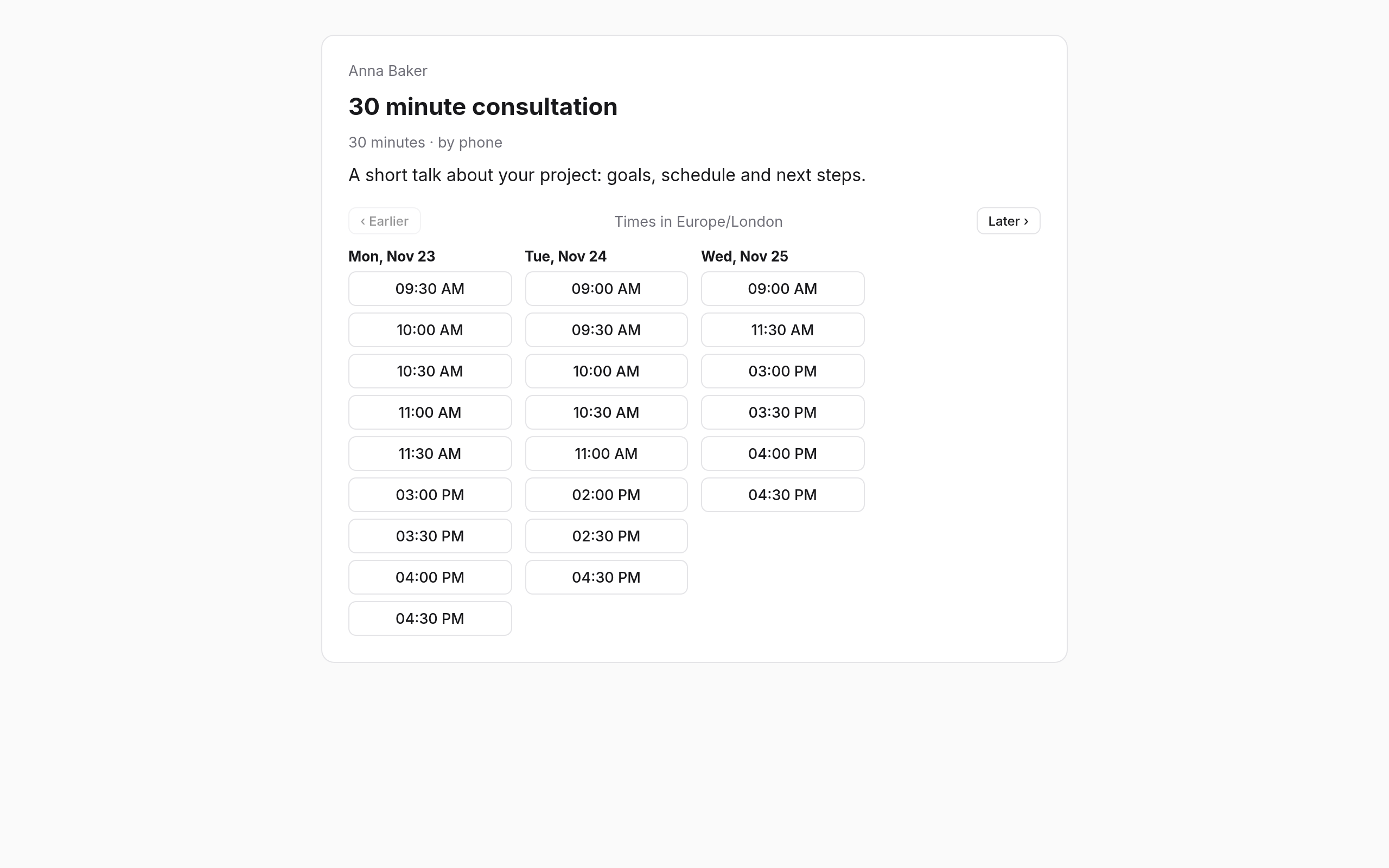
After picking a time, the person enters their name, email address and the answers to your questions, and sends the request. They get a mail with a link where they can always see how their request stands, and withdraw it.
Answering requests
New requests show in the sidebar at Booking pages with their number, and as a notification.
- Open Booking pages, tab Requests.
- Choose Accept or Decline on a request. You can add a few words.
When you accept, the held time becomes a real event with the person as a guest. They get an invitation by mail, with the link for a video meeting if there is one. When you decline, or don't answer before the time, the time is free again.
Booking pages for a team
Under Team (optional), add colleagues who take the page's appointments too. A time is then offered when at least one person on the team is free. A request goes to someone who is free then and has had the fewest appointments from this page in the last 30 days. That person accepts or declines, and the event goes into their calendar. The daily limit is per person.
Limits
- A page holds about ten waiting requests at most.
- Someone sending many requests in a row is slowed down for a while.