
Public links
With a public link you pass files on to people without an account, such as Eva Miller of Client Ltd. Whoever has the link doesn't need to sign in.
Making a link
- Choose Share… in the menu of a folder or file.
- Under Public links, for a folder, choose under Link what the link allows (see below).
- If you like, choose a date under Expires and type a Password (optional).
- Choose Create link. The link is now in the list and already copied.
- Paste it into a mail or chat.
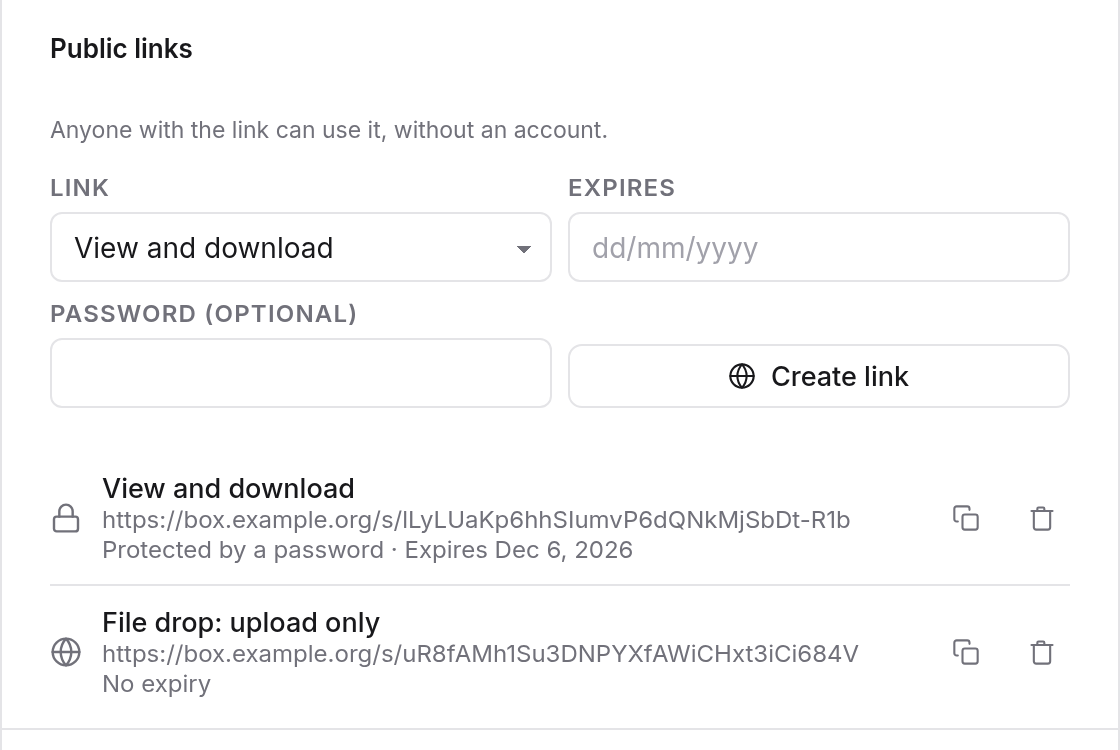
You can make several links for the same file or folder, say one for the client and one for the agency. Each can be deleted on its own.
Kinds of link
| Link | What it allows |
|---|---|
| View and download | see the contents, view and download files, get everything as a ZIP file |
| View, upload and edit | also upload files into the folder |
| File drop: upload only | only upload files, without seeing what is in the folder |
A link to a single file is always for viewing and downloading.
Password and expiry date
- Password: whoever opens the link has to type the password first. Send it another way than the link, by phone for example. The list then says "Protected by a password".
- Expiry date: the link works until the end of the chosen day. After that, visitors see: "This link does not exist or has expired." Without a date it says "No expiry", and the link works until you delete it.
You set password and expiry date when making the link. To change them later, delete the link and make a new one.
Copying and deleting
The list of links shows for each its kind, the address, whether a password applies and when it expires. Beside it:
- the copy button: puts the link on the clipboard again,
- the bin: deletes the link. It stops working at once.
You also find all your links under Shared by me.
What visitors see
A folder
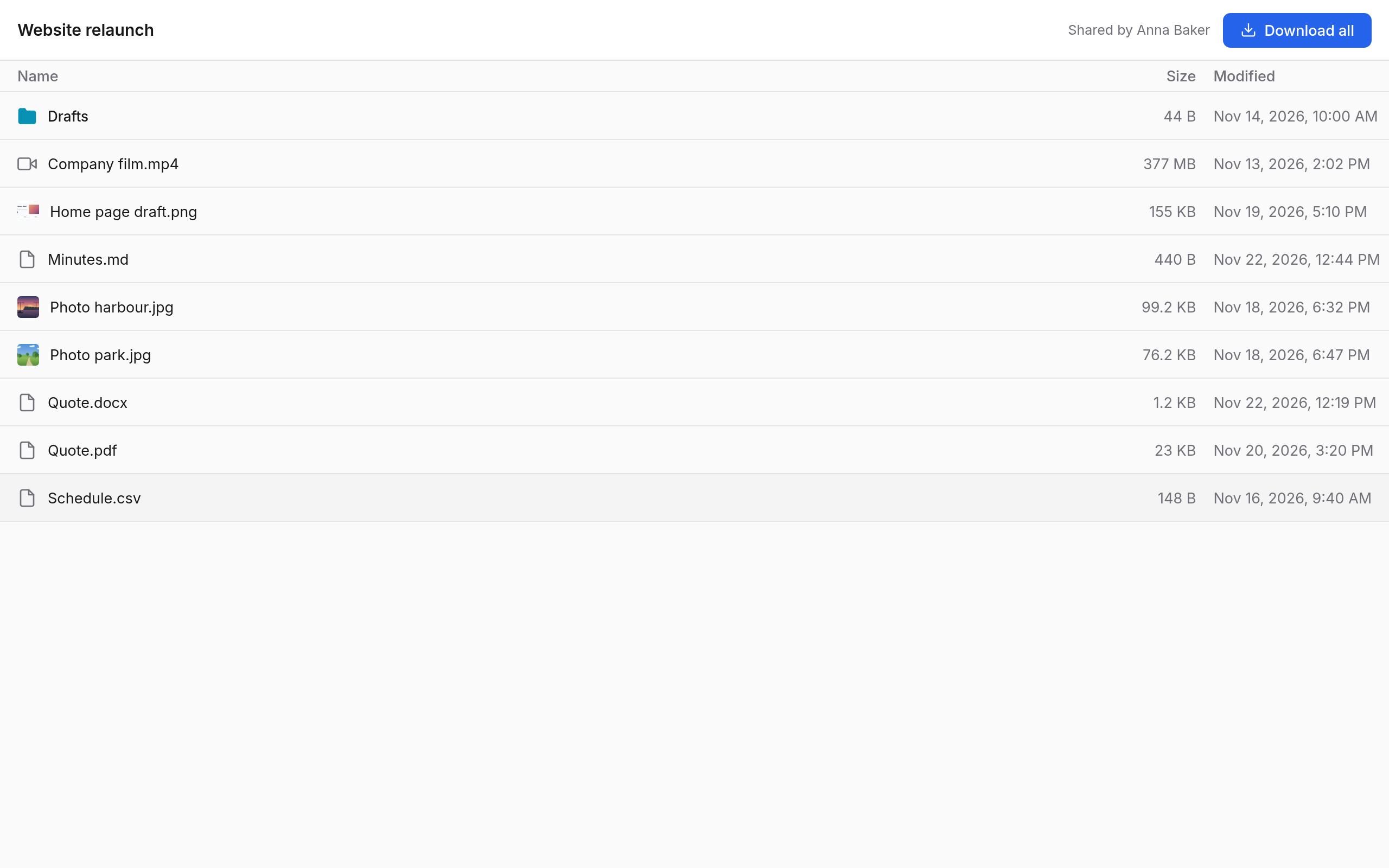
Visitors see the folder much as in Box, with "Shared by Anna Baker", the subfolders and files with Name, Size and Modified. Pictures, video, PDFs and Markdown open in the browser; anything else downloads with a click. Download all gets the whole folder as a ZIP file.
A link for uploading and editing also has Upload. Visitors upload files there, not whole folders. They can't rename or delete anything in the browser.
A file
For a link to a file, visitors see its name, its size, who shared it, and Download.
With a password
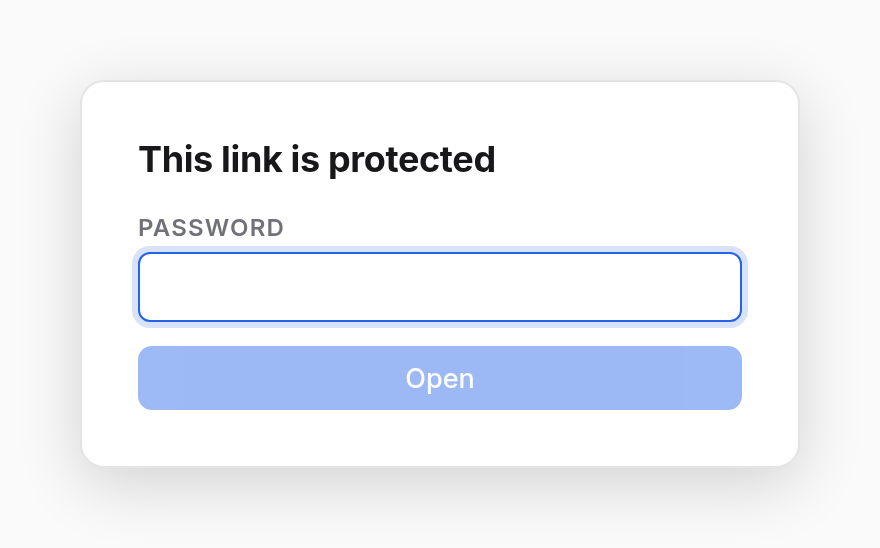
First, "This link is protected" appears. Visitors type the Password and choose Open. If it's wrong, it says "Wrong password." After many wrong tries, they have to wait a while.
A file drop
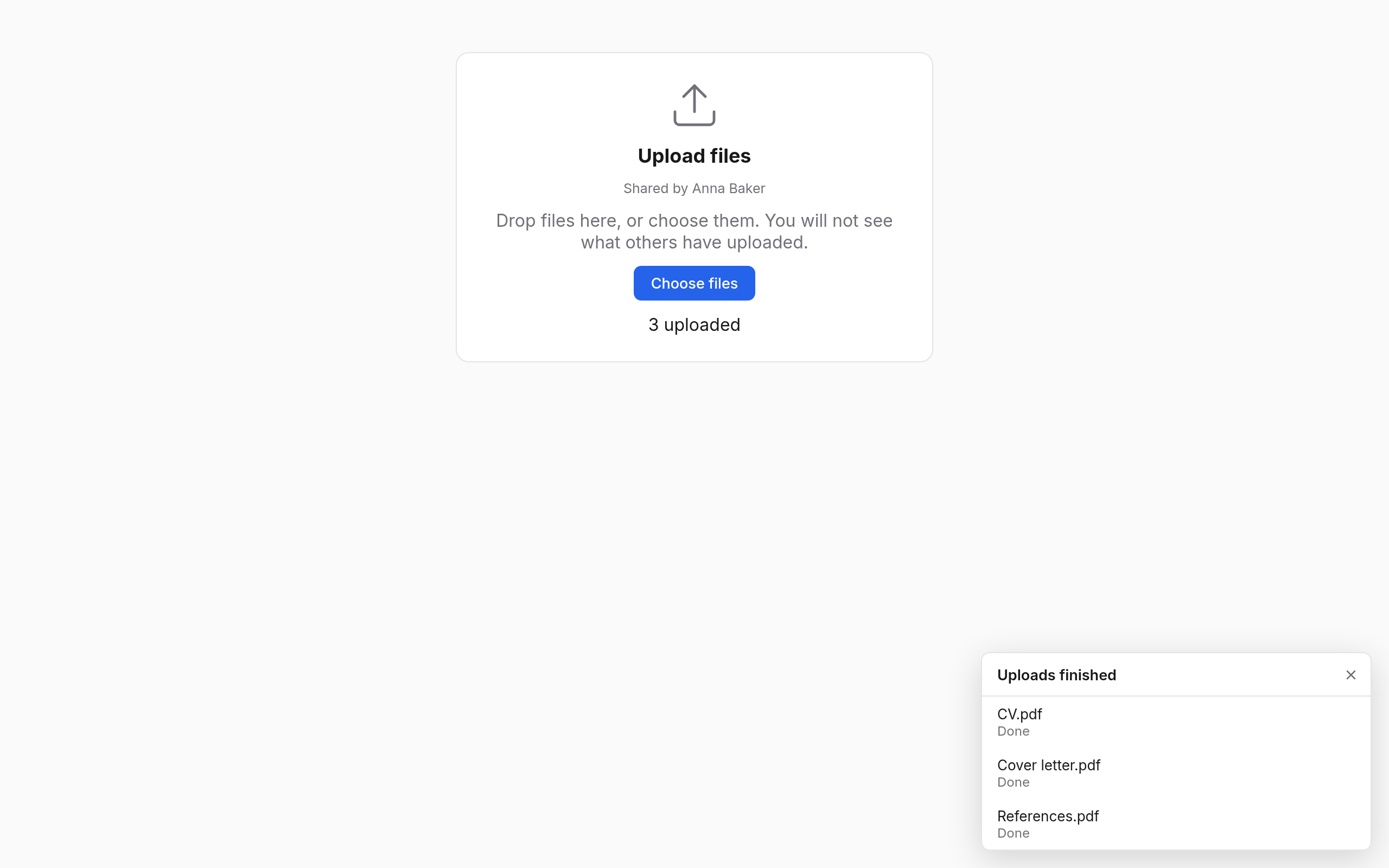
Visitors see Upload files, who shared it, and a note that they won't see what others have uploaded. They drag files onto the page or choose Choose files. Then it says how many are uploaded, such as "3 uploaded".
What is uploaded through a link belongs to the person the folder belongs to, usually you, and counts against their storage.