
Sharing
At first, only a document's owner can see it: you, if you made or uploaded it. You share it with individual people or with everyone who has the link. Only the owner can share.
Sharing with people
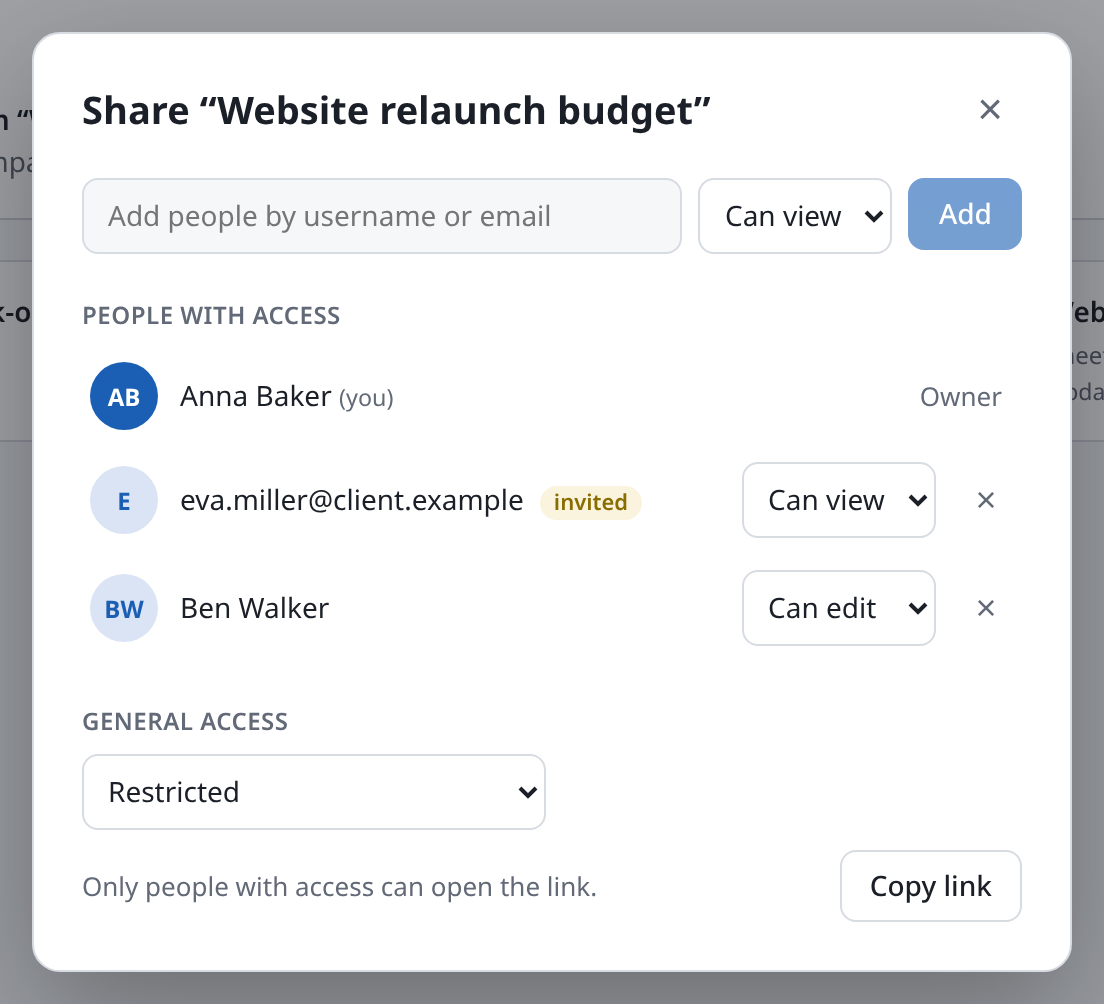
- In the overview, choose the link icon Share on the document's card.
- In the field at the top, enter a username or email address, for example
ben@example.org. - Next to it, choose Can view or Can edit.
- Choose Add or press Enter.
The person then appears under People with access and sees the document in their overview. Docs does not send them an email: send them the link yourself (see Passing on the link).
Access levels
| Access | What the person can do |
|---|---|
| Can view | Read the document, print it, download it and look through the version history. In Sheets, comment too. |
| Can edit | Change everything, comment, name and restore versions. |
| Owner | Share, rename and delete as well. That's you, for your own documents; it can't be handed on. |
Someone who can only view sees Read-only at the top in Sheets. In Writer and Slides the commands that change things are greyed out.
Changing and withdrawing access
Under People with access, each person's access is shown next to them.
- Choose a different level in the list to change it.
- Choose × (Remove) to withdraw access.
This takes effect at once, even for someone who has the document open: someone who can now only view can no longer change anything. Someone with no access left gets a notice, and nothing they type after that is saved.
People without an account
You can also enter an email address that has no account yet, for example for a new colleague. They then appear in the list marked invited. As soon as someone signs in for the first time with that address, they get the document with the access you chose.
General access: by link
Under General access you set what applies when someone only has the link:
| Setting | Meaning |
|---|---|
| Restricted | Only the people in the list can open the document. Every document starts like this. |
| Anyone with the link can view | Anyone who knows the link can read the document, even without signing in. |
| Anyone with the link can edit | Anyone who knows the link can change it. |
A document with link access is marked Public in the overview. If someone has more access personally than through the link, the higher one applies.
Passing on the link
Copy link puts the document's address on the clipboard; the button briefly shows Copied. Paste the link into an email or a chat.
The link is always the same. Who can open it depends only on what you set above. Someone without access sees a notice asking them to ask the owner to share it.