
Signatures and canned replies
Two signatures for each address
Each of your addresses has two signatures:
- the internal signature for mail to colleagues, for example just your first name and extension,
- the external signature for mail going outside, with your full name, company, address and whatever else has to be there.
While you write, Mail uses the internal signature as long as every recipient is inside your organisation. As soon as someone from outside is added, Mail switches to the external one. The badge Internal signature or External signature in the bar above the text shows which one applies.
Setting up signatures
- Choose Settings at the bottom of the sidebar, then the Signatures tab.
- If you have several addresses, choose the right one at the top under Address.
- Name shown to recipients is how your name appears to recipients, e.g. “Anna Baker”.
- Write the Internal signature and the External signature. You can use bold and italics, colours, lists and links, and add a small picture such as a logo (up to 150 KB).
- Choose Save.
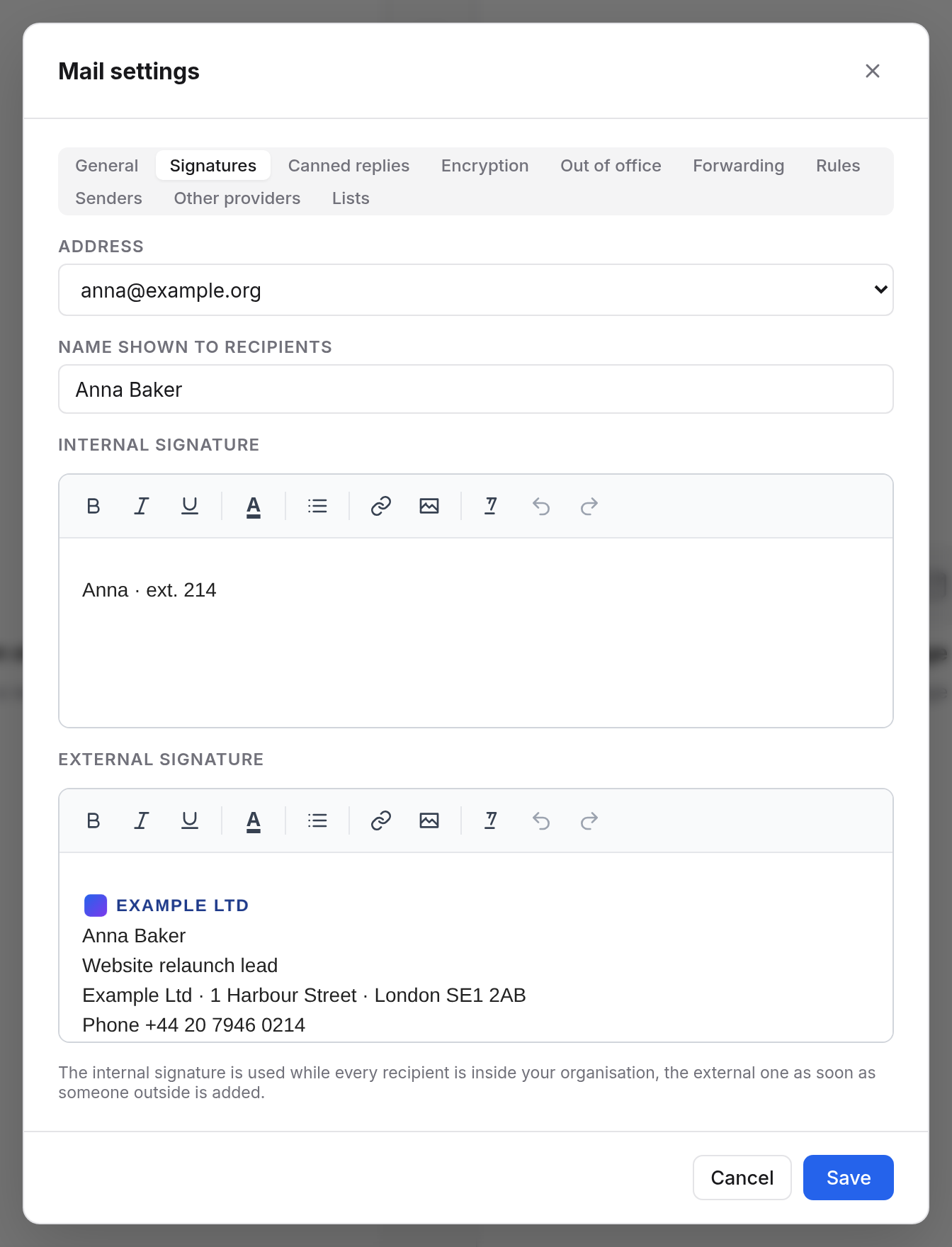
If you leave a signature empty, Mail adds none in its place.
When an address counts as internal
Internal are your organisation's domains, e.g. @example.org. Your administrators can count further domains as internal, such as a sister company's. Everything else is external.
Signatures for group mailboxes
When you write from a group mailbox such as support@example.org, or on behalf of a colleague, that address is listed under Address too. Give it signatures of its own.
Whoever manages a group mailbox can tick “Signature for everyone writing from support@…” there. Then everyone writing from the mailbox gets this shared signature, unless they have set up their own for it.
Signatures in plain text and on other devices
- When you write a message as Plain text, the signature appears unformatted below a line with
--. - The signatures apply to Mail in the browser. Thunderbird, Outlook and your phone's mail app use their own.
Canned replies
Canned replies are answers you write often: opening hours, directions, “Thanks, we'll get back to you”. You insert them with two clicks while writing.
Making a canned reply
- Choose the Canned replies tab in the settings.
- Choose New canned reply.
- Enter a Name, e.g. “Opening hours”.
- Under For, choose who can use it: Only me, or everyone writing from a group mailbox, e.g.
support@example.org. - Write the Text and choose Save.
Canned replies are saved straight away. The pencil changes one, the x removes it.
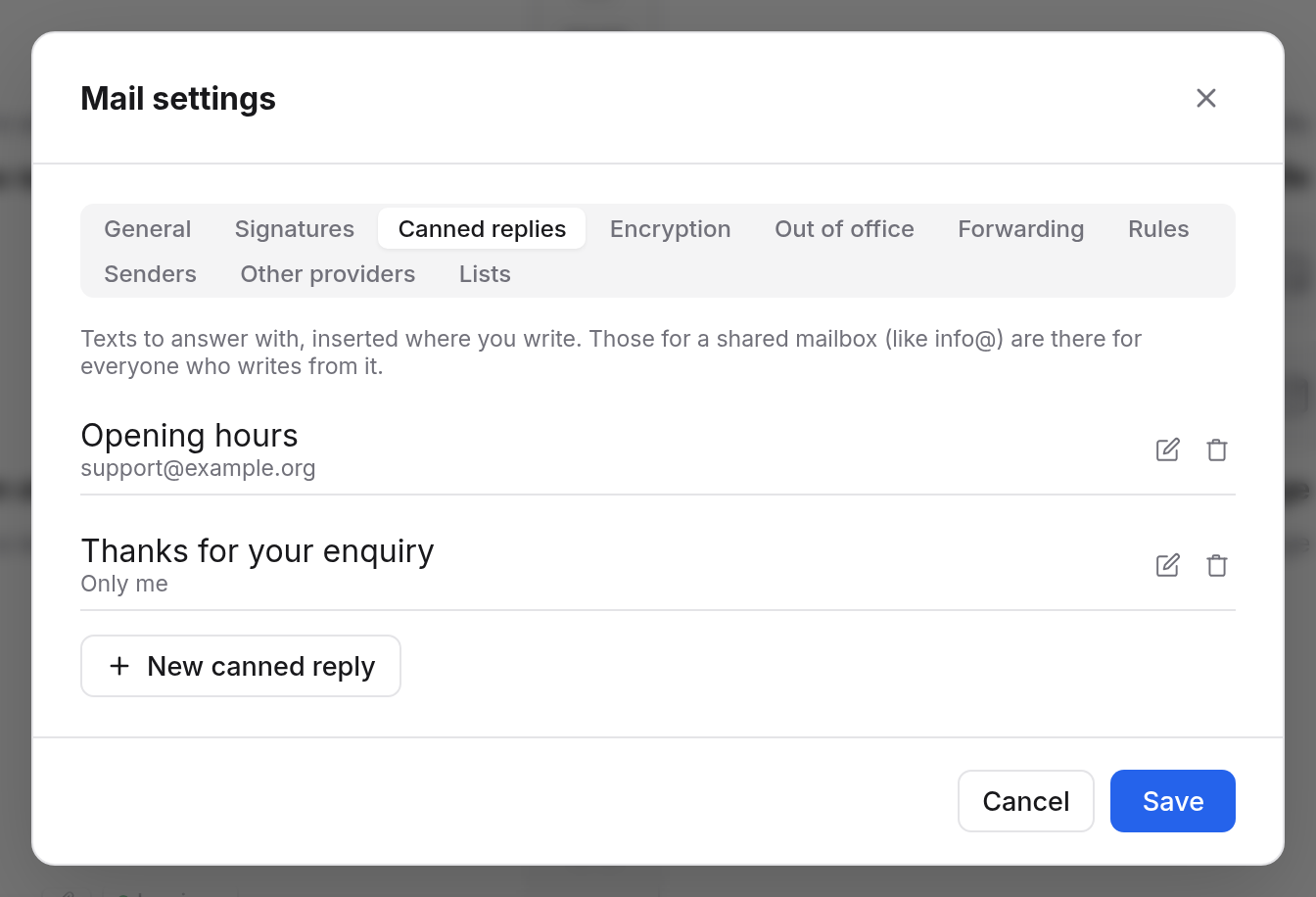
Inserting a canned reply
While you write, the bar above the text shows Canned reply. Choose it, then the reply you want. Mail inserts the text where your cursor is.
You are offered your own canned replies and those of the mailbox you are writing from. The button only appears once there is at least one.
Examples
Internal signature
Anna · Website relaunch lead · ext. 214
External signature
Anna Baker
Website relaunch lead
Phone +44 20 7946 0214
anna@example.org
Canned reply “Opening hours” for support@
Our support team is here for you Monday to Friday, 9 am to 5 pm. We usually reply the same day.