
The overview
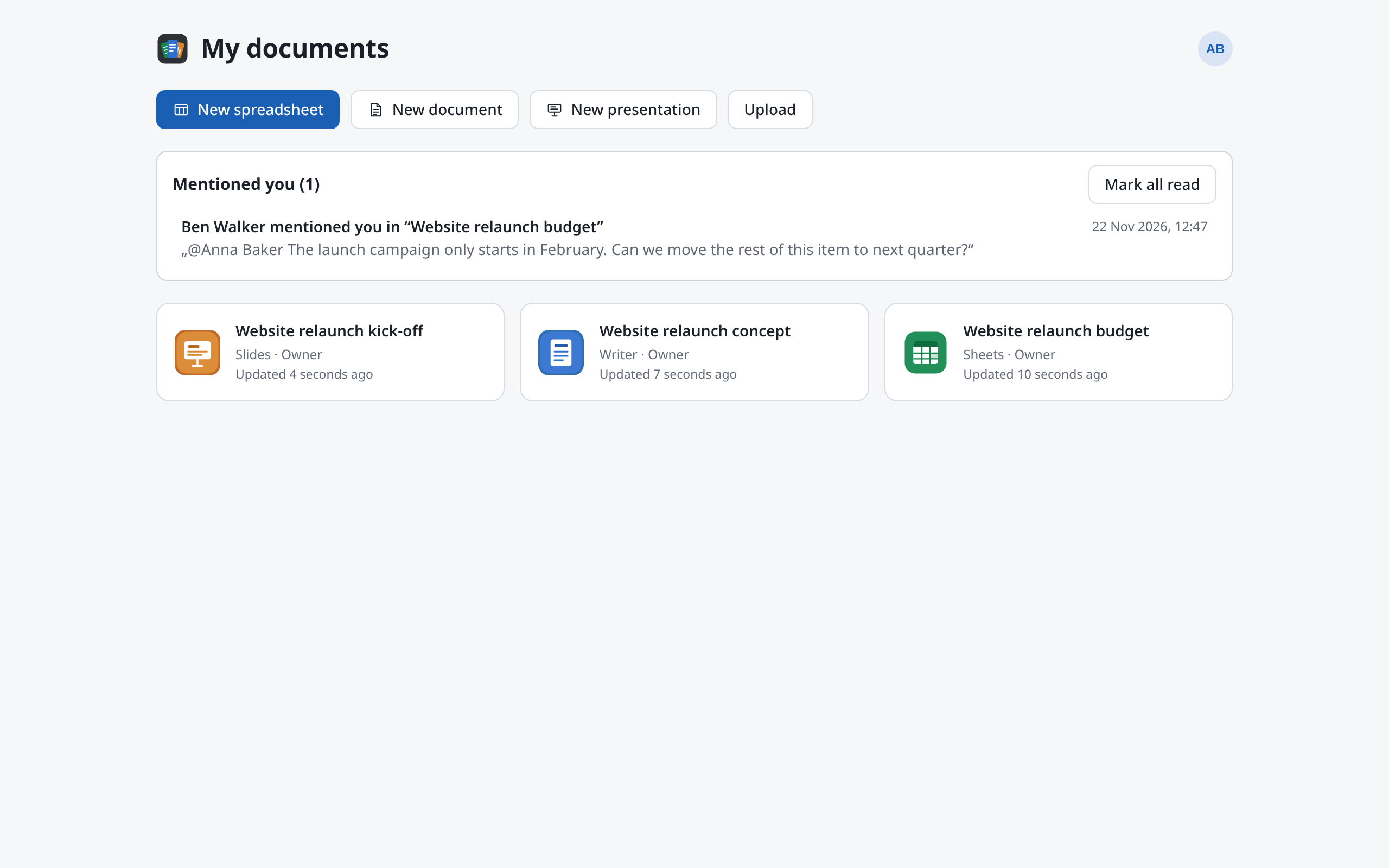
After signing in you land on My documents. It lists every document you own or that someone has shared with you, most recently changed first. From here you make new ones and upload files.
Each card shows:
- the title,
- the kind: Sheets, Writer or Slides,
- your access: Owner, Can edit or Can view,
- Public when anyone with the link can open it,
- when it was last changed.
Signing in
Depending on how Docs is set up, you sign in with your username or email and password, or with Sign in with SSO. If your organisation's sign-in is the only one, you are taken straight there.
If a link to a document sent you to sign in, you come straight back to that document afterwards.
Making a new document
Choose New spreadsheet, New document or New presentation at the top. The document opens straight away, titled “Untitled spreadsheet”, “Untitled document” or “Untitled presentation”. Give it a better name inside the document (see Renaming).
Uploading a file
- Choose Upload.
- Pick a file on your computer.
- Docs reads the file and makes a new document from it, which opens in the right app.
| File | Opens in |
|---|---|
.xlsx, .xlsm, .ods | Sheets |
.csv, .tsv, .txt | Sheets, after the text import (see below) |
.docx, .odt | Writer |
.pptx, .odp | Slides |
The title is the file name without its extension: Website relaunch budget.xlsx becomes “Website relaunch budget”. The file on your computer stays as it is: what you change in Docs stays in Docs. Comments in an .xlsx come along.
Upload does not offer templates and the other presentation formats (.dotx, .potx, .ppsx, .pptm, .otp). Open them in the app itself, see File formats.
If it doesn't work, the overview tells you why: the file is too large, in a format Docs doesn't know, or damaged.
CSV and text files
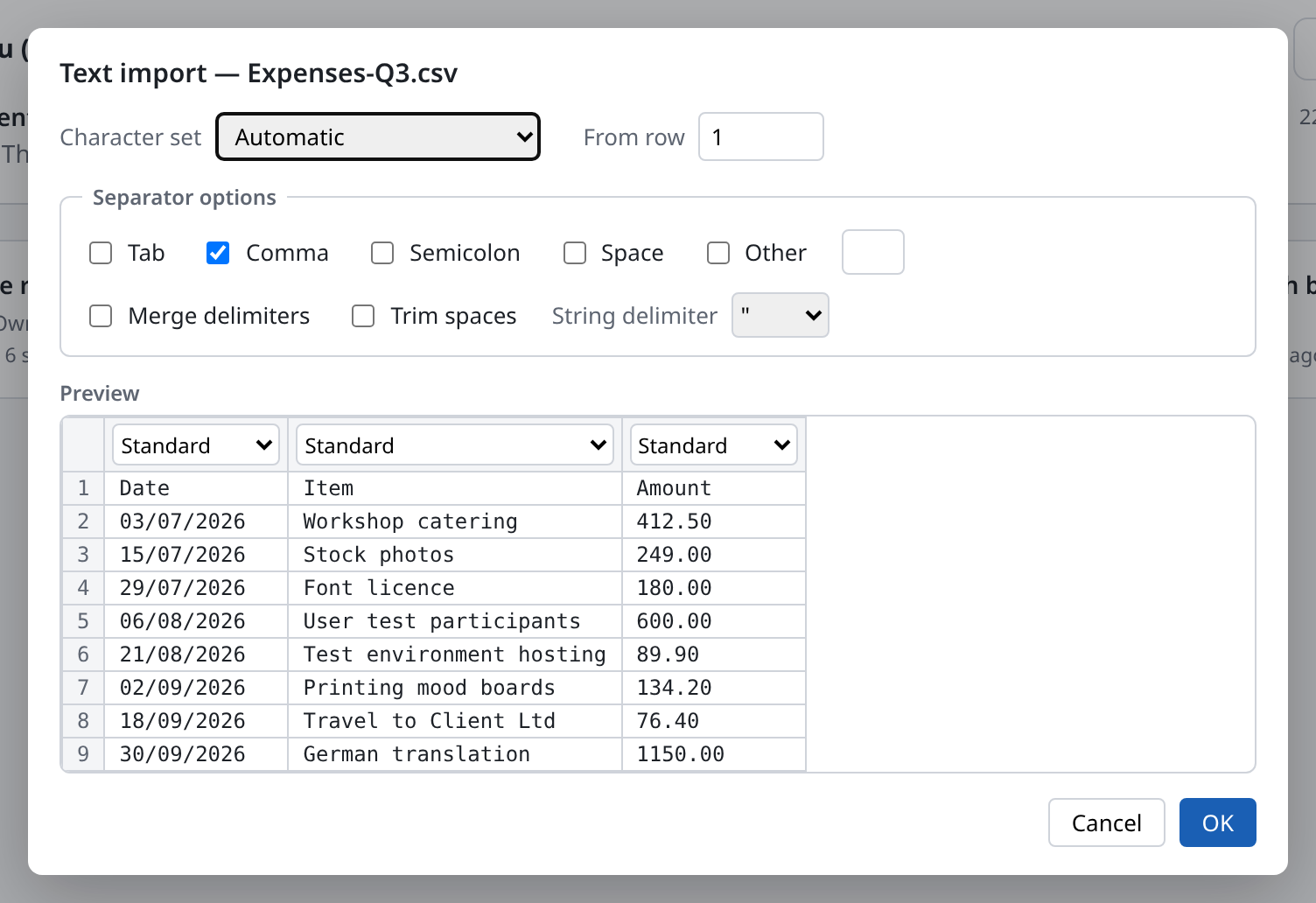
A .csv, .tsv or .txt file is just text with separators. Before it becomes a spreadsheet, Docs asks how the file is laid out, in the Text import dialog. The Preview shows at once how the columns come out.
| Field | Meaning |
|---|---|
| Character set | How the file is encoded. Docs recognises UTF-8 by itself; files from older versions of Excel are often Windows-1252. If accented letters look wrong, change it here. |
| From row | The row to start reading from, for example to leave out a title above the data. |
| Separator options | What separates the columns: Tab, Comma, Semicolon, Space or Other. |
| Merge delimiters | Several separators in a row count as one. |
| Trim spaces | Spaces at the start and end of each field are dropped. |
| String delimiter | The quotes around text that itself contains a separator. |
| Column type | Above each column of the preview: Standard (Docs recognises numbers and dates), Text (for example for codes with leading zeros), a date order such as Date (DMY), or Skip column to leave it out. |
Choose OK. The new document opens in Sheets.
Opening and going back
Click a card to open the document. To get back to the overview, use the icon at the very top left of the document (Back to my documents).
Each document has an address of its own. You can bookmark it or pass it on, but only people with access can open it (see Sharing).
Renaming
Only the document's owner can rename it:
- Open the document.
- Click the title at the top (Rename document).
- Type the new name and press Enter. Esc keeps the old one.
The new name applies straight away for everyone, in their overview too.
Deleting
Only the document's owner can delete it:
- On the card, choose the bin icon Delete at the top right.
- Confirm with Delete.
You can't delete a document someone else shared with you. Ask its owner to take you off the list.
Mentions
When someone mentions you with @ in a comment while you are not in the document, it shows at the top of the overview under Mentioned you: who, in which document, the start of the comment, and when.
- Click it to open the document. The mention then counts as read.
- Mark all read empties the list.
How to mention someone yourself is under Comments.
Account menu and language
At the top right is a circle with your initials. It opens the account menu:
- Language: English or German. Your choice applies in this browser to the overview and all three apps, and in Sheets to the function names too. At first Docs uses your browser's language.
- Account settings: with your organisation's sign-in, this takes you to your account there.
- Sign out: with your organisation's sign-in, this signs you out everywhere, not just in Docs.
You switch between light and dark in Sheets and Writer under View → Appearance.