
Sharing
When you share a folder with someone, you both work in the same folder: what one changes, the other sees at once, in the browser and in the Nextcloud apps. There are no copies that drift apart.
Sharing with people
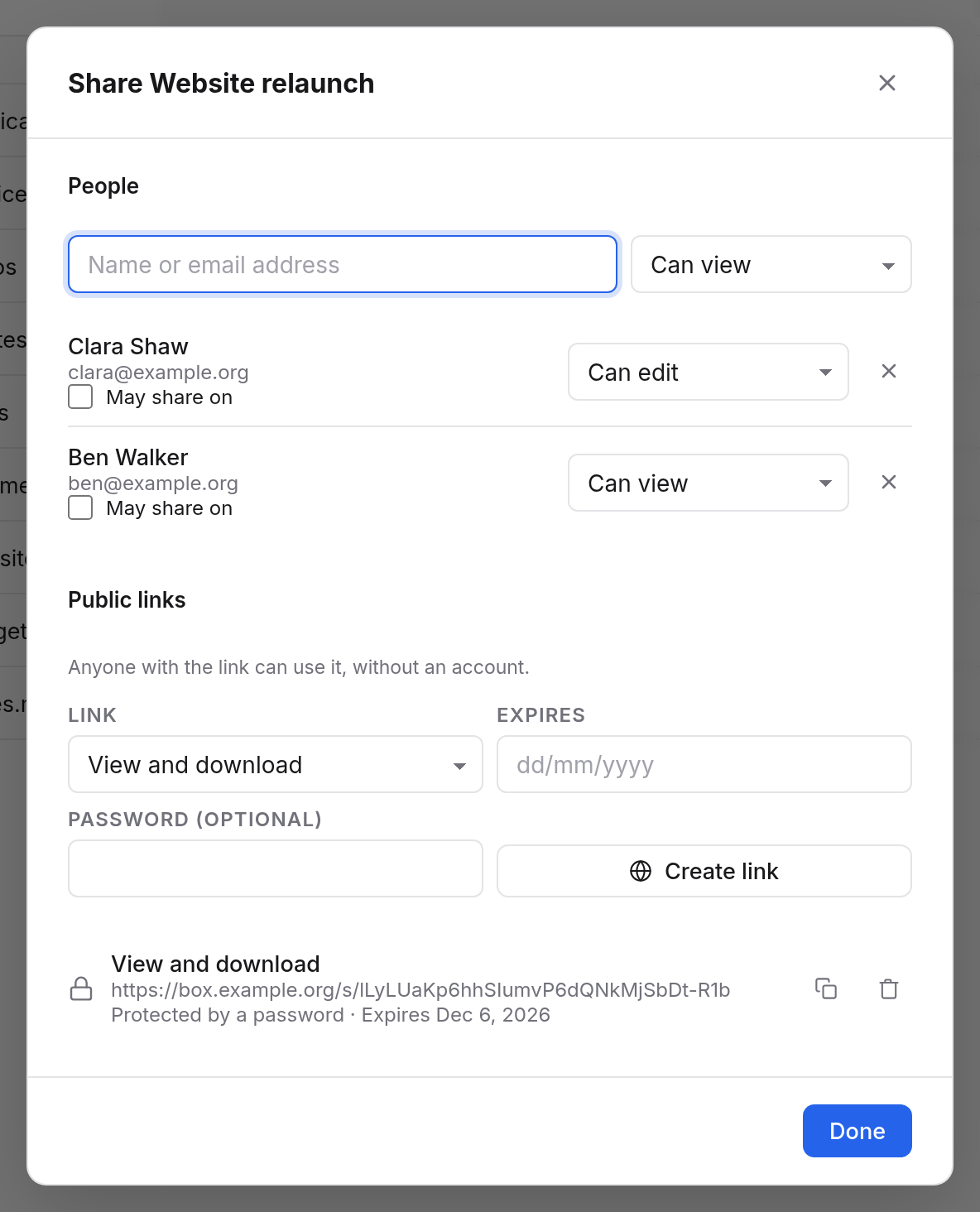
- Choose Share… in the menu of a folder or file.
- Under People, choose the right on the right: Can view or Can edit.
- On the left, type a name or email address, such as "Clara", and choose the person from the suggestions.
- The person is now in the list and has access at once. Choose Done.
What you share has a mark beside its name in the list. A click on it opens the window again.
The rights
| Right | For a folder | For a file |
|---|---|---|
| Can view | see the contents, open and download files | open and download |
| Can edit | also upload, make folders, rename, move, delete and change files | also change it, such as editing a Markdown file |
| May share on | in addition: share with others and make links themselves | the same |
You can change a person's right in the list at any time. × beside them takes their access away, at once.
When you share a folder, that holds for everything in it, including what is added later.
People without an account
If you type a full email address that has no account yet, Box offers "Invite …". The list then says "Invited; gets access at first sign-in". As soon as the person signs in with that address, they have access.
Box doesn't send a mail for this. Let the person know yourself. If someone without an account only needs to fetch something quickly, a public link is simpler.
What the others see
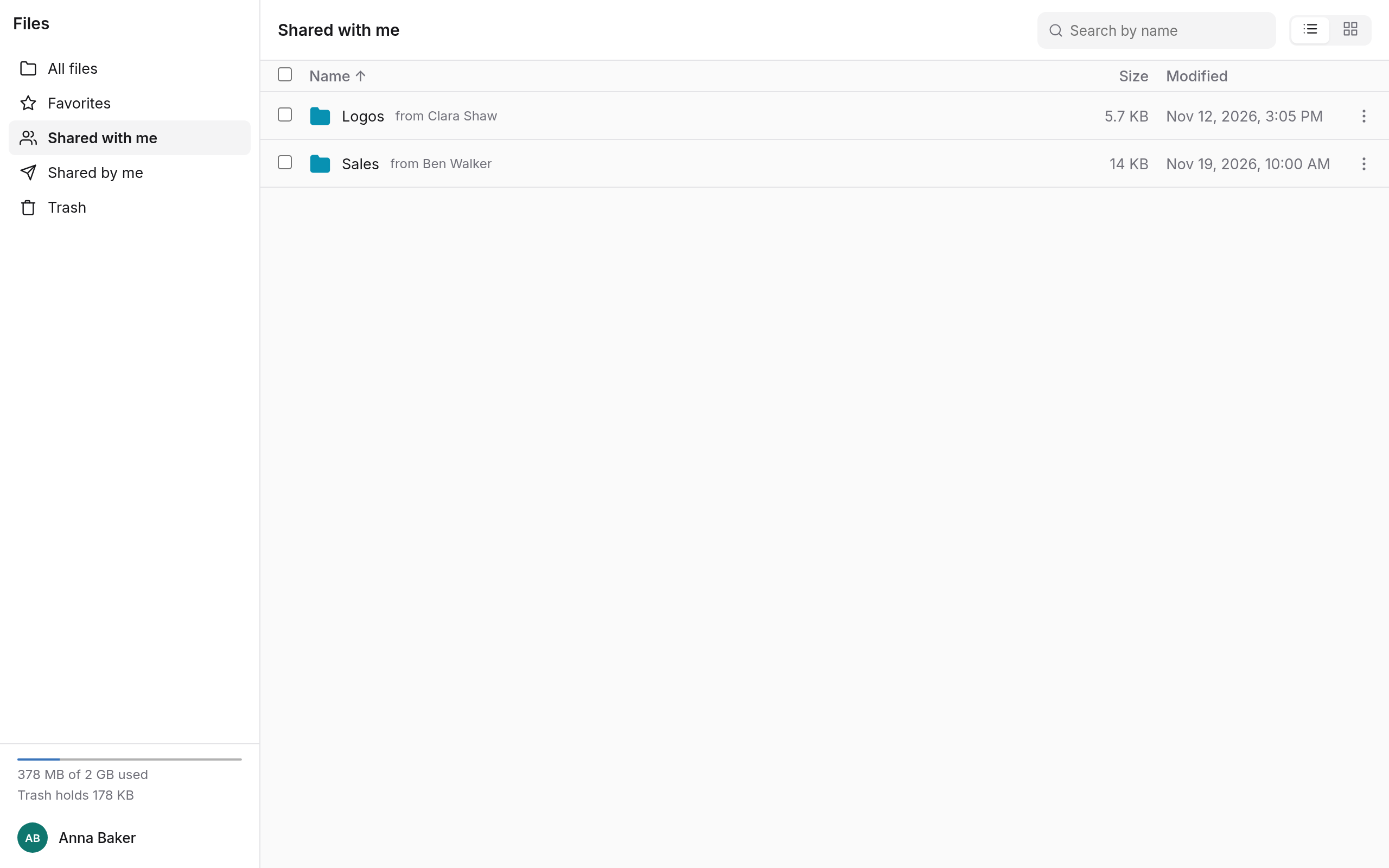
Someone you share something with finds it in All files, at the top level, and under Shared with me. It says "from Anna Baker" beside it.
They can rename the shared folder for themselves, or move it into one of their folders. That only changes their own view; for you everything stays as it is.
Shared with me and Shared by me
- Shared with me shows everything others share with you, with the name of the person it belongs to.
- Shared by me shows everything you share, with people or by link. Through the menu and Share… you change rights there, or stop sharing.
Remove from my files
If you no longer want something that someone shares with you, choose Remove from my files in the menu and confirm. The person it belongs to keeps everything. You lose access until they share it with you again. Nothing goes into your trash.
View-only folders
When you may only view a folder, a note says so at the top, and New and Upload are missing. You can open and download everything in it. If you copy a file into one of your own folders, you can edit the copy.
Good to know
- New things belong to the owner: what someone puts into a folder you share with them belongs to you and counts against your storage.
- Deleting in shared folders: what someone else deletes in your shared folder goes into your trash, not theirs. Only you can bring it back.
- Deleting ends sharing: when you delete a shared folder, the others lose access. If you restore it from the trash, it is no longer shared. Share it again then.
- Moving: when you move a file out of a shared folder, the others no longer see it.