
Android
Android has no built-in support for CalDAV and CardDAV. That's what DAVx⁵ is for: it brings calendars, tasks and contacts into the apps you already have. For mail, use an IMAP app such as FairEmail; for files, the Nextcloud app.
First: make an app password
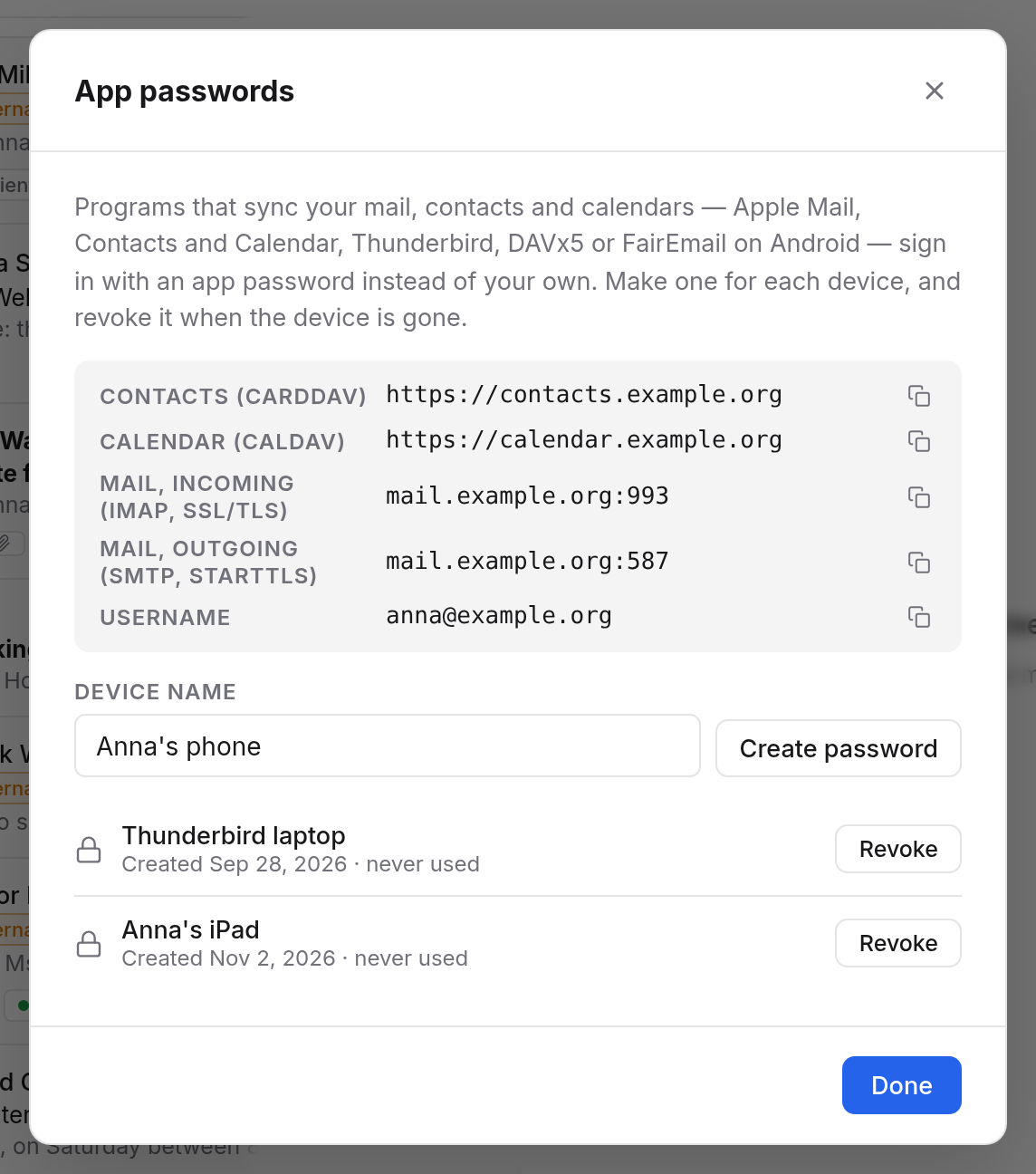
- In the browser, open Mail, Calendar or Contacts.
- Click your name at the bottom left and choose App passwords….
- Under Device name, enter for example "Anna's phone" and choose Create password.
- Keep the dialog open until you are done. The password is shown only this once.
One app password is enough for DAVx⁵ and the mail app on the same phone.
Calendars and contacts with DAVx⁵
- Install DAVx⁵ from the Play Store or F-Droid.
- In DAVx⁵, tap + and choose Login with URL and user name.
- As the Base URL, enter
https://calendar.example.org, as the User name your email address and as the Password the app password. Tap Login. - As the Account name, your email address works best. Tap Create account.
- Open the new account and, on the CalDAV tab, tick the calendars you want on the phone.
- Repeat steps 2 to 5 with
https://contacts.example.org, and tick your address books on the CardDAV tab.
Events then appear in your phone's calendar app, contacts in its contacts app. What you change on the phone ends up in Office too, and the other way round.
Tasks
Your tasks live in your calendars and come to the phone with DAVx⁵ too. For that you need a tasks app that works with DAVx⁵, such as jtx Board, Tasks.org or OpenTasks. Install one before or after creating the account. DAVx⁵ offers this itself as well.
Mail with FairEmail or another app
FairEmail is a free mail app for Android. To set it up:
- Install FairEmail and choose the quick setup when it first starts.
- Enter your name, your email address and the app password, and let FairEmail look for the settings.
- If FairEmail doesn't find them, set up the account by hand:
| Field | Value |
|---|---|
| Incoming (IMAP) | mail.example.org, port 993, SSL/TLS |
| Outgoing (SMTP) | mail.example.org, port 587, STARTTLS |
| User name | your email address |
| Password | the app password |
Other mail apps that speak IMAP are set up with the same details.
Files with the Nextcloud app
Install the Nextcloud app from the Play Store or F-Droid. When signing in, enter https://box.example.org and allow the phone in the browser. You don't need an app password to type in. How it works is under Nextcloud apps and WebDAV.
If it doesn't work
- DAVx⁵ says signing in failed: use the app password, not your usual one, and your full email address as the user name. Check that the address starts with
https://. - Events take hours to arrive: let DAVx⁵ run in the background (see above), or set a shorter sync interval in the account.
- A calendar is missing on the phone: open the account in DAVx⁵ and tick it on the CalDAV tab.
- It worked for a long time and suddenly stopped: the app password may have been revoked, or you haven't signed in in the browser for a while. See App passwords.