
Writer
Writer is the word processor of Docs. You write on pages as they will print, with headers and footers, footnotes and a table of contents. Word files open with the same line and page breaks as in Word.
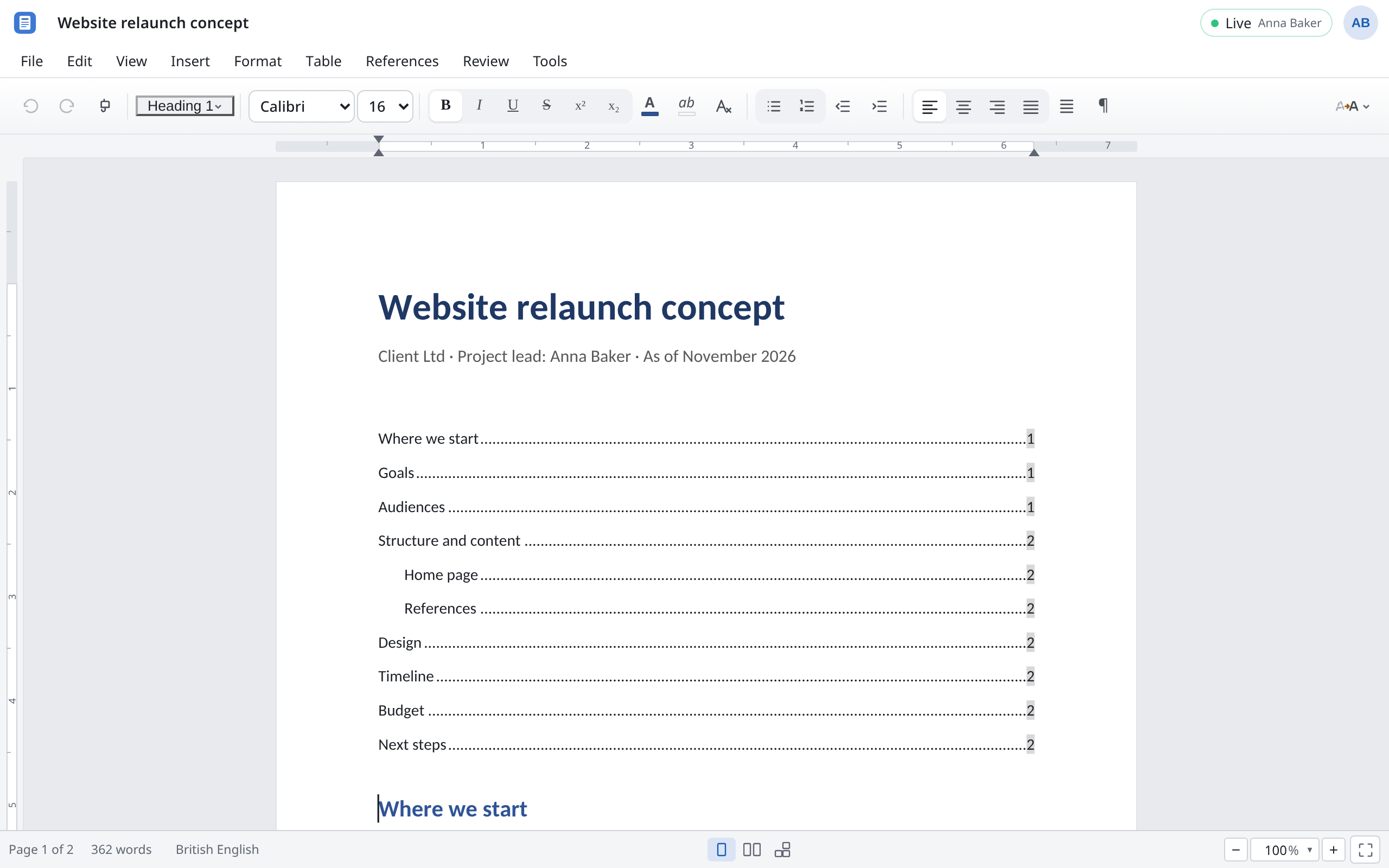
The menus
| Menu | What you'll find there |
|---|---|
| File | Open a document (.docx, .odt), Version history, Properties, Print, downloading as PDF, Word, ODF and EPUB |
| Edit | Undo, copy and paste, Paste unformatted text, Find and replace… |
| View | Outline, Navigation pane, Show comments, Formatting marks, Appearance, zoom |
| Insert | Break, Table, pictures, Chart…, SmartArt, WordArt…, shapes, Equation…, Field, links, Comment, Header and footer, Content control |
| Format | Character…, Paragraph, Lists, Borders and shading…, Tab stops…, Styles, Page setup, Line numbers…, Design with Watermark… |
| Table | Inserting and deleting rows and columns, Merge cells, table styles, Sort…, Formula…, Table properties… |
| References | Table of contents, index, footnotes and endnotes, captions, cross-references, bookmarks, citations |
| Review | Comments, spelling, Track changes, Compare document…, Restrict editing… |
| Tools | Search commands… (++Ctrl+Shift+P++), Word count, Check accessibility, Update fields, AutoCorrect, Language, Mail merge… |
Can't find a command? Press ++Ctrl+Shift+P++ and type its name.
Styles
Don't format headings and text by hand; use styles such as “Heading 1”. Then the whole document looks consistent, the table of contents finds the headings by itself, and a change to the style applies everywhere.
- In the toolbar, choose the style for the paragraph you are in. The list shows paragraph and character styles separately.
- If you reformatted a paragraph by hand and want every one like it to look the same, choose “Update … to match selection” in the list. The style then takes on your formatting.
- Format → Styles → New style from selection… makes a new style from the formatting at the cursor.
- Format → Styles → Styles… shows all the styles and changes them.
A Word file's styles come along, and go back into the file when you download it.
Tracking changes
To suggest changes rather than make them directly, turn on Review → Track changes (++Ctrl+Shift+E++). Whatever you then insert, delete or reformat is marked as a change, with your name. The others see your suggestions straight away.
To go through the suggestions:
- Choose Review → Next change. Writer jumps to the next one.
- Choose Accept → Accept and move to next or Reject → Reject and move to next.
- If you agree with all of them: Accept → Accept all changes.
Manage changes… lists every change with its author. Display for review sets how much you see: Simple markup, All markup, No markup (as if all were accepted) or Original (as if all were rejected).
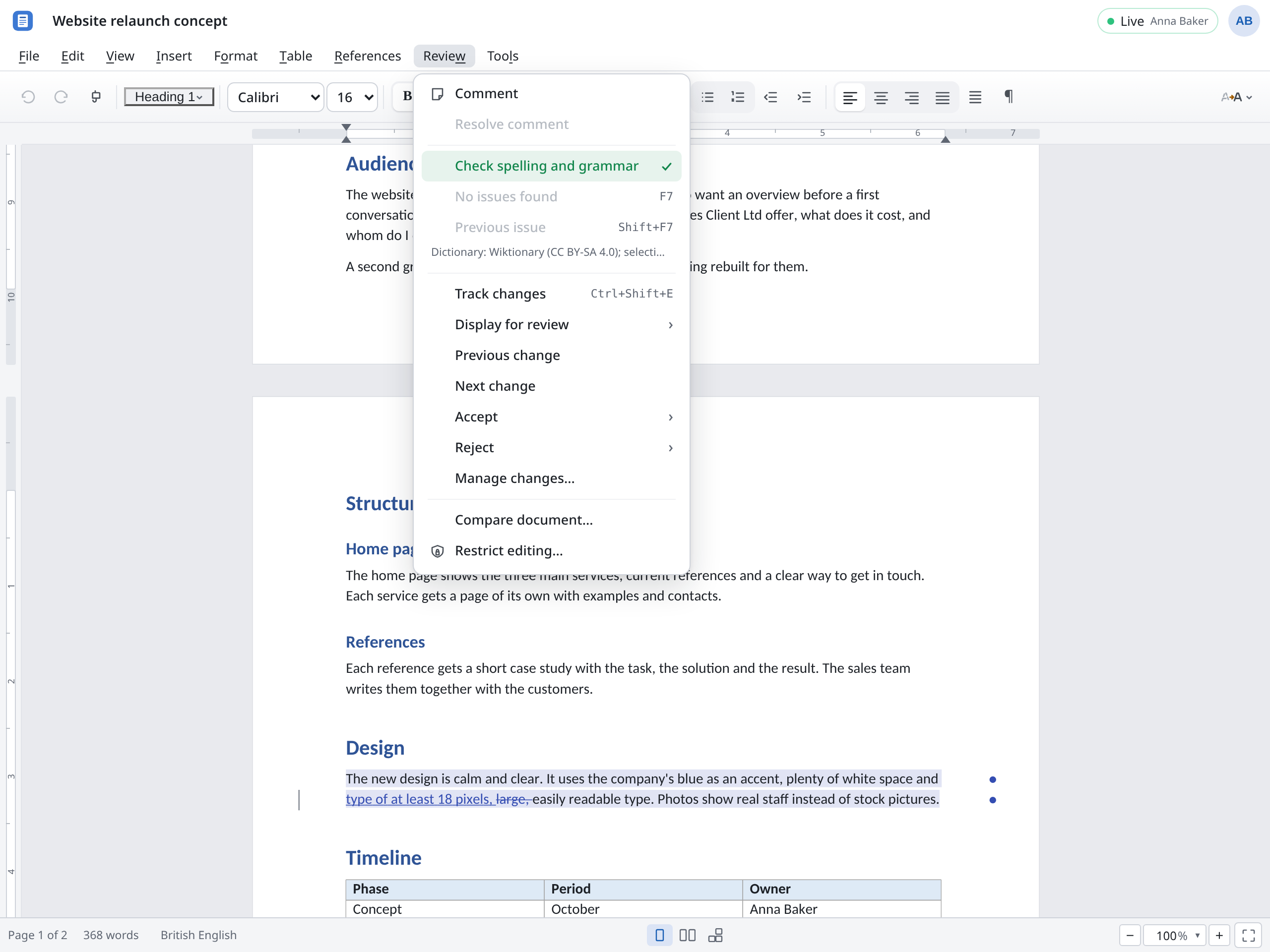
The changes are the same as Word's: a file with changes from Word shows them here, and what you suggest here shows up in Word.
References
The References menu holds everything that points at another part of the document or is collected from it:
- Insert table of contents puts a table of contents at the cursor, built from the headings. If there is one already, the same command opens its settings, where you rebuild it.
- Index… makes an index.
- Footnote (++Ctrl+Alt+F) and [[Endnote]] (Ctrl+Alt+D++). The cursor moves straight into the new note.
- Insert caption… numbers figures and tables, Insert cross-reference… refers to them (“see figure 3”).
- Bookmark… sets places to jump to, Citation… inserts references to sources.
Page numbers, cross-references and tables of contents are brought up to date with Tools → Update fields (F9).
Mail merge
With mail merge you write a letter once and get it for every person on a list. The list is a spreadsheet in Docs, for example “Website relaunch contacts” with the columns First name, Last name, Company and City.
- Write the letter.
- Choose Tools → Mail merge….
- Under Recipients from, choose the spreadsheet, and the Sheet if it has several. Leave The first row names the columns on if the column names are at the top.
- Put the cursor where something should go in the letter and use Insert a field to insert the columns, for example First name and Company.
- Check the result with Preview. In the preview, Previous recipient and Next recipient page through the letters; End preview goes back to the letter.
- Choose Into one document for a single document with all the letters one after another, or A document per recipient.
The finished letters appear as new documents in your overview. Empty rows of the spreadsheet are skipped. If a field has no matching column, the dialog warns you before the letters are made.
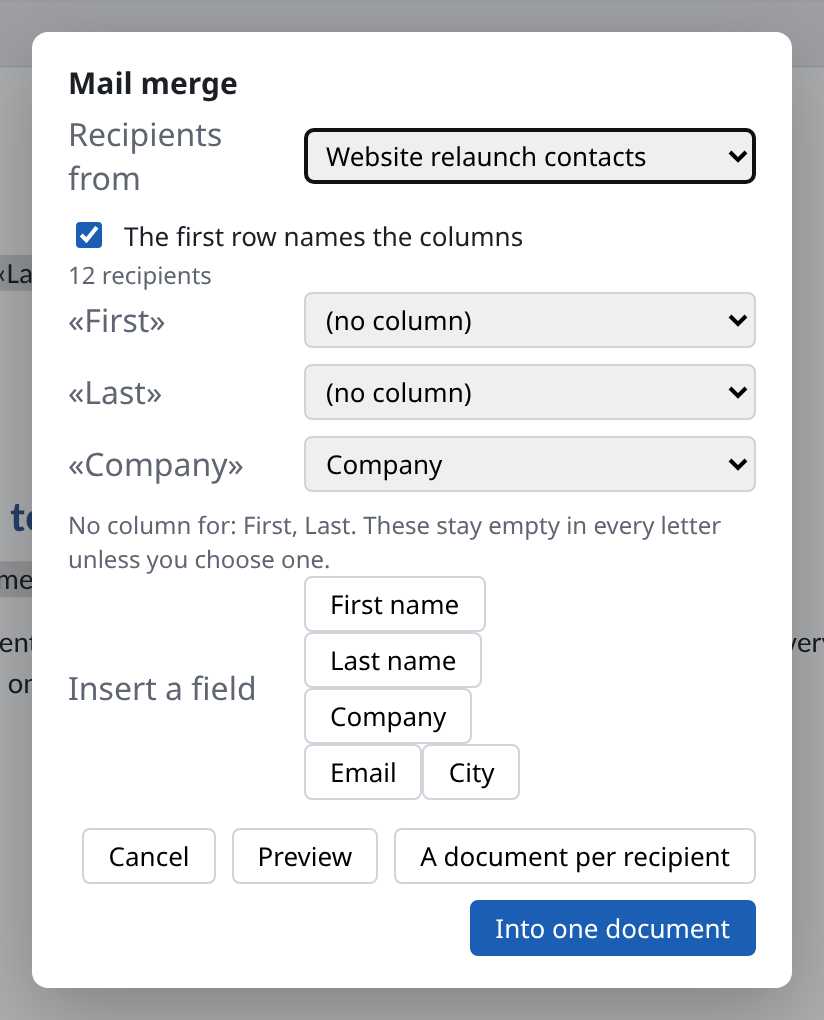
Mail merge letters from Word work here too: the merge fields are the same.
Restricting editing
Review → Restrict editing… sets what may be changed in a document. Turn on Restrict what may be changed in this document and choose under Readers may:
| Choice | What's still possible |
|---|---|
| read it only | No changes. |
| leave comments | Writing comments only. |
| suggest changes | Changes only with tracked changes, which can't be turned off. |
| fill in the form fields | Filling in the content controls only, as in a form. |
To leave certain parts open, select them and choose May be edited anyway under This selection. The status bar at the bottom then shows, for example, Comments only.
Word count
The status bar at the bottom always shows the number of words, and how many are selected when you select something. Tools → Word count shows more: Pages, Words, Characters, Characters without spaces and Paragraphs. With a selection, only the selection is counted.
Different from Word
- No saving. Every change is kept straight away. To get a
.docx, use File → Download as a Word document (.docx). - Open a document (.docx, .odt) replaces the content of the open document, for everyone. For a new file, Upload in the overview is usually better.
- No ribbon. What Word has on its tabs is in the menus with similar names, such as References and Review.
- No macros. Writer doesn't open RTF or the old
.docformat.