
Language, appearance and notifications
Each app has its language (English or Deutsch) and its appearance (light, dark or like your system). You set both in the app's account menu, behind your name.
Where to set them
| App | Where | Kept |
|---|---|---|
| Mail, Calendar, Contacts | account menu at the bottom left: Language and Appearance | in your account, for all three apps and on every device |
| Box | account menu at the bottom left: Language and Appearance | in your account, on every device |
| Accounts | Settings, section Language | in your account, also for the mails from Accounts |
| Meet | account menu at the top right (your initials): Language and Appearance | in this browser only |
| Docs | language in the account menu at the top right, appearance in the View menu | in this browser only |
In your account means: switch Mail to German on your laptop, and Mail is German on your phone too. In this browser only means: on another device or in another browser you set it again.
The apps don't follow each other. Switching Mail to German leaves Box, Meet and Docs as they are.
Mail, Calendar, Contacts and Box
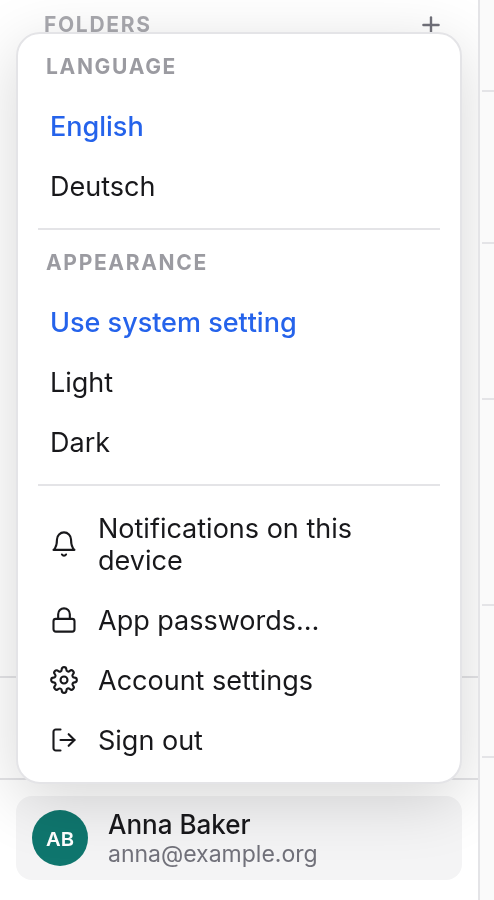
- Click your name at the bottom left.
- Under Language, choose English or Deutsch.
- Under Appearance, choose Use system setting, Light or Dark.
The app switches at once. With Use system setting it follows the light or dark mode of your computer or phone, even when that changes in the evening.
If you have never chosen a language, the app uses your browser's.
Accounts
Open your account settings: the Settings tile on the Accounts start page, or the account menu in any app and Account settings.
Under Language, choose Follow browser, English or Deutsch. This language applies to Accounts itself and to the mails Accounts sends you, such as the one for resetting your password.
At the top right, the moon or sun icon (Toggle theme) switches between light and dark. Accounts doesn't remember this: next time it follows your system again.
Meet
Click the circle with your initials at the top right. There you choose the language under Language, and System, Light or Dark under Appearance. Meet remembers this in this browser.
Docs
- Language: in the My documents overview, open your account menu at the top right and choose DE or EN. In a spreadsheet you also find the language at the right of the toolbar.
- Appearance: in a text document or a spreadsheet, choose Appearance in the View menu, then Use system setting, Light or Dark.
The appearance affects only the window, not the document: printed and as a PDF it always looks the same. Docs remembers both in this browser.
The bell
Next to Switch app, each app has a bell: Notifications. It collects what happens for you in all the apps, such as an invitation to an event, a calendar shared with you, or someone waiting in your meeting's waiting room. A number on the bell shows how many are unread.
- Click a notification to open it, in the app it comes from.
- Mark all read clears the number, Clear all empties the list. Remove takes away a single one.
- Important ones also pop up on screen with a sound, for example when someone is in your meeting or waiting to be let in. Join takes you straight in, Dismiss closes the alert.
Notifications on this device
Mail, Calendar and Contacts can show you reminders and booking requests even with no page open, as a notification from your system.
- In Mail, Calendar or Contacts, open the account menu at the bottom left.
- Choose Notifications on this device.
- Allow notifications when your browser asks.
This applies to this browser on this device. On your phone and your laptop, you turn it on separately. Choosing it again turns it off.
If the item says it is on through another app, Calendar for example, you already get the notifications. There is nothing to do.
If the item is greyed out and says notifications are blocked, you turned them down for this site in your browser. Allow them in your browser's site settings and try again.