
Rules
With rules, Mail sorts incoming messages for you: newsletters into a folder of their own, invoices with a label, notifications marked as read straight away.
Rules act when a message arrives, before it lands in the inbox. They work even when Mail is not open, and for messages you read on your phone. A rule never refuses a mail: the sender notices nothing.
Making a rule
- Choose Settings at the bottom of the sidebar, then the Rules tab.
- Choose Add a rule and give the rule a name, for example "Newsletters".
- Under When, say which messages are meant (see Conditions).
- Under Then, say what happens to them (see Actions).
- Choose Save. The rule applies to every new message from now on.
Conditions
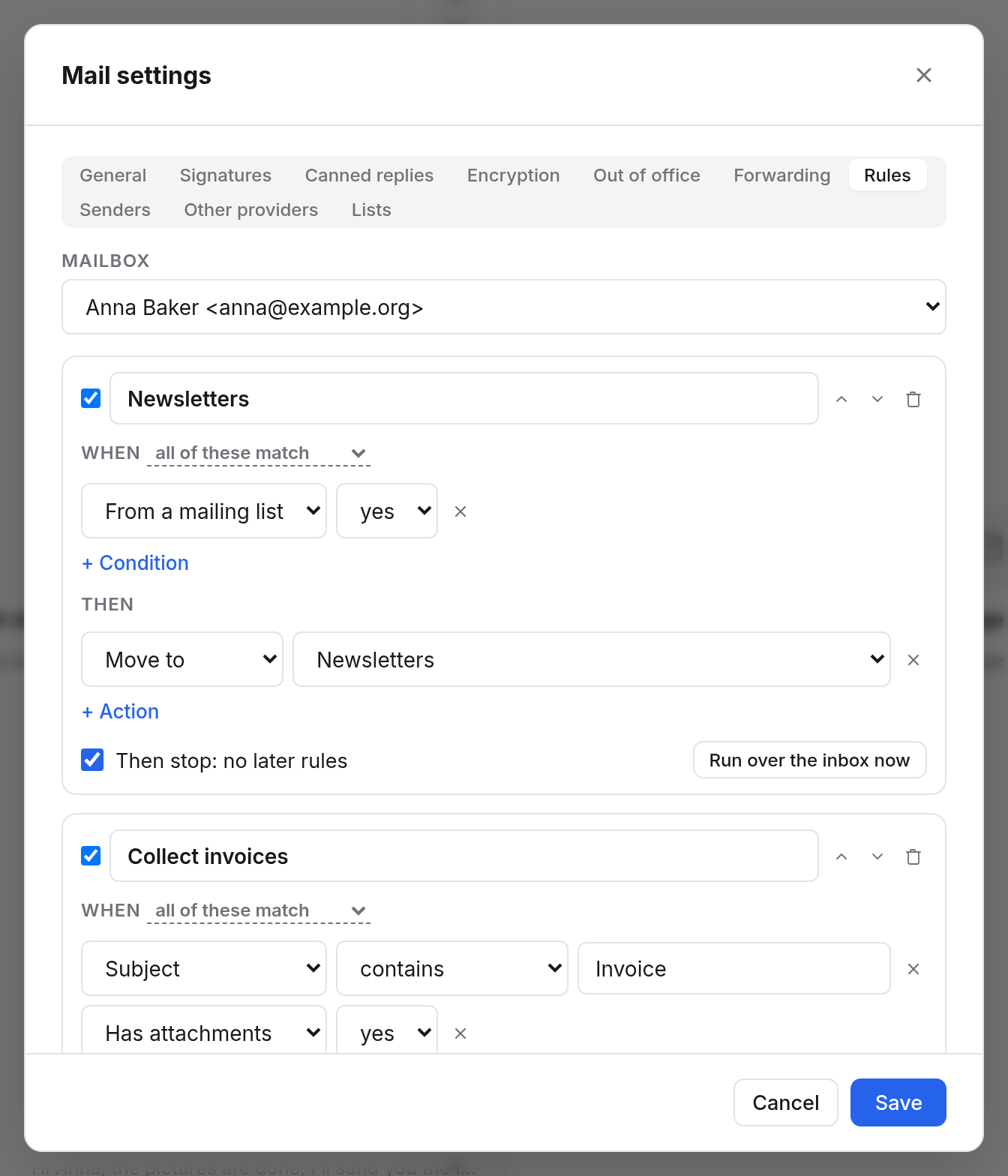
A rule can have several conditions. At the top, choose whether all of these match or whether it is enough that any of these matches.
| Condition | Comparison | Example |
|---|---|---|
| From | contains, is, domain is, does not contain | domain is shop.example.com |
| To or Cc | contains, is, domain is, does not contain | contains invoices@ |
| Subject | contains, is, domain is, does not contain | contains Invoice |
| Header | contains, is, does not contain, for a header by name | List-Id contains clubnews |
| Size | larger than, smaller than (in KB) | larger than 5000 |
| Has attachments | yes or no | yes |
| From outside | yes or no: not from your organisation | yes |
| From a mailing list | yes or no: newsletters and mailing lists | yes |
| Is an invitation | yes or no: contains an event | yes |
Upper and lower case don't matter when comparing.
Actions
A rule can do several things, for example add a label and mark as read.
| Action | What happens |
|---|---|
| Move to | The message goes into the chosen folder instead of the inbox. |
| Add label | The message gets a label. It stays in the inbox unless you also move it. |
| Mark as read | The message doesn't count as unread. |
| Star | The message gets a star. |
| Forward to | A copy goes to another address. |
| Move to trash | The message goes straight to the trash, where you can still restore it. |
Order and "Then stop"
Mail checks the rules from top to bottom. When several match, all of them apply. If several rules move to different folders, the last one wins. Change the order with the arrows beside each rule.
When a rule has Then stop: no later rules turned on, Mail checks no further rules after it. So put very specific rules at the top and turn on "Then stop" there.
Applying rules to existing mail
New rules only apply to messages that arrive from now on. To tidy up your inbox, choose Run over the inbox now on the rule: Mail applies that one rule to the messages already in the inbox. Other folders and the other rules are left as they are.
Turning rules off and deleting them
Rule on turns a rule off for a while without losing it. Delete rule removes it for good.
Examples
Newsletters into a folder
When From a mailing list is yes, then Move to "Newsletters".
Collecting invoices
When Subject contains "Invoice" and Has attachments is yes (all of these match), then Add label "Invoices".
Filing a service's notifications quietly
When From domain is notifications.example.com, then Move to "Notifications" and Mark as read, and Then stop: no later rules.