
Uploading
You upload single files or whole folders with all their subfolders. They land in the folder you have open.
With the button
- Open the folder the files should go in, such as "Website relaunch".
- Choose Upload at the top, then:
- Upload files for one or more files, or
- Upload folder for a folder with everything in it.
- Choose the files or the folder in your computer's window.
By dragging
Drag files or folders from your computer into the Box window. "Drop to upload to Website relaunch" appears. Let go, and the upload starts.
If there is no Upload button, you may not put anything in this folder, for example because someone shares it with you for viewing only (see Sharing).
When a file is already there
If the folder already has a file of the same name, Box asks, in the Already here window:
| Button | What happens |
|---|---|
| Replace | The new file replaces the old one. The old one is kept as an earlier version (see Versions). |
| Keep both | The new file gets a number, such as "Quote (1).pdf". |
| Skip | The files already there are not uploaded. The rest are. |
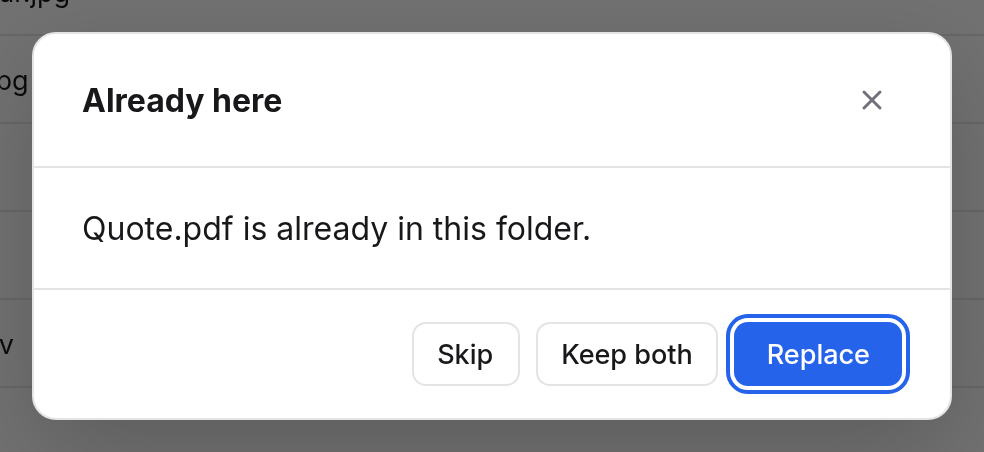
The choice applies to every file that is already there. When you upload a whole folder, files in it that already exist there are replaced without asking. The old ones are kept as versions then too.
The upload panel
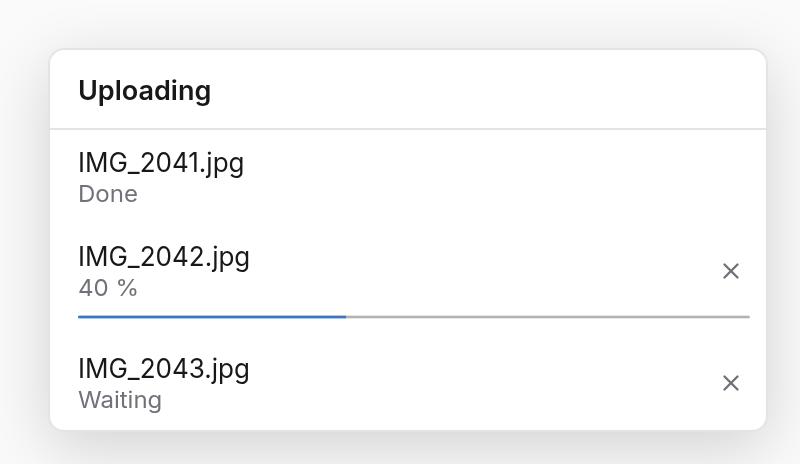
At the bottom right, a panel shows what is being uploaded, with a bar for each file.
| State | Meaning |
|---|---|
| Waiting | The file's turn comes soon. |
| Bar | The file is being uploaded. |
| Finishing… | Everything has arrived; Box is putting the file in place. |
| Done | The file is there. |
| Failed | Something went wrong. Try again sends only what is still missing. |
| Not enough storage left | Your storage isn't enough (see below). |
× beside a file cancels its upload. When all went well, the panel goes away by itself after a few seconds. A failure stays until you try again or close the panel.
Box sends large files in pieces. If the connection drops, only one piece is lost, not the whole file. Keep the Box window open until everything is uploaded. A file may be up to about 160 GB.
Storage
At the bottom of the sidebar it says how much you use, such as "2.4 GB of 10 GB used", or without a limit just "2.4 GB used". When there is something in the trash, it also says how much the trash holds.
- The trash and earlier versions don't count. So deleting always makes room.
- What you upload into a folder someone shares with you counts for the person the folder belongs to.
- When your storage is full, you can still replace a file with a smaller one, but not add anything new.