
Import and export
Folders are exchanged as mbox files. That is the usual format in which Thunderbird, Apple Mail and Google Takeout store and export mail.
Exporting a folder
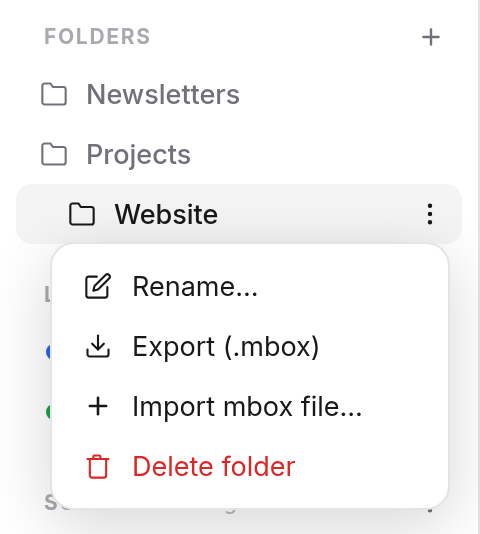
- Hover over the folder in the sidebar and open the menu beside it (three dots).
- Choose Export (.mbox).
Your browser downloads a file with every message of the folder, as it arrived. Whether a message was read, answered or starred is noted in it.
Importing mail
- Make the folder the mail should go into, or use an existing one such as the Inbox.
- Open the menu beside the folder and choose Import mbox file….
- Choose the file.
Mail says how many messages were imported. Messages already in the folder are left out, so you can safely import a file a second time, for example if the first attempt broke off. A file may be up to 1 GB. Split larger ones over several folders.
Where the file comes from
- Thunderbird usually stores each folder as an mbox file already, in its profile folder, without a file extension. Add-ons for Thunderbird also export folders directly as
.mbox. - Apple Mail: Mailbox → Export Mailbox. The exported folder contains a file called
mbox. - Google Takeout delivers your Gmail mailbox as an
.mboxfile.
Good to know
- Import and export work for the folders of your own mailbox, Inbox, Sent and the other standard folders included. They are not available for group mailboxes and mailboxes shared with you.
- To keep a single message, use Show original and then Download original (.eml), see Reading messages.
- Calendars and contacts are exported in their own apps, see Calendar and Contacts.