
Labels and companies
Labels
Labels are your groups: "Clients", "Project team", "Family", "Club". A contact can have several labels.
Setting labels
- Open the contact and choose Edit.
- Under Labels, click a label that exists to set it. Another click takes it off.
- For a new label, type its name into New label and press Enter.
- Choose Save changes.
Each label then shows in the sidebar under Labels, with the number of its contacts. A click on it shows only them.
A label as recipient
A label works like a mailing list you keep yourself:
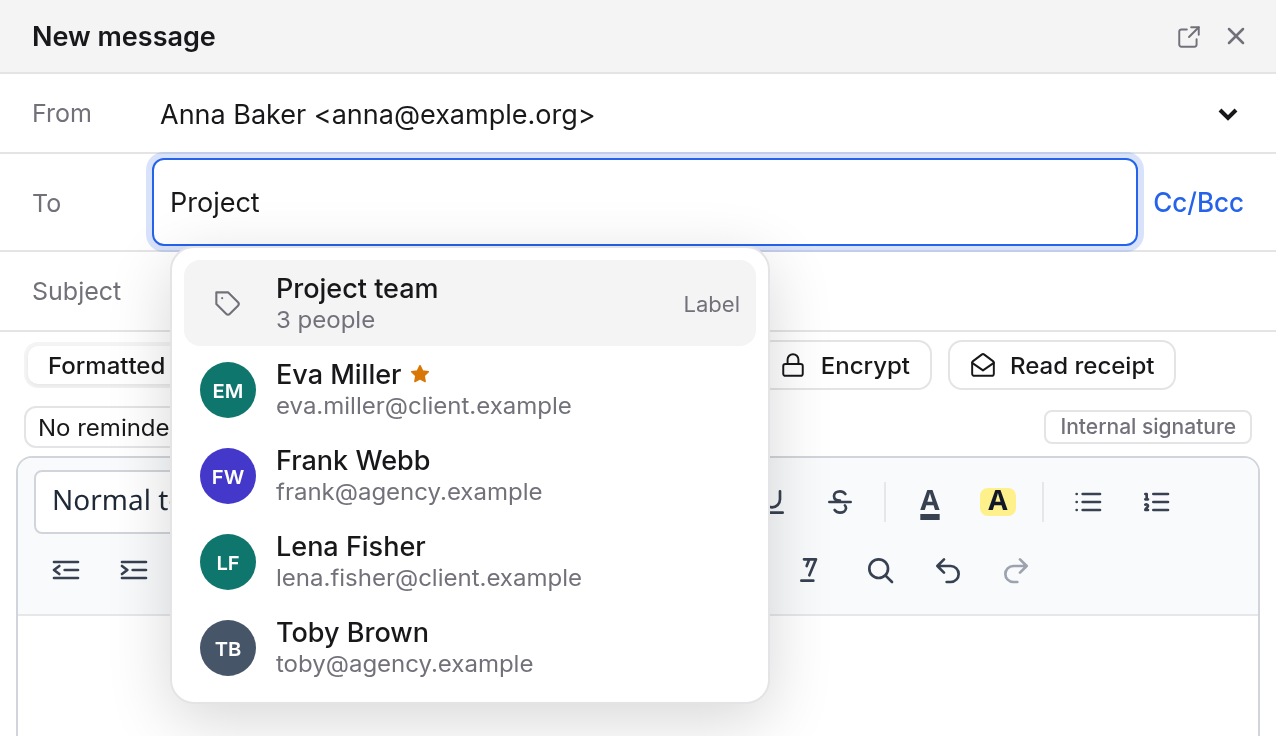
- In Mail, type the label's name into the To field, for example "Project team".
- The label shows in the suggestions, marked Label with the number of people.
- Pick it. Every contact with that label and an email address is added as a recipient of their own.
You can take single people out again afterwards. The label itself is no address: the recipients only see the people.
The same works for Guests in Calendar and in a poll.
Contacts from your organisation's directory don't count here. Give them the label in your own address book, see Address books. A label brings at most 500 people.
Renaming, recolouring, deleting
In the sidebar, open a label's menu (the three dots):
- Rename or recolour… changes its name and colour. A new name applies to every contact you may edit. The colour is yours alone: others see their own.
- Delete label removes the label from every contact you may edit. The contacts themselves stay.
Companies
Under Companies, the sidebar groups contacts by their Company field, across all your address books. Upper and lower case don't matter. The companies with the most contacts come first. When there are more than eight, "Show all" shows the rest.
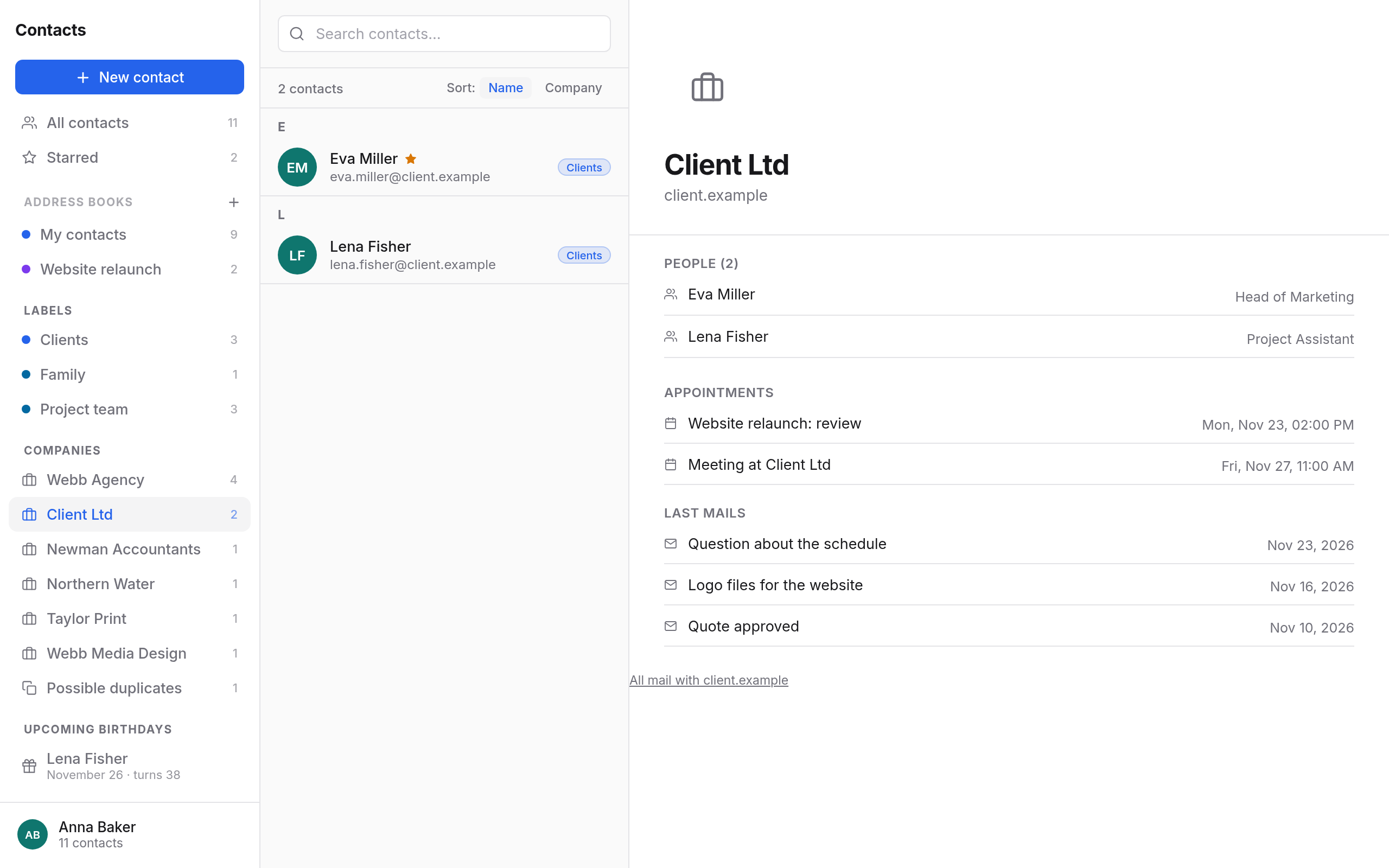
A click on a company, or on the company name in a contact, shows the company page on the right:
- People: every contact of this company. A click opens one.
- Domains: below the name, the domains of the people's email addresses, such as
client.example. General mail providers and your own domains are left out. - Appointments and Last mails: events with these people, and mail with them or with anyone at these domains.
- "All mail with" and the domain opens the search in Mail.
Nothing is stored for a company of its own. It comes from the Company field of your contacts. Spell the company differently in a contact, and it shows under a different company.