
In the call
The call itself, that is picture, sound, chat and screen sharing, comes from Jitsi. Meet adds what hosts need: who has to wait, who is there, who is still missing.
Joining
- On the dashboard, choose Join at a meeting; on its page, Join meeting.
- If someone sent you the meeting's link, open it. If you are not signed in, you sign in first.
- Guests without an account use the guest link (see Inviting).
Before you go in, Jitsi shows you your camera and microphone. Choose your devices there and try them out. Your name comes from your account and can't be changed in the call.
If the waiting room covers you, you wait first (see Waiting room). If you are not invited, it says: "You are not invited to this meeting." Ask a host for an invitation or a guest link.
The toolbar
At the bottom of the call are Jitsi's buttons: microphone, camera, screen sharing, chat, raise hand, reactions and more. Meet adds two:
- Notes for everyone: shared notes (see Notes).
- Show participants for hosts and co-hosts: the Participants panel.
Jitsi's own inviting, lobby and room password are not there: all of that goes through Meet. Recording and livestreaming are switched off.
The Participants panel
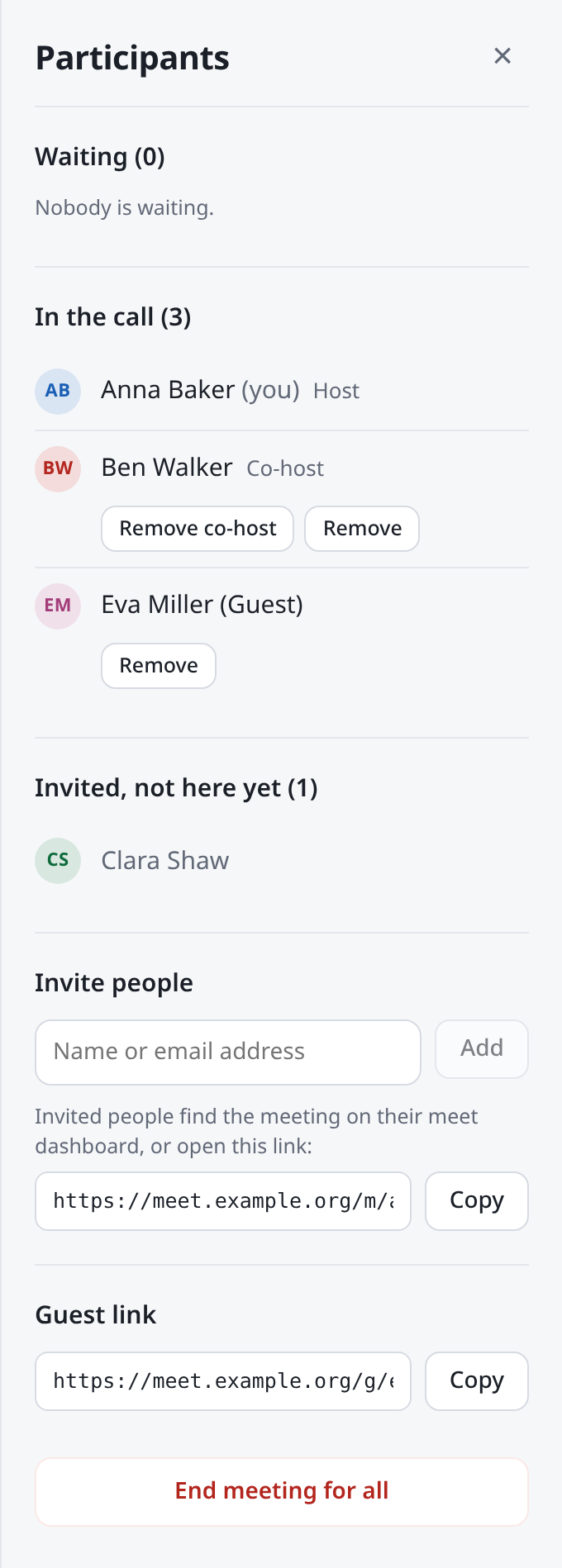
Hosts and co-hosts open it with Show participants and close it with ×. From top to bottom:
| Section | What you do there |
|---|---|
| Waiting | Admit or decline people waiting (see Waiting room). |
| In the call | See who is there, with their role. Remove people, choose co-hosts. |
| Invited, not here yet | Who is invited but neither in the call nor waiting. When everyone is there, it says "Everyone invited is here." |
| Invite people | Bring more people in. |
| Guest link | Copy the guest link, if the meeting has one. |
| End meeting for all | End the call for everyone. |
Removing someone
Choose Remove at the person and confirm. They are out at once and see: "You were removed from the meeting." Nobody can remove the host.
Choosing co-hosts
The host chooses Make co-host at a person with an account. They get a host's rights at once, the Participants panel included. They keep the role for the meeting, also on later dates of a series.
Remove co-host takes the role away again. The person stays in the call.
Guests without an account can't be co-hosts, and people of another organisation usually can't either.
Inviting people
- Under Invite people, type names or email addresses, as in the form (see Inviting).
- Choose Invite. Below it, it says whom you invited.
The people invited now find the meeting on their dashboard. You can also send them the link under Meeting link for invited people. Someone with an account who is waiting as a guest comes in as soon as you invite them.
The host can choose Co-host right here. Co-hosts invite as Invited.
Ending the meeting for everyone
Choose End meeting for all and confirm. The call ends for everyone, and they all see: "The meeting has ended." Anyone still waiting gets this message too. Jitsi's own button for ending for all is passed to Meet in the same way.
Leaving and rejoining
Jitsi's red button hangs up. It then says "You left the meeting." with:
- Rejoin: back into the call.
- Back to your meetings: to the dashboard.
If you reload the page, say after a connection problem, you go straight back in without waiting again. If you close the tab, your place is freed at once.