
Working together
In Docs everyone works on the same document, not on copies. What someone types shows up on your screen a moment later. There is nothing to save and nothing to merge.
Who is here
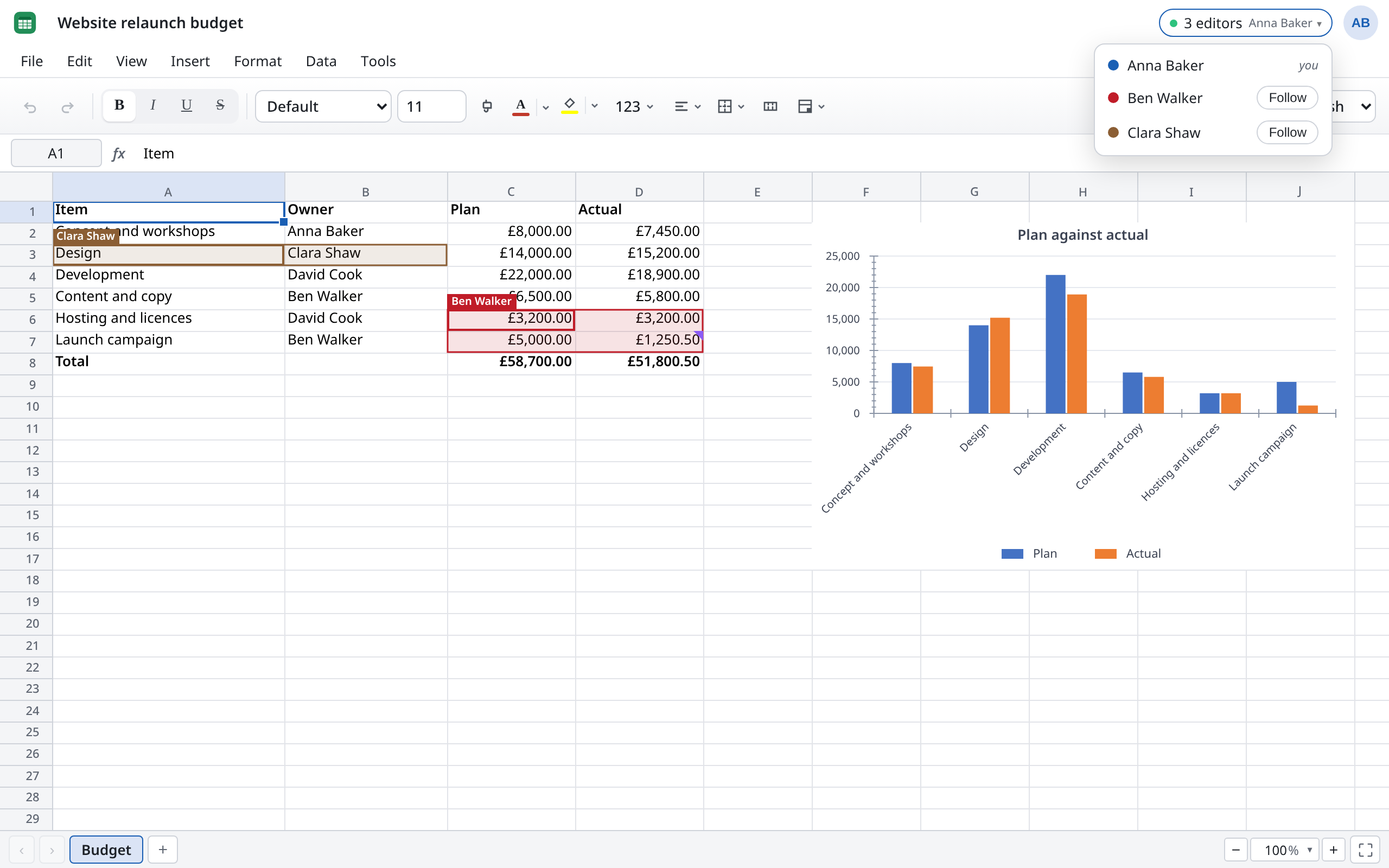
At the top right of the document you see how the connection stands:
| Shows | Meaning |
|---|---|
| Live | You are connected and alone in the document. |
| “3 editors” | You and two others have the document open. |
| Connecting… | Docs is connecting. |
| Offline | No connection. You can carry on working (see below). |
| Connection problem | The server isn't answering as expected. Docs keeps trying. |
Point at it to see the names. Click it to open the list: everyone, each with their colour.
The others' cursors
Everyone has a colour. In that colour you see where they are:
- in Sheets, the cells they have selected, with their name;
- in Writer, their cursor and what they have selected;
- in Slides, their initials on the slide they are on, in the slide panel on the left, and their cursor in the text.
Following someone
Handy in a meeting: you move automatically wherever someone else goes, to another sheet or slide too.
- Click the indicator showing the number of editors at the top right.
- Choose Follow next to the name. It now says Following.
- To stop, choose Following again.
Undo
++Ctrl+Z++ takes back only your own changes, never anyone else's. If someone else changed something you want back, get the old version from the version history.
Comments
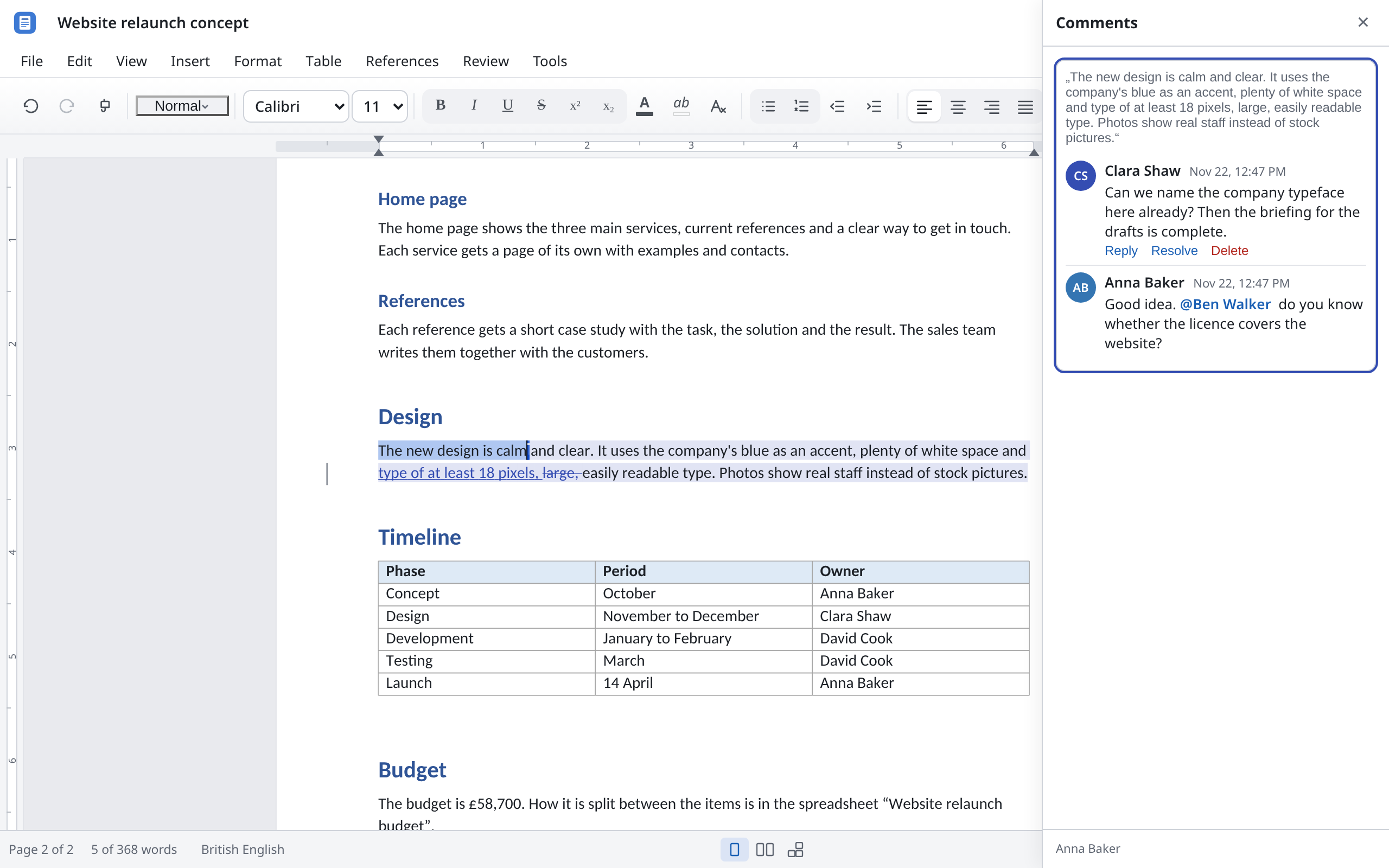
Comments let you discuss a document without changing it. A comment belongs to a place: a cell, some selected text or a slide. Others reply, and it becomes a conversation.
| Sheets | Writer | Slides | |
|---|---|---|---|
| Write a comment | Select the cell, then View → Comments | Select text, then Insert → Comment or Review → Comment | Insert → Comment (++Ctrl+Alt+M++) |
| See all comments | View → Comments | View → Show comments | View → Comments |
| Resolve | – | Resolve, or Review → Resolve comment | Resolve |
| Who can comment | everyone with access, Can view included | everyone who can edit | everyone who can edit |
In Sheets, a cell with a comment has a mark in its top right corner. Click the mark to open the conversation. The document's other conversations are under All comments. Copy link and Copy thread link give you a link that goes straight to that comment.
In Writer, commented text is highlighted. Click it to see the conversation. The comments pane hides resolved comments; Show resolved shows them again, and you can Reopen them.
In Slides, each comment has a mark on the slide. The comments pane shows the current slide's comments; New comment adds another.
In Sheets and Slides you can Edit your own comments afterwards. Delete removes a comment; in Sheets, the document's owner can delete other people's too.
Mentioning someone
In a comment, type @ and the first letters of a name, for example @Ben. Docs suggests the people the document is shared with. Pick one.
The person you mention finds out:
- at once in the document, if they have it open;
- otherwise in their overview under Mentioned you (see Overview).
When the connection drops
If the connection drops, on a train say, just carry on. Docs keeps your changes in this browser tab and sends them once the connection is back. What the others changed meanwhile then reaches you.
Other notices you may see:
| Notice | What to do |
|---|---|
| The server is busy, or can't save the document right now. | Nothing. Docs keeps trying on its own. Keep the tab open. |
| You've been signed out, but your changes are safe in this tab. | Choose Sign in (opens a new tab). Once you're signed in, your changes are saved. |
| Your session has ended. | Sign in again. You come back to the document, and nothing saved is lost. |
| Your access to this document was withdrawn. | Anything you change now is no longer saved. Ask the owner for access. |
| The document was deleted. | It can no longer be opened. Go back to the overview with Back to my documents. |
| A change was too large, was refused by the server, or the document has reached its size limit. | You see the change, but the others don't. Undo it and try in smaller steps. If the document is full, spread the content over several documents. |