
Slides
Slides is the presentation app of Docs. The slide panel on the left, the slide in the middle, the notes below. PowerPoint presentations open with their masters, animations and transitions, and look as they did there.
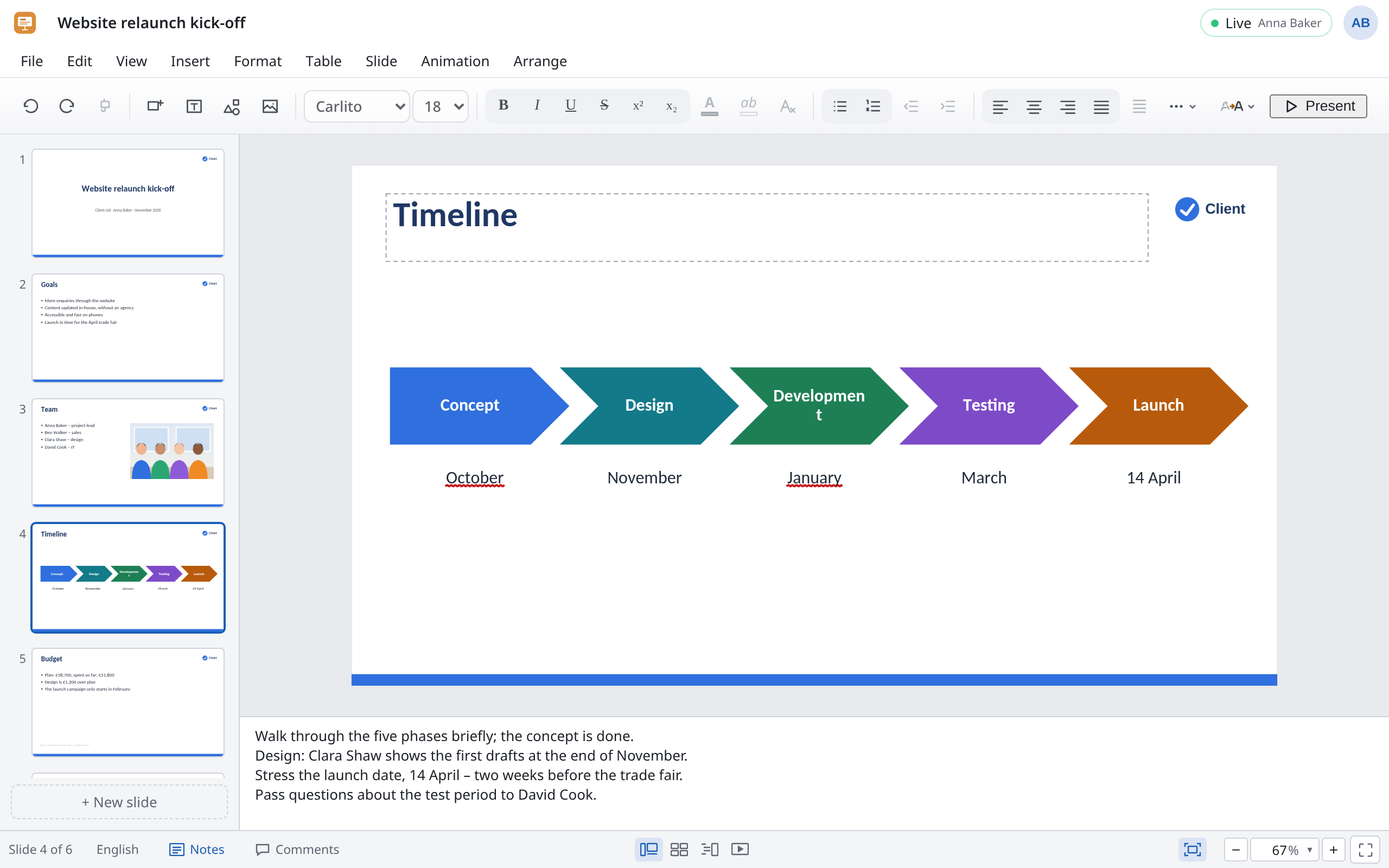
The menus
| Menu | What you'll find there |
|---|---|
| File | Open a presentation…, downloading as PowerPoint, OpenDocument, PDF and pictures, Version history, Compare with another version…, Create a video…, Print… |
| Edit | Undo, duplicate, delete, find and replace |
| View | Slide show, Normal, Slide sorter, Outline, Slide master, Notes, spelling, Check accessibility, Comments, ruler, guides, zoom |
| Insert | New slide (including Reuse slides… from another presentation), Text box, Comment, equation, SmartArt, Header & footer…, Slide zoom, link, shape, image, icons, Video or sound…, drawing, table, chart |
| Format | Font, paragraph, bullets and numbering, change case, text box, WordArt |
| Table | Rows and columns, merging and splitting cells, table style |
| Slide | New slide (++Ctrl+M++), duplicate, delete, Hide slide, move, sections, Edit design, Design, Theme colours and fonts…, Transition, Background colour, Slide size |
| Animation | Adding effects, start, direction, order, Animation pane |
| Arrange | Order, size, rotation, alignment, grouping, merging shapes |
Slide masters and designs
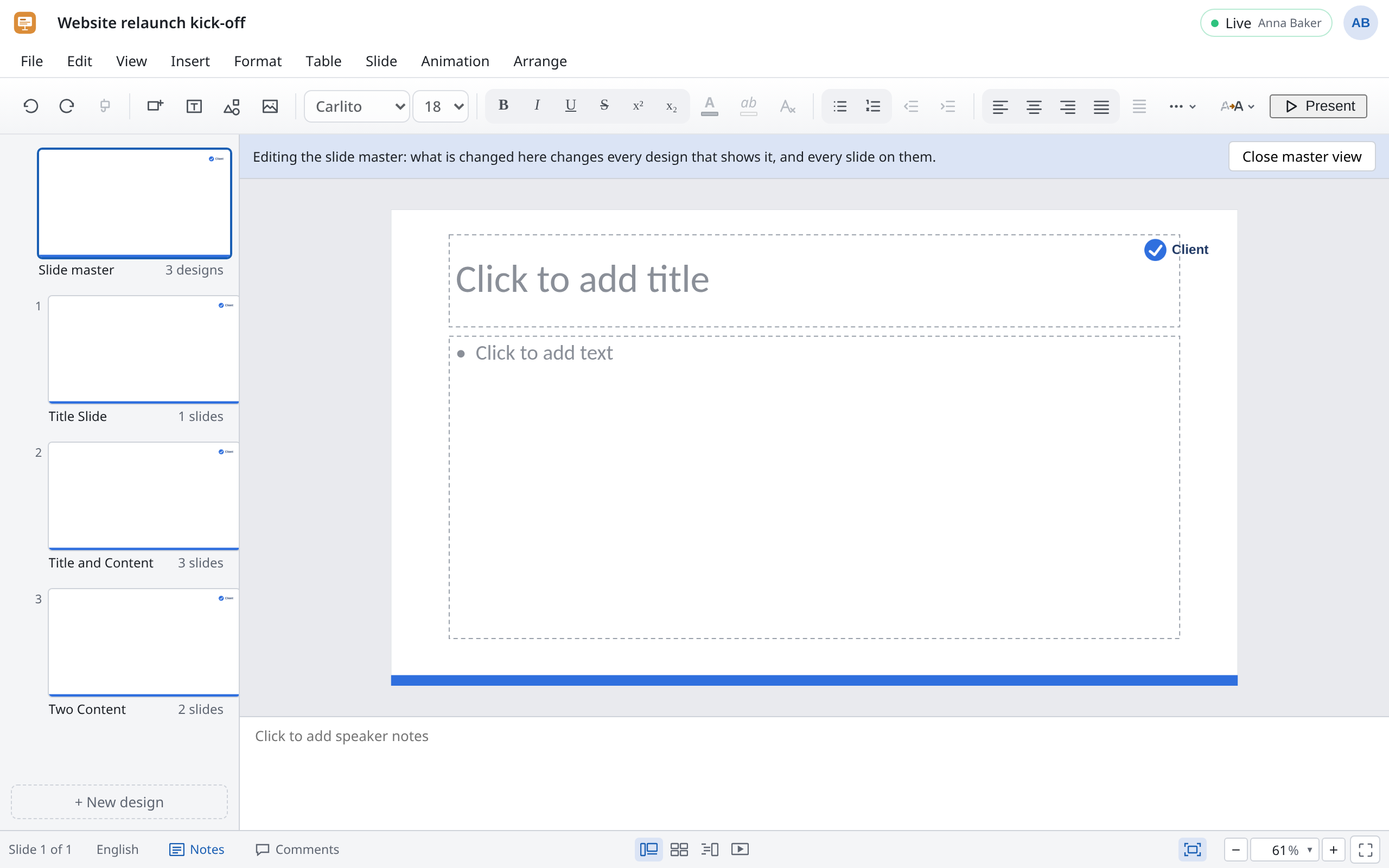
To make all slides look alike, you set fonts, colours, logo and where the placeholders go once in the master rather than on every slide. Each slide follows a design (in PowerPoint: a layout), such as “Title slide” or “Title and content”.
- Change a slide's design: Slide → Design and pick one.
- Change a design: Slide → Edit design. What you change applies to every slide with that design. Go back with Close design.
- Change the master for everything: View → Slide master. The master is on the left with its designs below. Insert → Insert placeholder gives a design more placeholders for a title, text, content or a picture.
- Colours and fonts of the whole presentation: Slide → Theme colours and fonts….
If you moved and reshaped things on a slide by hand, Slide → Reset slide puts it back to its design.
Animations
Animations make individual things on a slide appear, stand out or disappear.
- Select the item, for example the list of milestones.
- In the Animation menu, choose Add entrance, Add emphasis, Add exit or a Motion path, then the effect, for example Fade.
- Start, Direction and Speed set when and how it runs. For text, choose By paragraph so that one point comes after another.
The Animation pane gives you an overview of all animations on a slide: change their order, duration and delay there. The menu also has Play earlier and Play later. Animation painter gives another item the same animation.
Transitions
A transition is the effect when one slide gives way to the next.
- Select the slide.
- Choose Slide → Transition and an effect, for example Push or Morph.
- Timing and sound… sets the duration and sound, and whether to Advance slide automatically after a time.
- To use it everywhere: Apply to all slides.
Morph moves matching items smoothly from where they are on one slide to where they are on the next, as in PowerPoint.
Presenting
| Command | Key | What happens |
|---|---|---|
| View → Slide show → Present from the beginning | F5 | The show starts from the first slide, full screen. |
| Present | ++Shift+F5++ | It starts from the current slide. The button is also in the status bar at the bottom. |
| Presenter view | ++Alt+F5++ | Like Present, plus a second window just for you (see below). |
During the show:
| Key | Effect |
|---|---|
| →, Space, Enter or a click | forward: next animation or next slide |
| ← or Backspace | back |
| slide number and Enter | jump to that slide |
| G | all slides at a glance |
| B / W | black or white screen; press again to come back |
| ++Ctrl+P++ / ++Ctrl+L++ / ++Ctrl+A++ | pen, laser pointer, back to the normal pointer |
| E | erase what you drew with the pen |
| Esc | end the show |
Set up slide show… chooses whether someone presents or the show runs by itself at a kiosk, whether it loops, and which slides it shows. Rehearse timings measures how long you take for each slide while you practise.
Presenter view
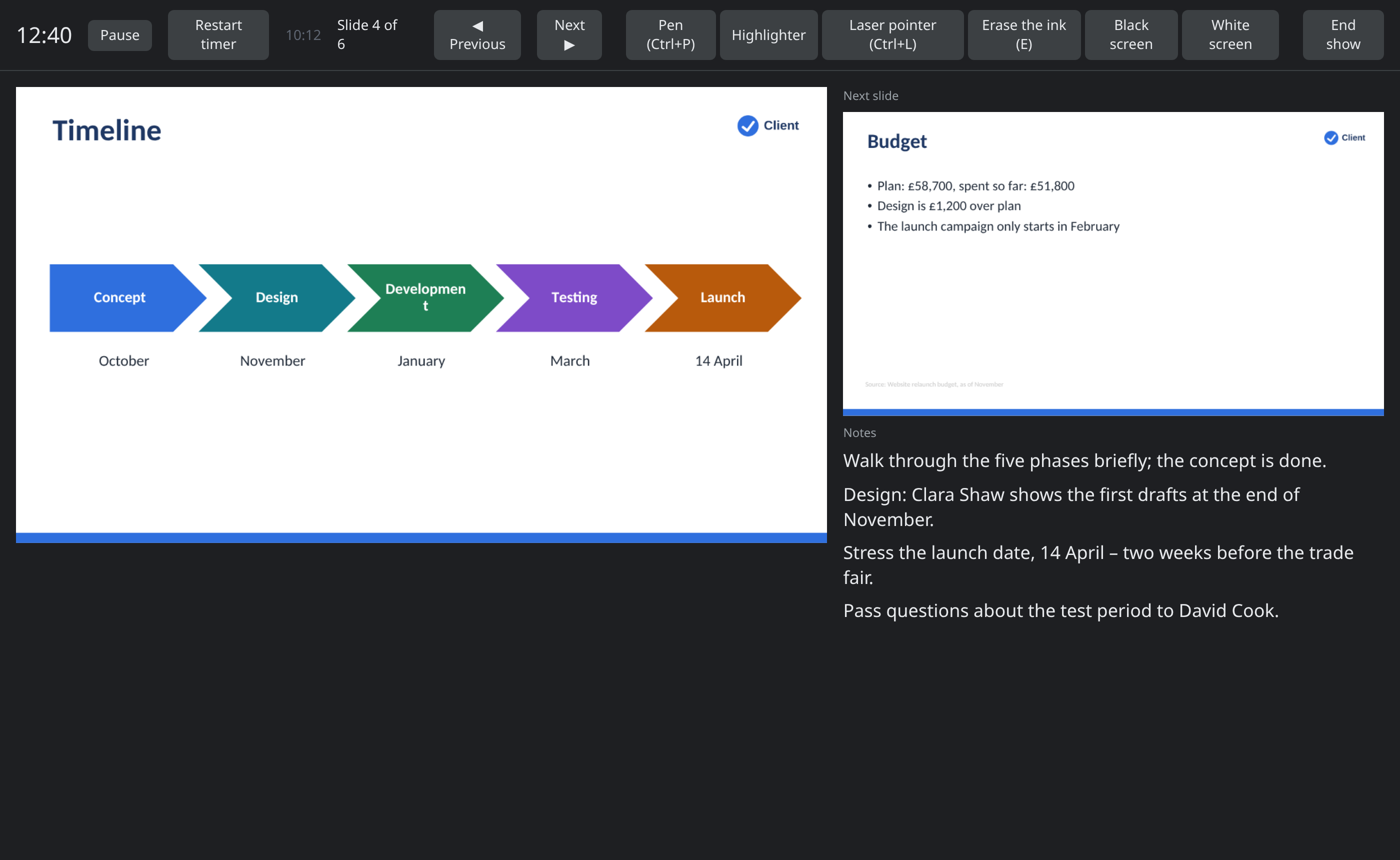
Presenter view opens a window of its own with the current slide, the Next slide, your Notes and the Time elapsed, plus the time of day. The slides themselves run in the other window.
- Connect the projector or second screen and set it up as an extended display.
- Choose Presenter view (++Alt+F5++). If your browser blocks the new window, allow pop-ups for Docs.
- Drag the window with the slides onto the projector and double-click it: it goes full screen.
- Steer with Next and Previous or the arrow keys. Pause stops the clock, Restart timer resets it, End show ends it all.
Making a video
Turn a presentation into a video, for everyone who missed the kick-off, say.
- Choose File → Create a video….
- Choose the Size: 1920 × 1080, 1280 × 720 or 852 × 480.
- Under Seconds on each slide, say how long a slide without its own timing stays on screen.
- Choose Create video.
The video includes transitions, animations, and the videos and sounds that start by themselves. It is made in real time: a ten-minute presentation takes ten minutes. Keep the tab open until then; Stop cancels. At the end your browser downloads an MP4 file. If your browser can't make MP4, you get a WebM video instead.
Different from PowerPoint
- No saving. Every change is kept straight away. To get a
.pptx, use File → Download as PowerPoint (.pptx). - Open a presentation… makes a new document from the file; it doesn't change the open presentation.
- Layouts are called designs. What PowerPoint calls a layout, you choose in Slides under Slide → Design.
- No macros. A
.pptmopens without its macros. - Animations that Slides can't play become a fade or are dropped.